




Warning! The content within this article is over 36 months old and, therefore, may be out of date.
HOWTO: Replace a VMCA certificate via the GUI in vSphere 6.5 with PSC & VCSA
Share this article on:



Platform Services Controller vCenter VCSA VMCA VMware vSphere
Published on 25 March 2017 by Christopher Lewis. Words: 344. Reading Time: 2 mins.
Introduction
In this blog post we will walkthrough how to use the GUI to replace the SSL certificates on both the vCenter Server Appliance (VCSA) and Platform Service Controller (PSC) in vSphere 6.5.
Step by Step Guide
Prerequisites
- A VMCA SSL Certificate (such as
root_signing_cert.cer) - A RSA Private Key (such as
root_signing_cert.key)
Process Overview
The high level steps are as followed:
- Log into the External Platform Services Controller.
- Replace the Root Certificate.
- Connect to the PSC Appliance.
- Renew the Machine SSL Certificate.
- Renew the Solution User Certificate.
- Connect to the VCSA Appliance.
- Renew the Machine SSL Certificate.
- Renew the Solution User Certificate.
- Reboot the Platform Services Controller.
Process Breakdown
Log into External Platform Services Controller
- Navigate to
https://psc-appliance.fqdn/psc.
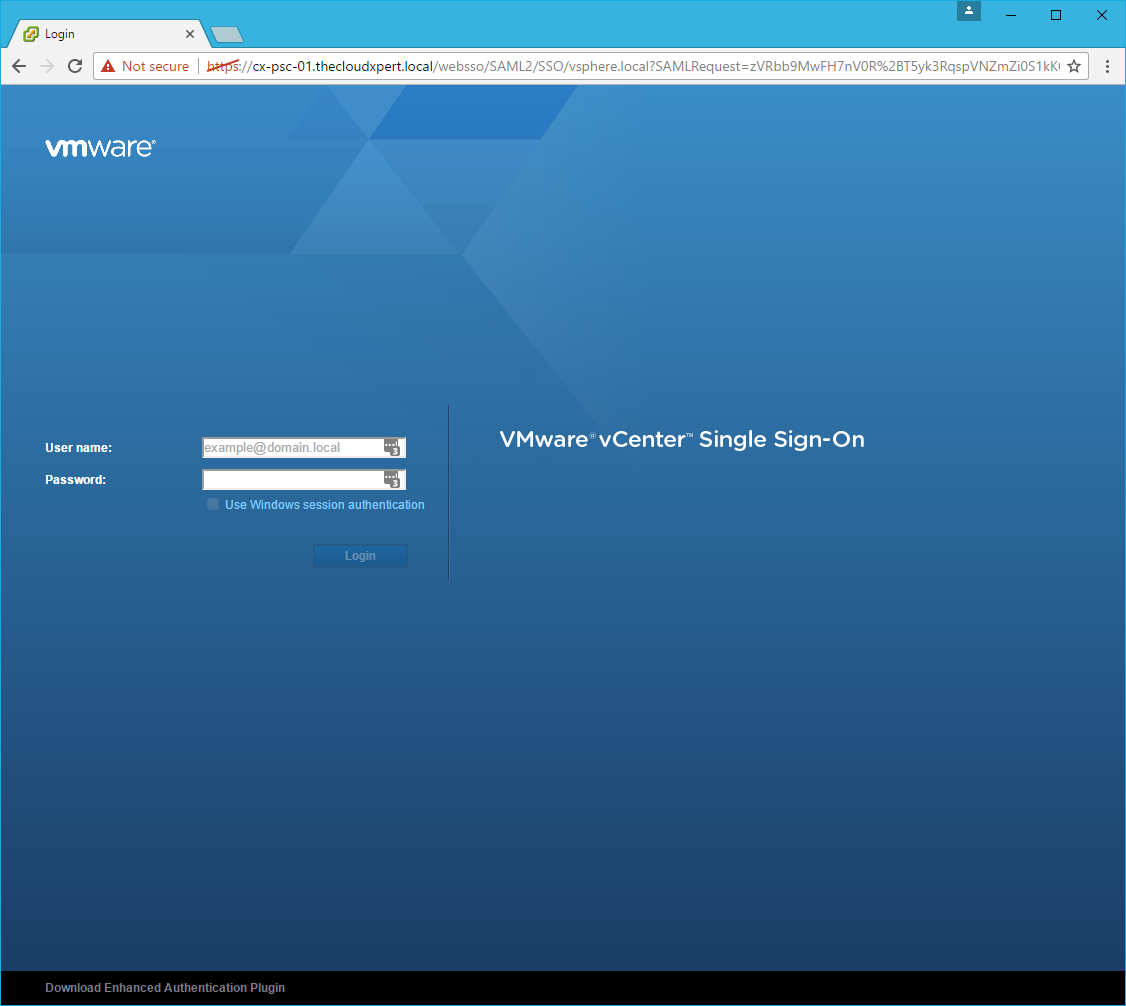
- Log in using the SSO Administrator account (e.g.
administrator@vsphere.local) and password.
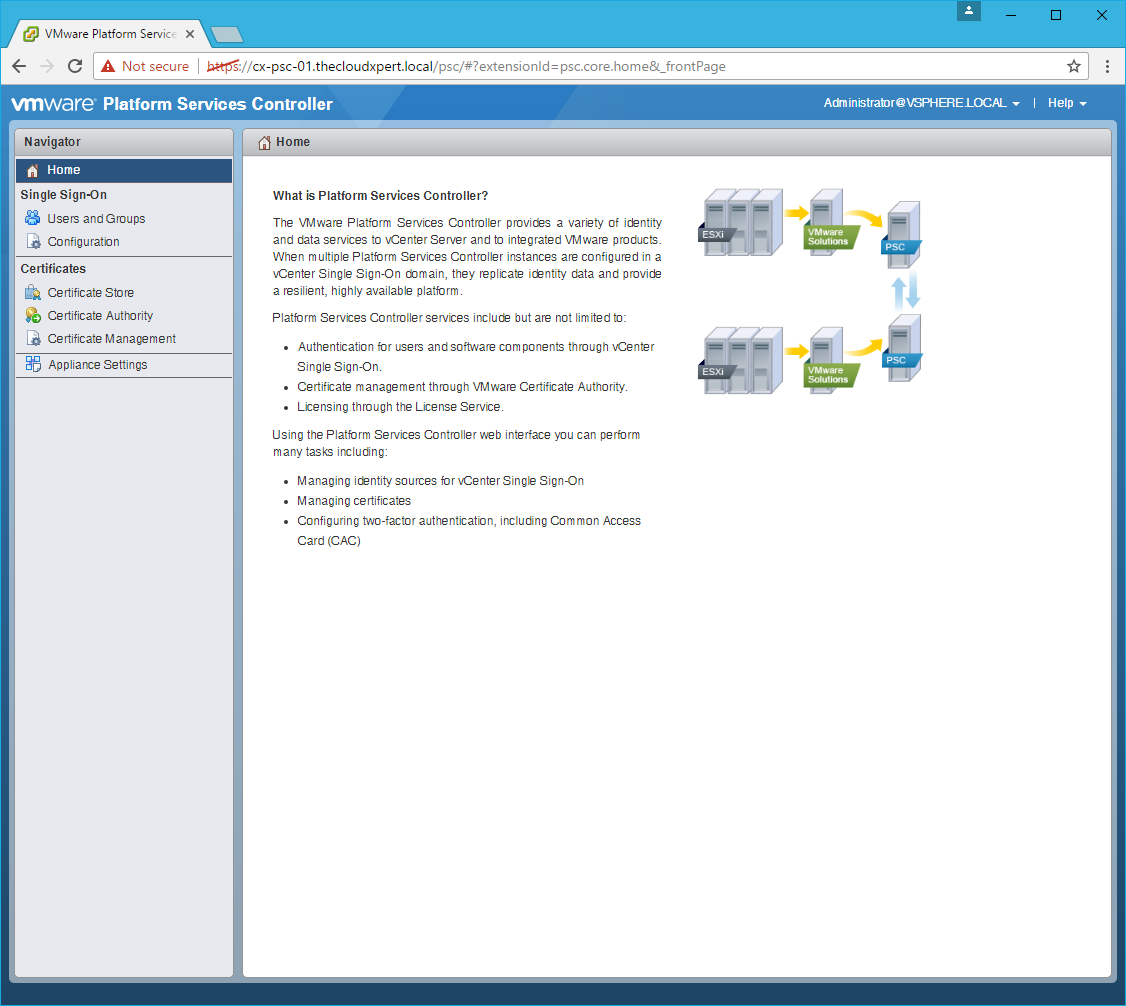
Renew the Root Certificate
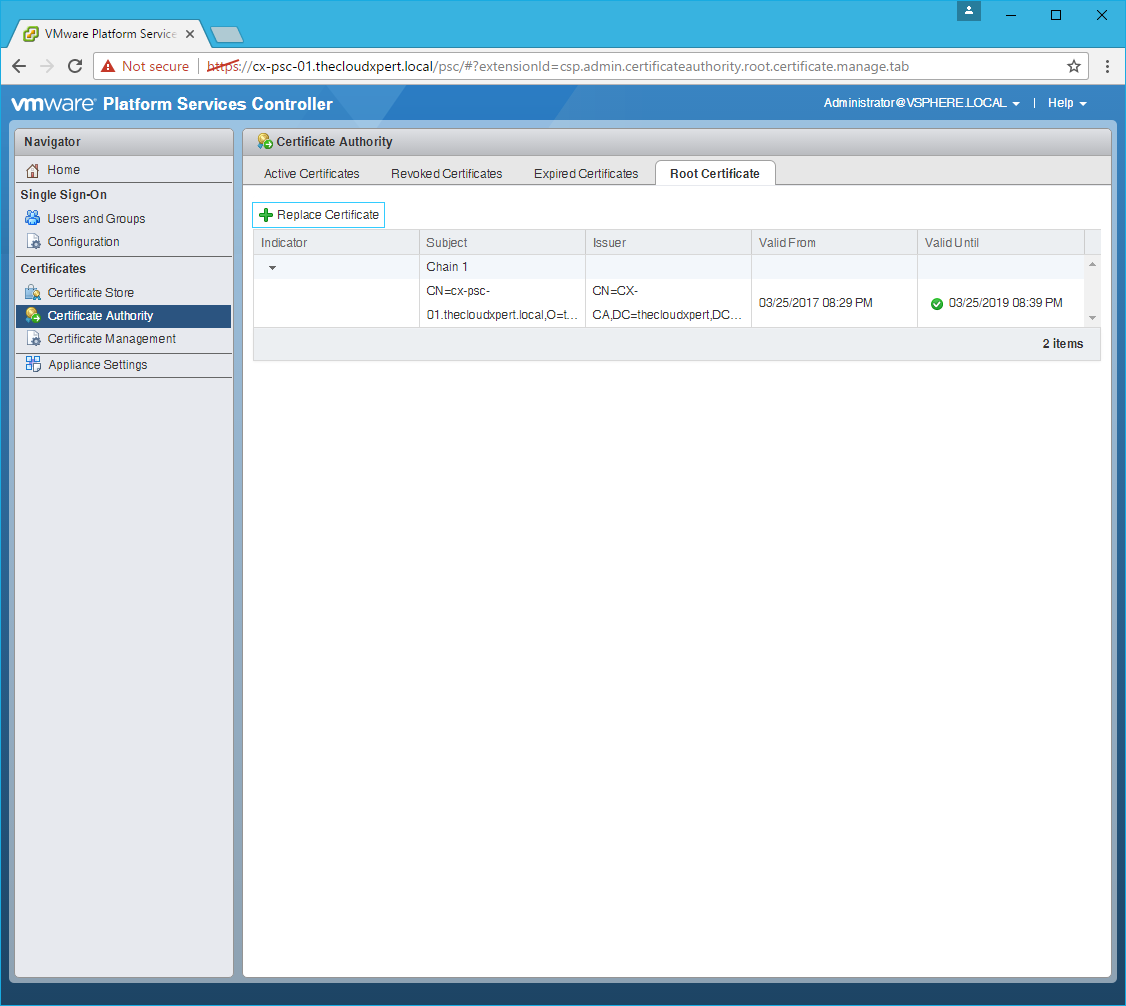
- Click Certificate Authority > Root Certificate.
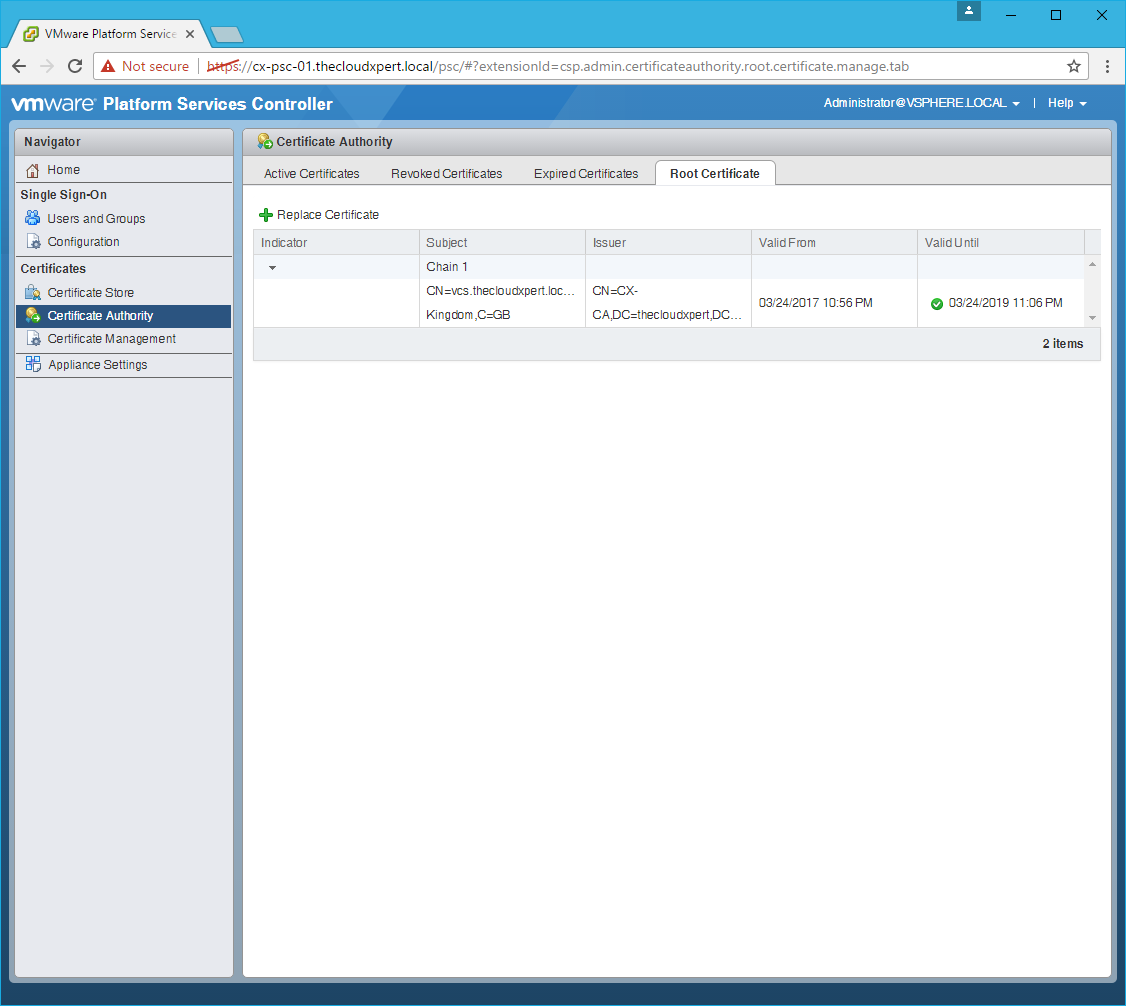
- Click Replace Certificate.
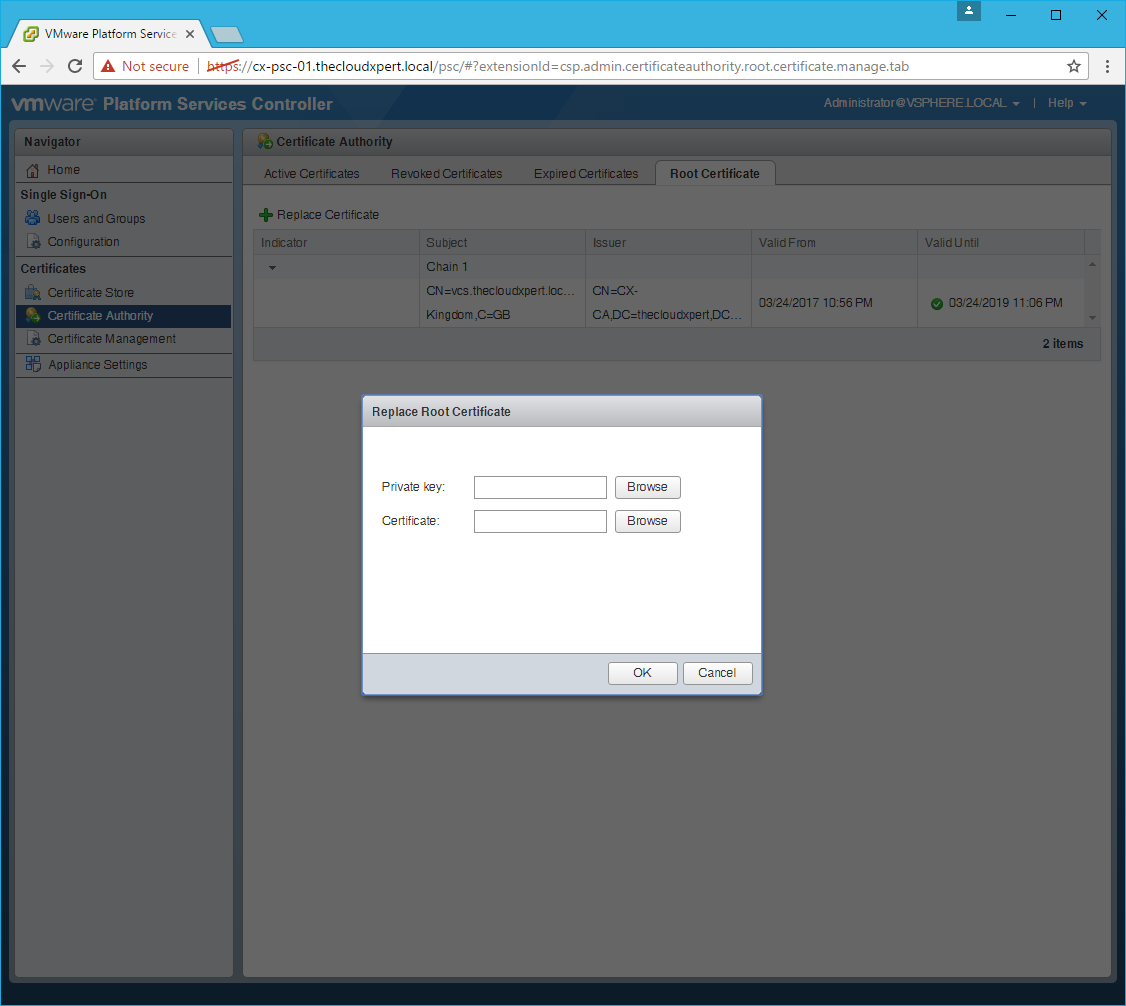
- Click Browse and locate the Private Key file and click Open.
- Click Browse and locate the VMCA Certificate file and click Open.
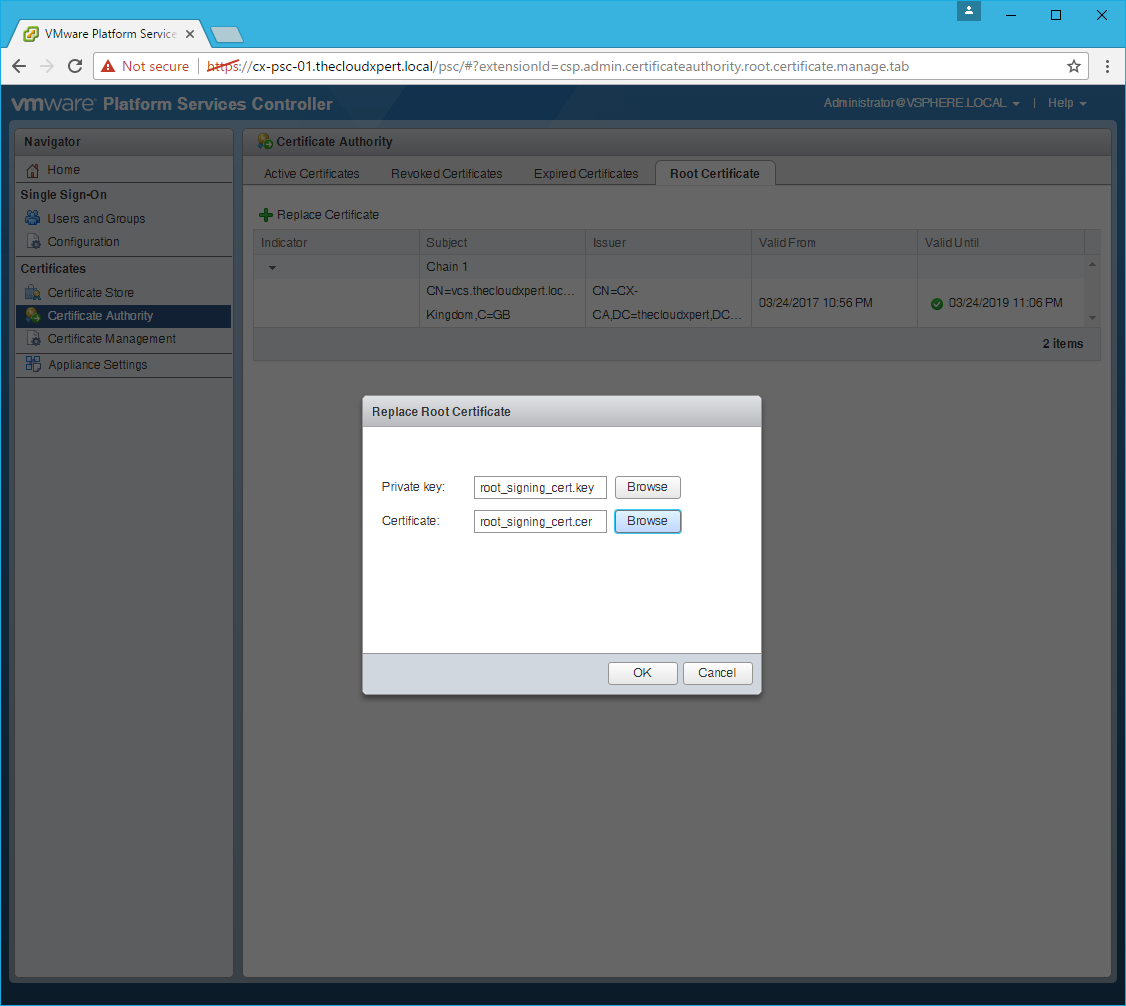
- Click OK.
Connect to the Platform Services Controller
- Click Certificate Management.
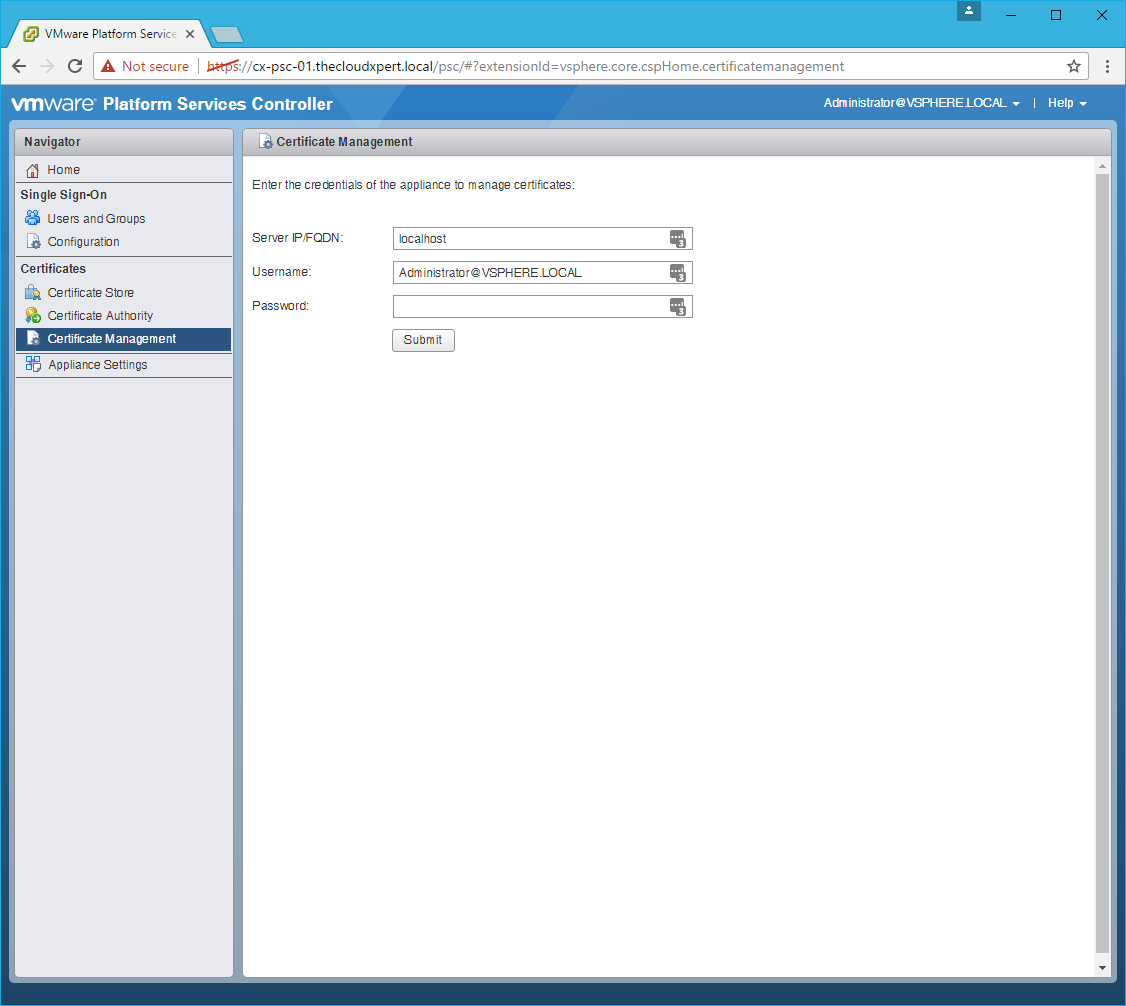
- Type the SSO Administrator password and click Submit.
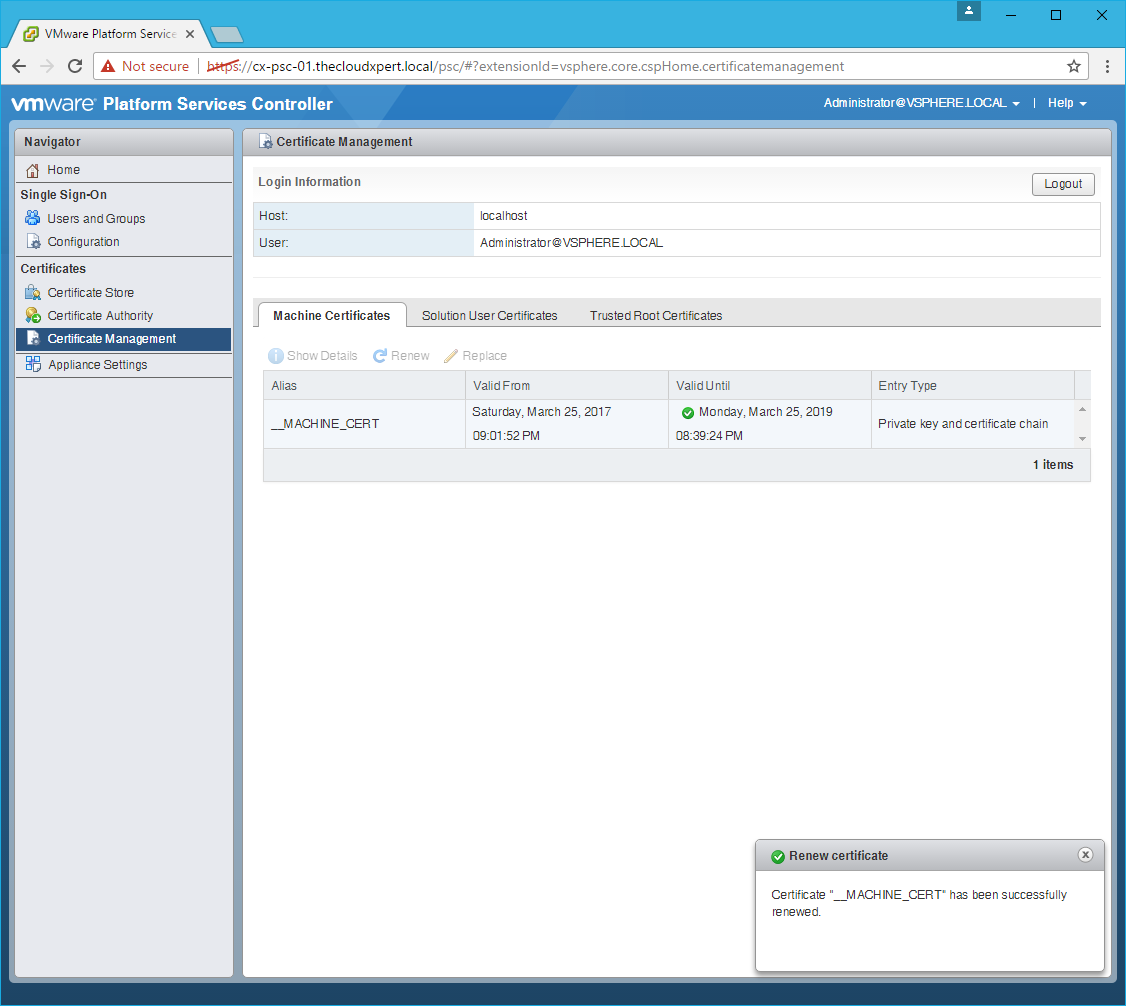
Renew the Machine SSL Certificate
- Click the Machine Certificates tab.
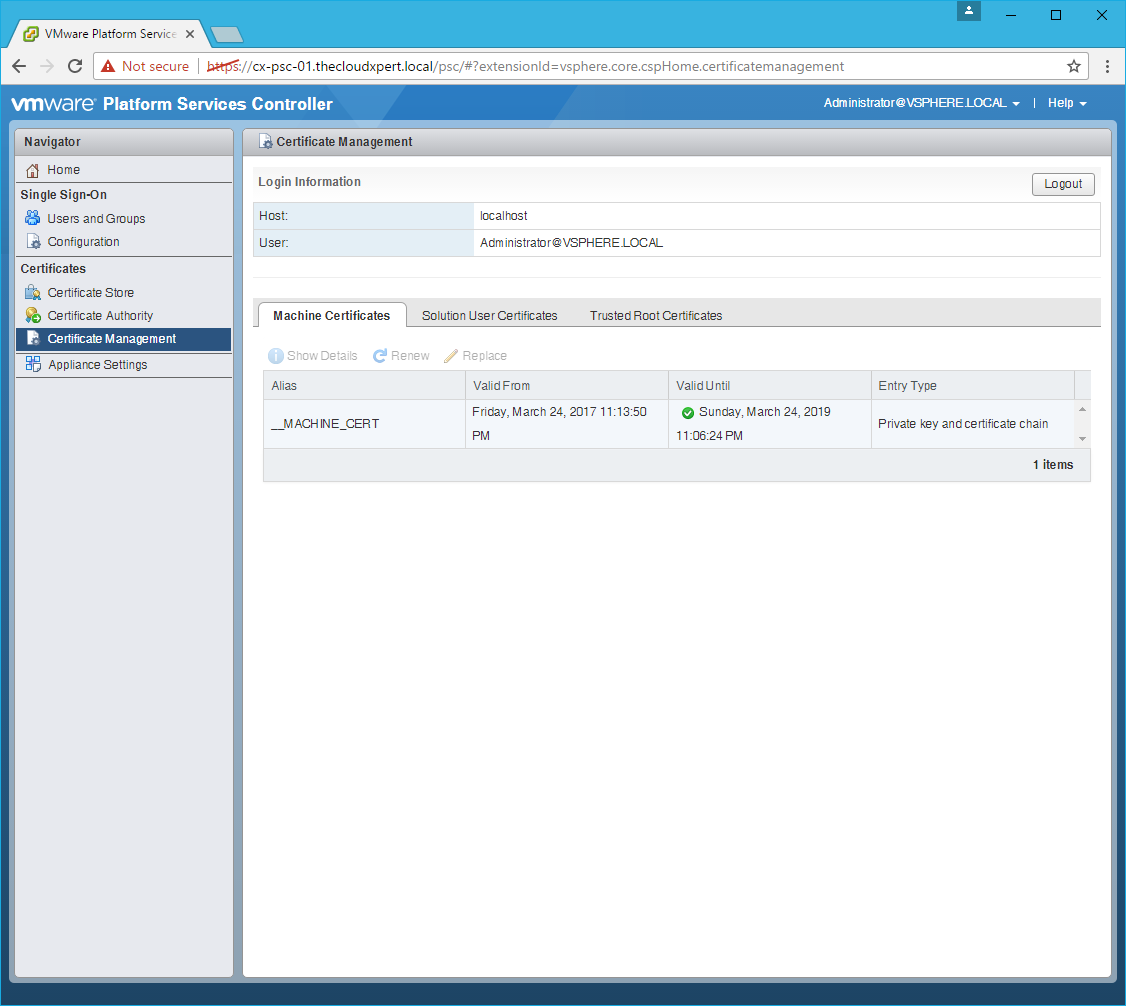
- Select the
__MACHINE_CERTand click Renew.

- Click Yes.
Renew the Solution User Certificates
- Click the Solution User Certificates tab.
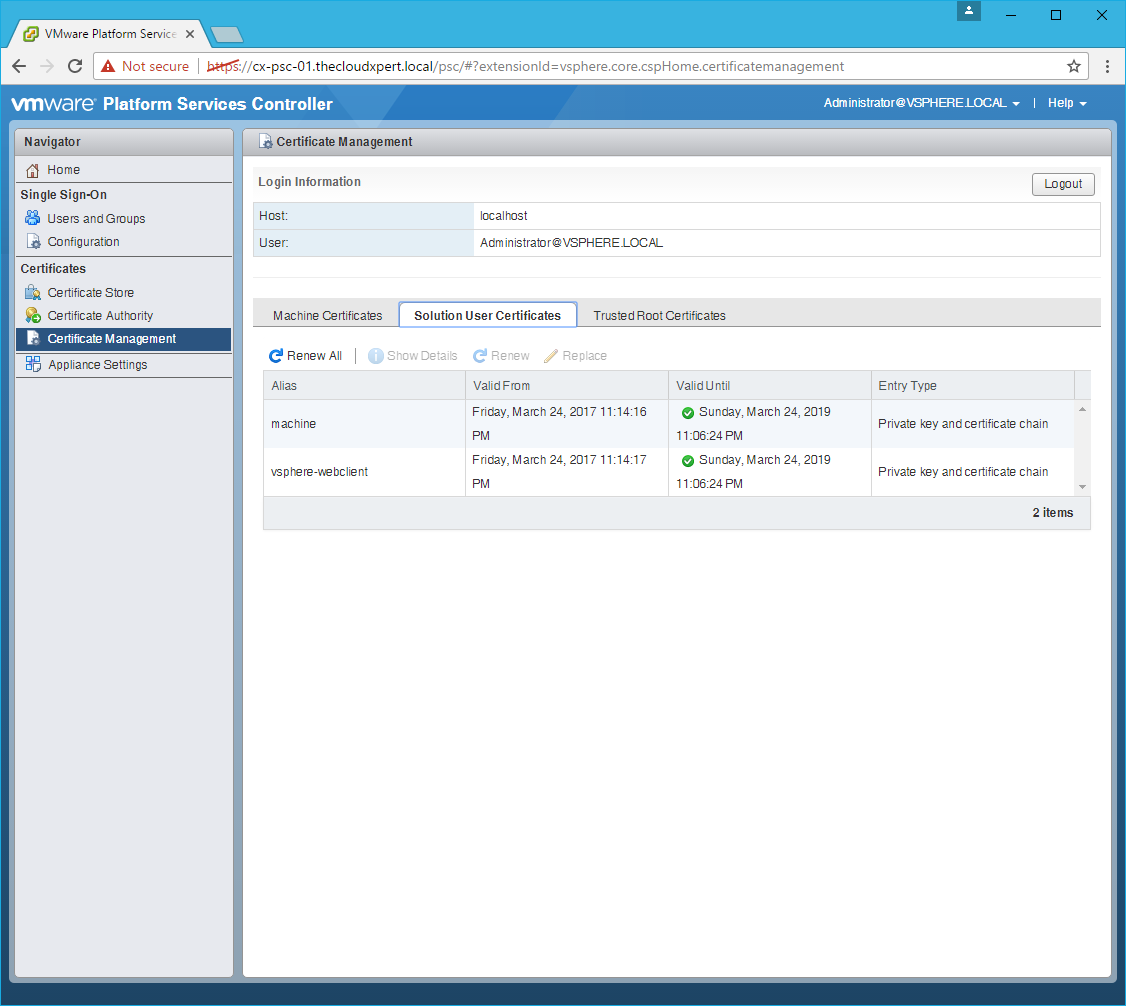
- Click Renew All.
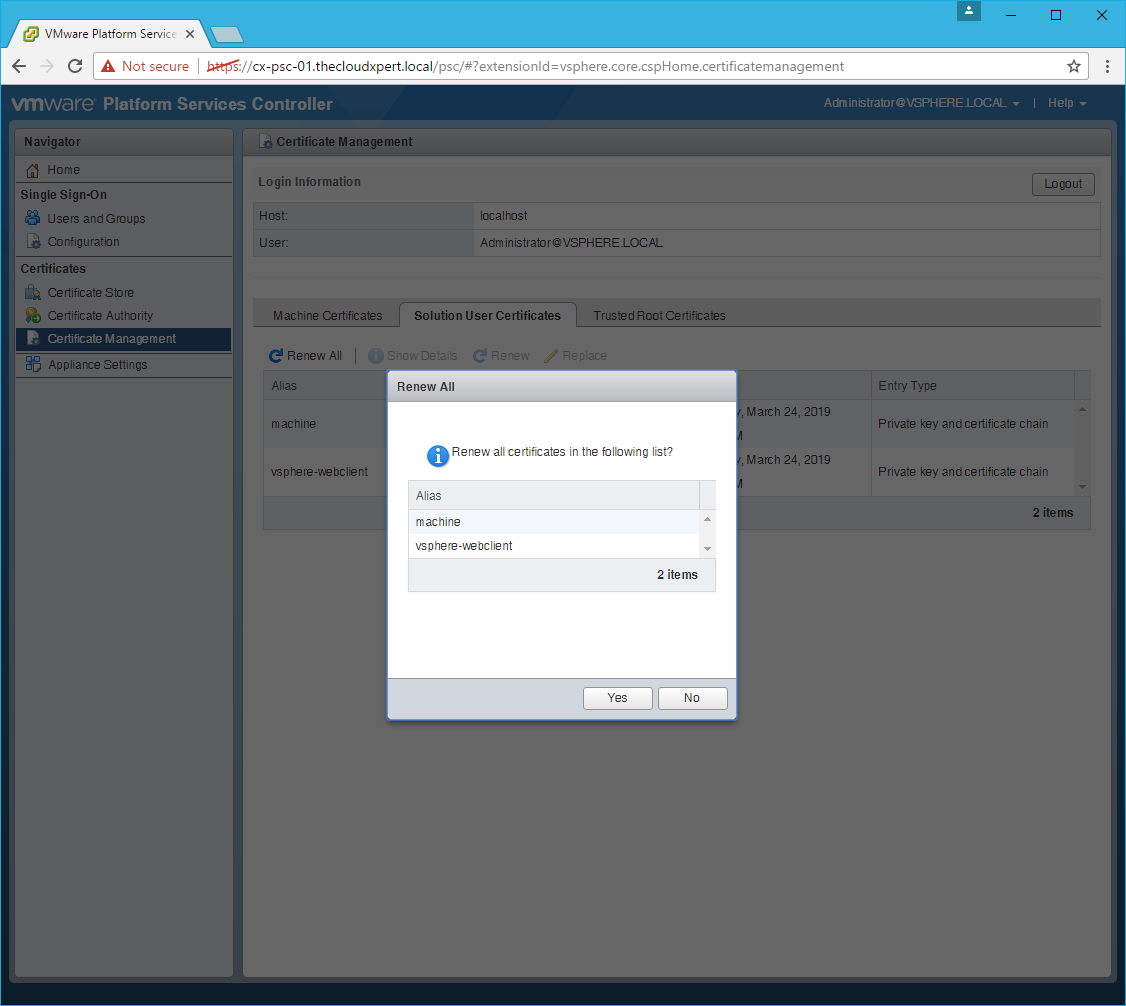
- Click Yes.
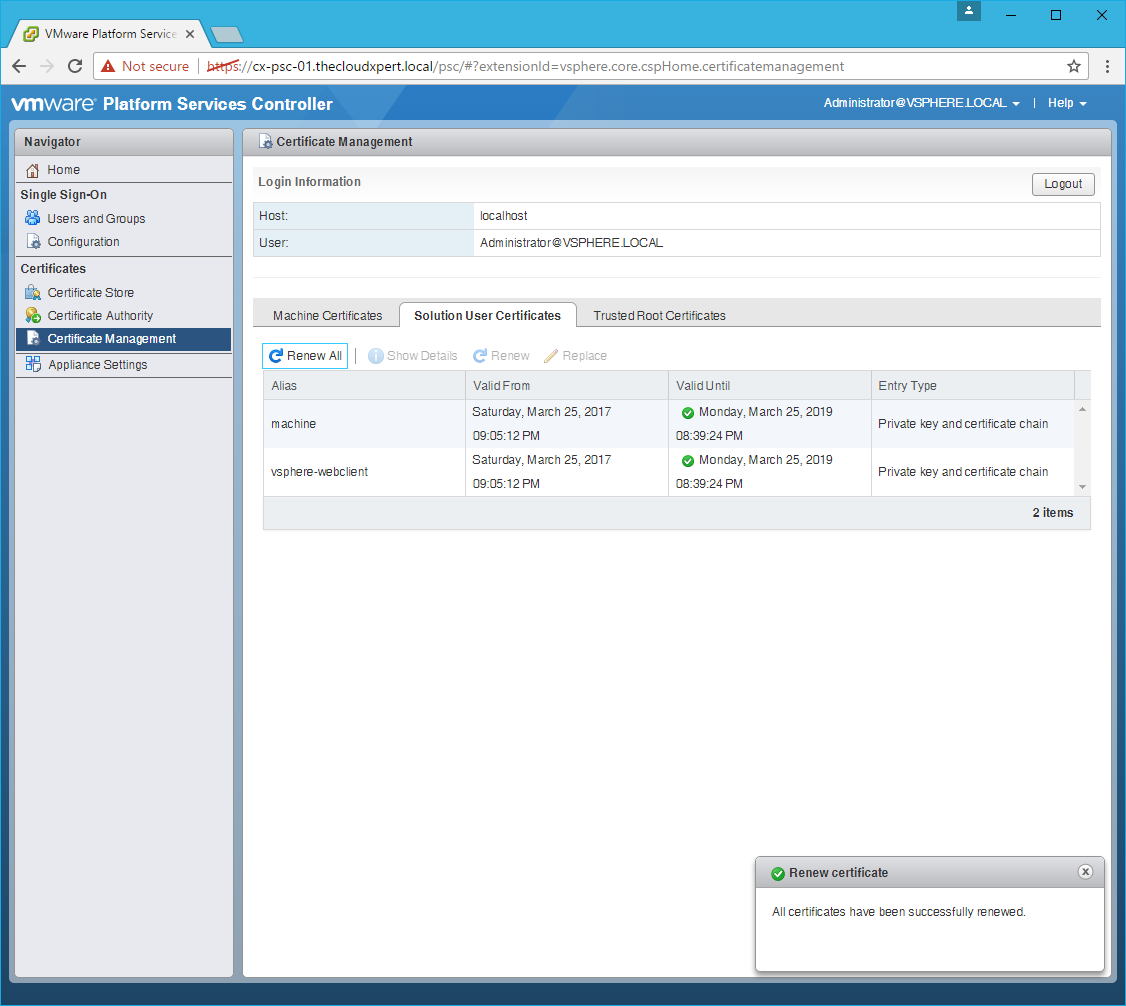
- Click Logout.
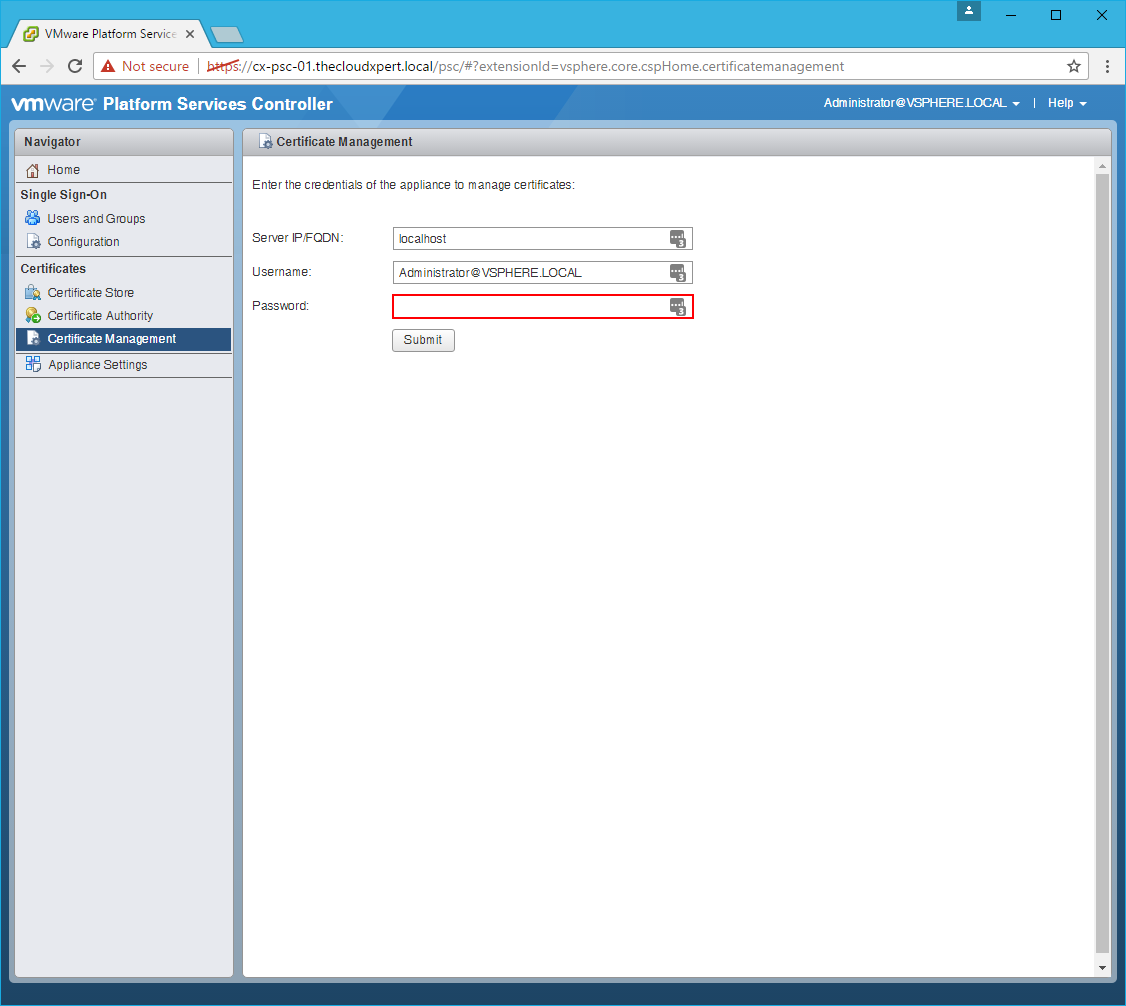
Connect to the vCenter Server
- Type the
vcenter.fqdninto the Server IP/FQDN text box and then enter the password for the SSO Administrator.
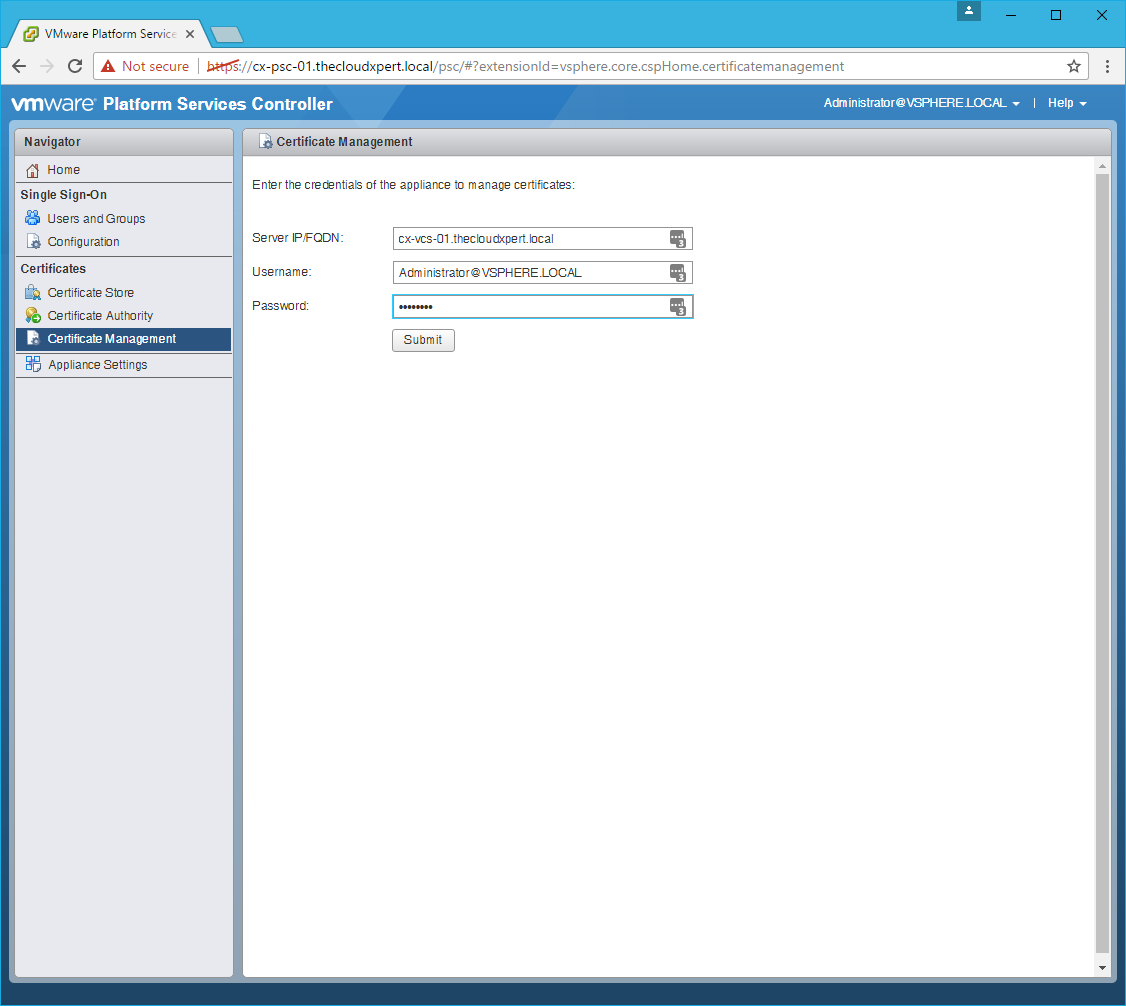
- Click Submit.
Renew the Machine SSL Certificate
- Click the Machine Certificates tab.
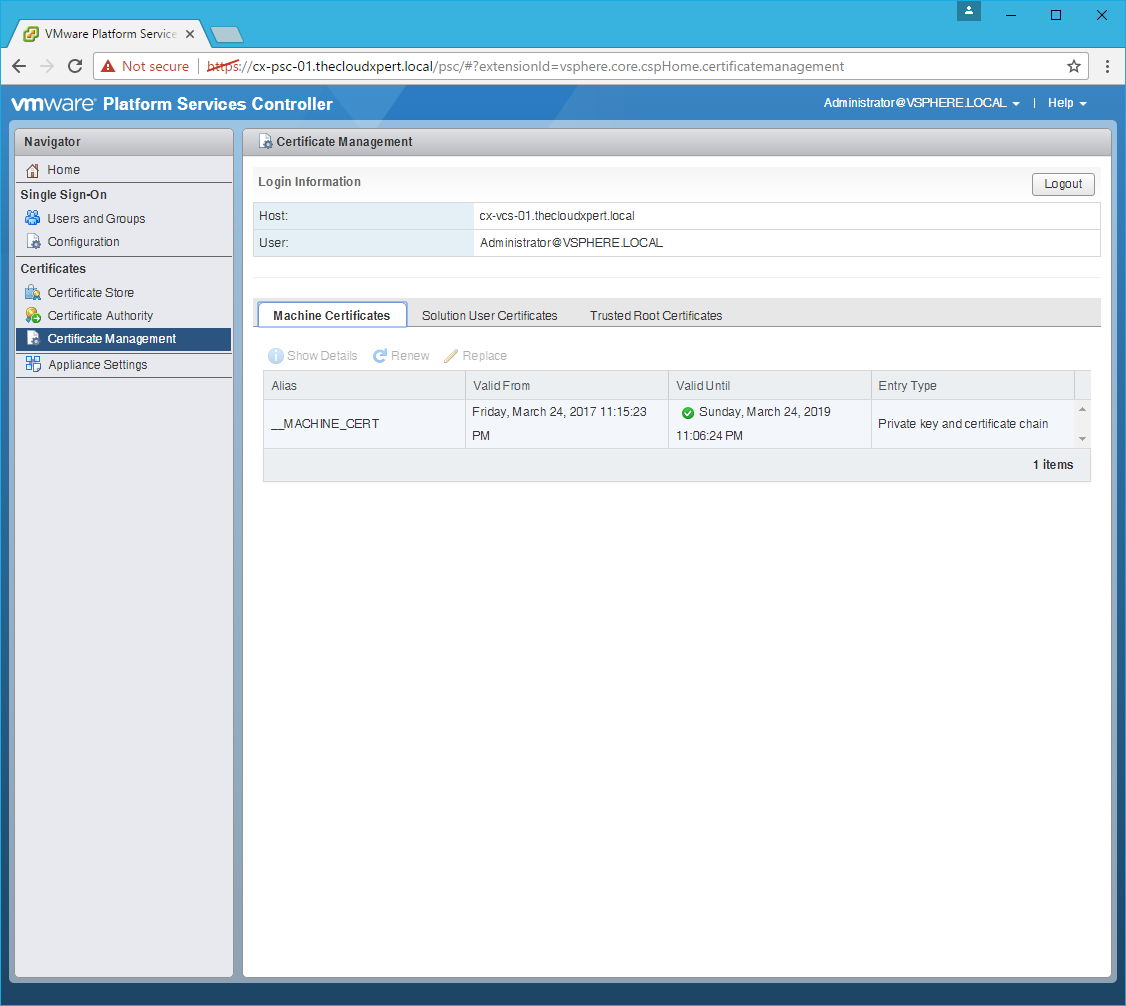
- Select the
__MACHINE_CERTand click Renew.
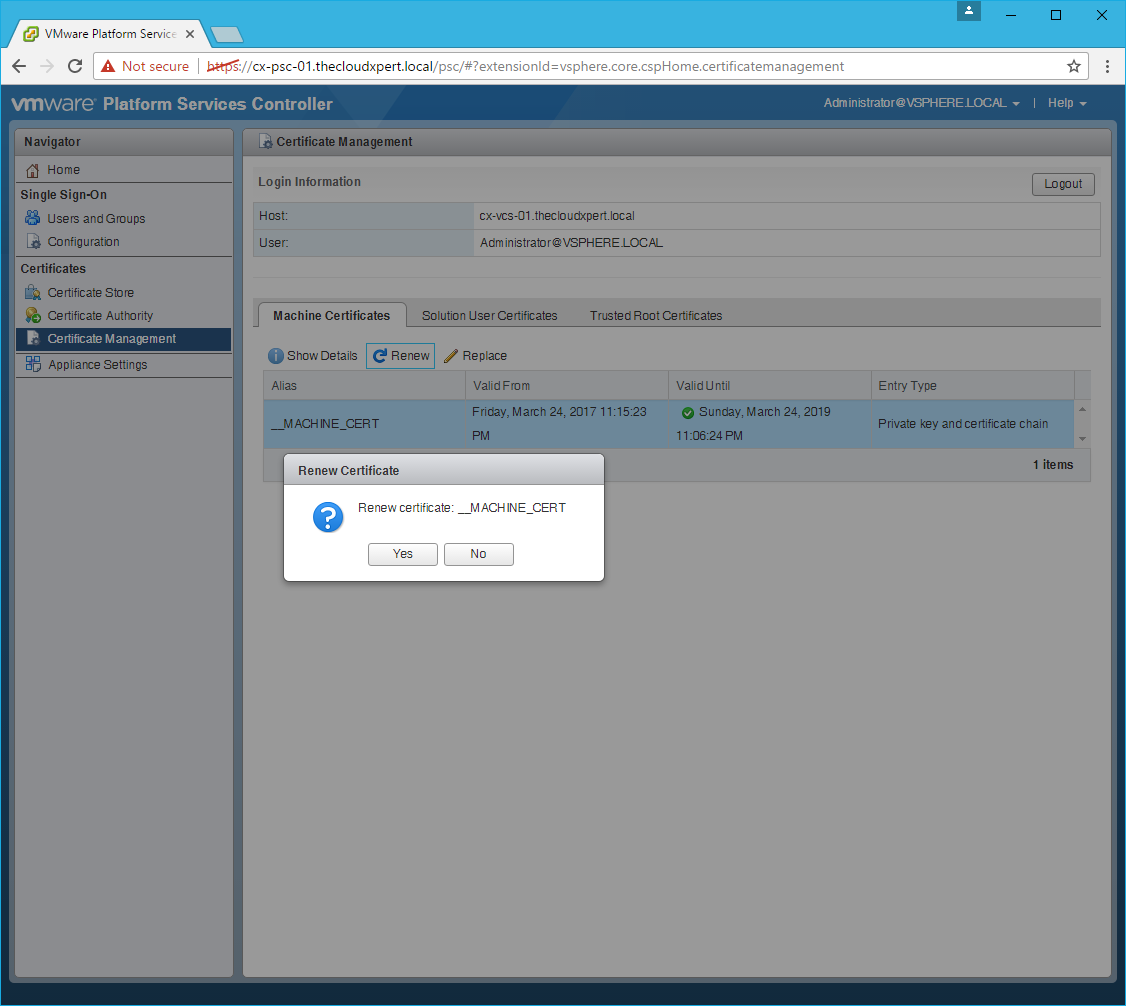
- Click Yes.
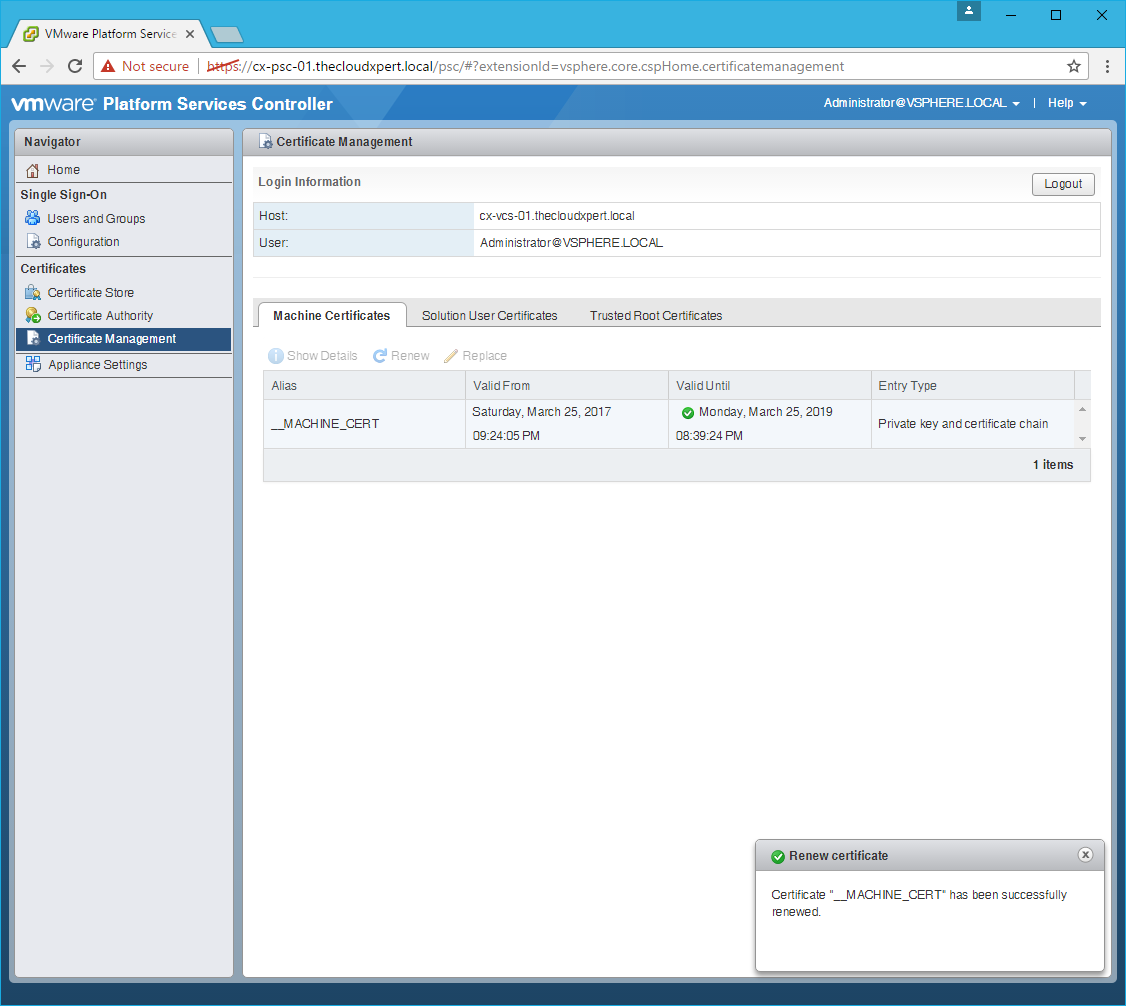
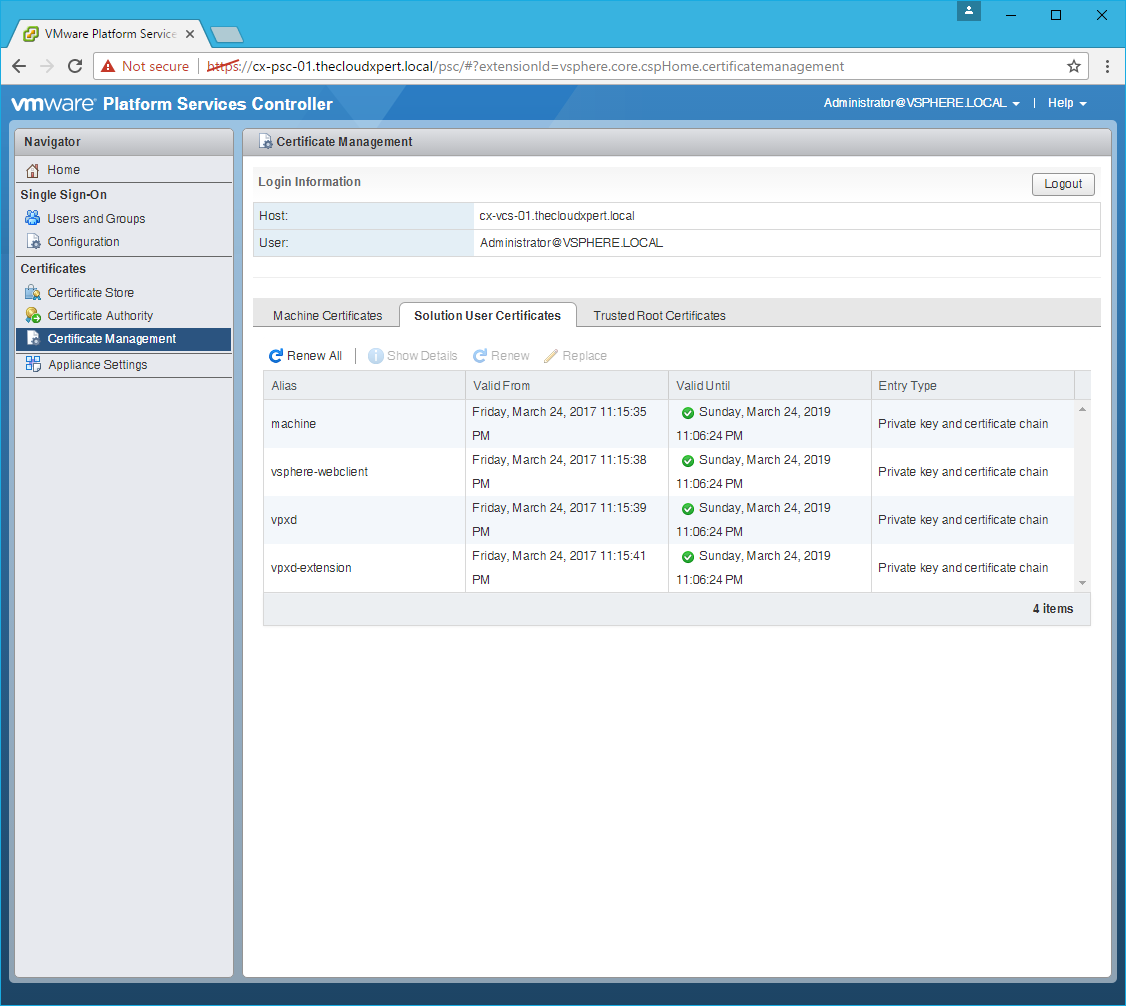
Renew the Solution User Certificates
- Click the Solution User Certificates tab.
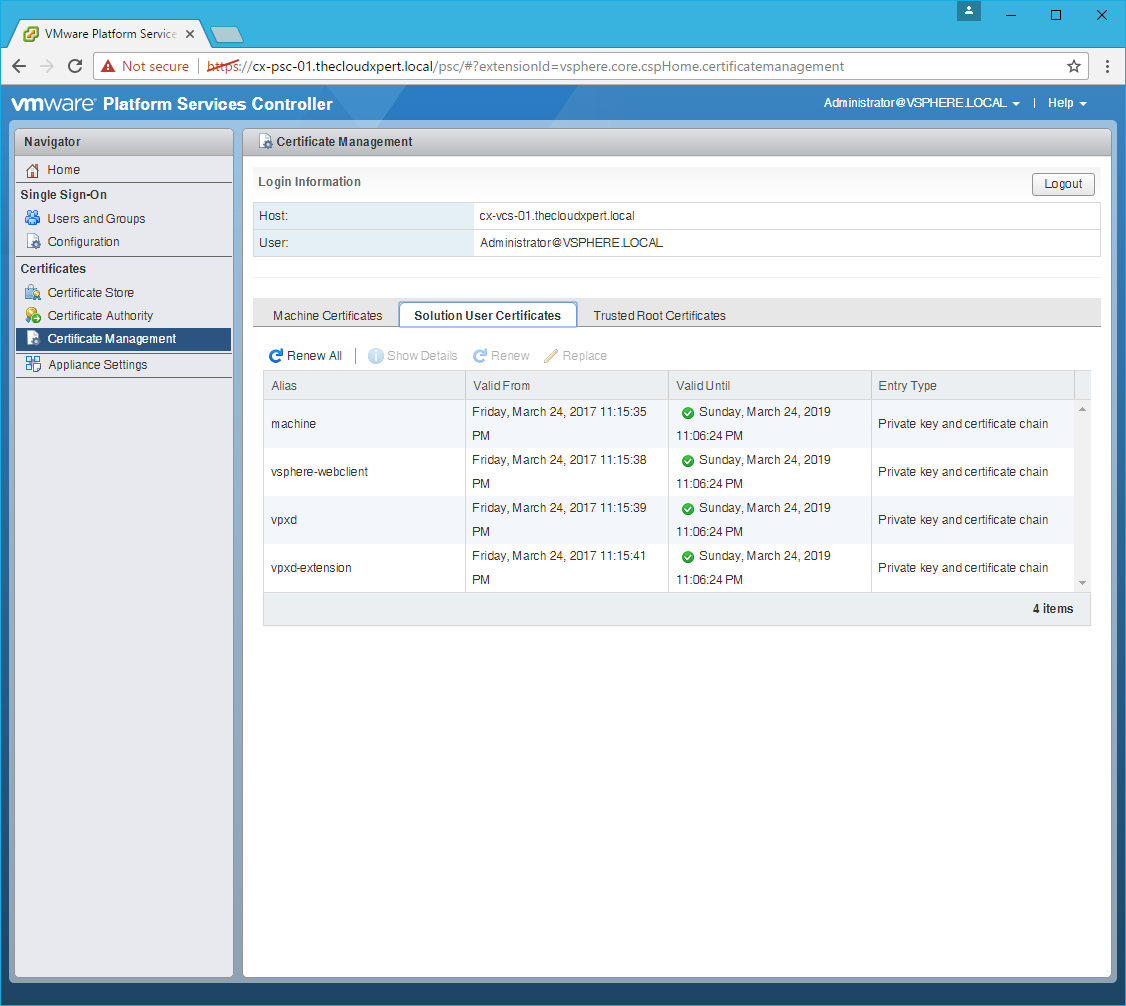
- Click Renew All.
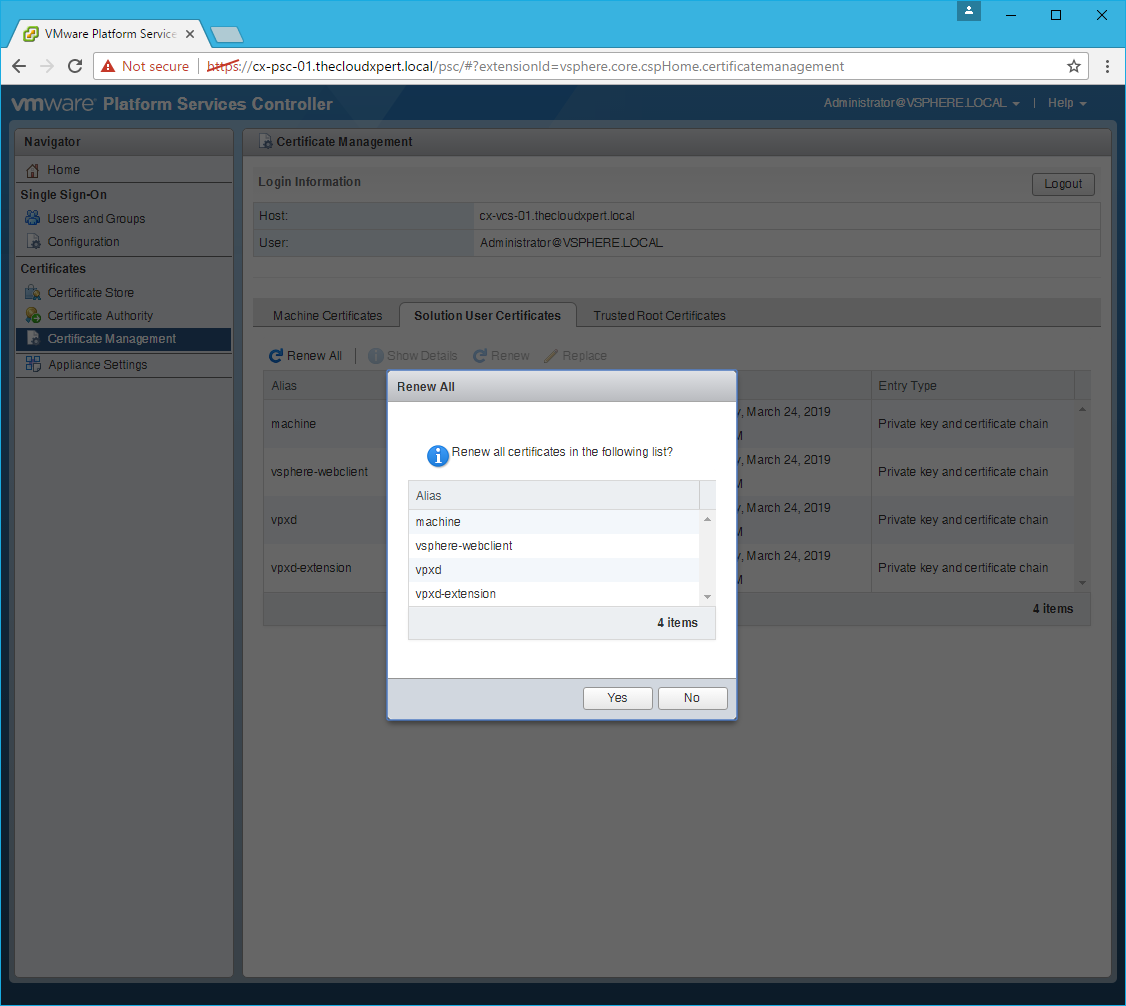
- Click Yes.
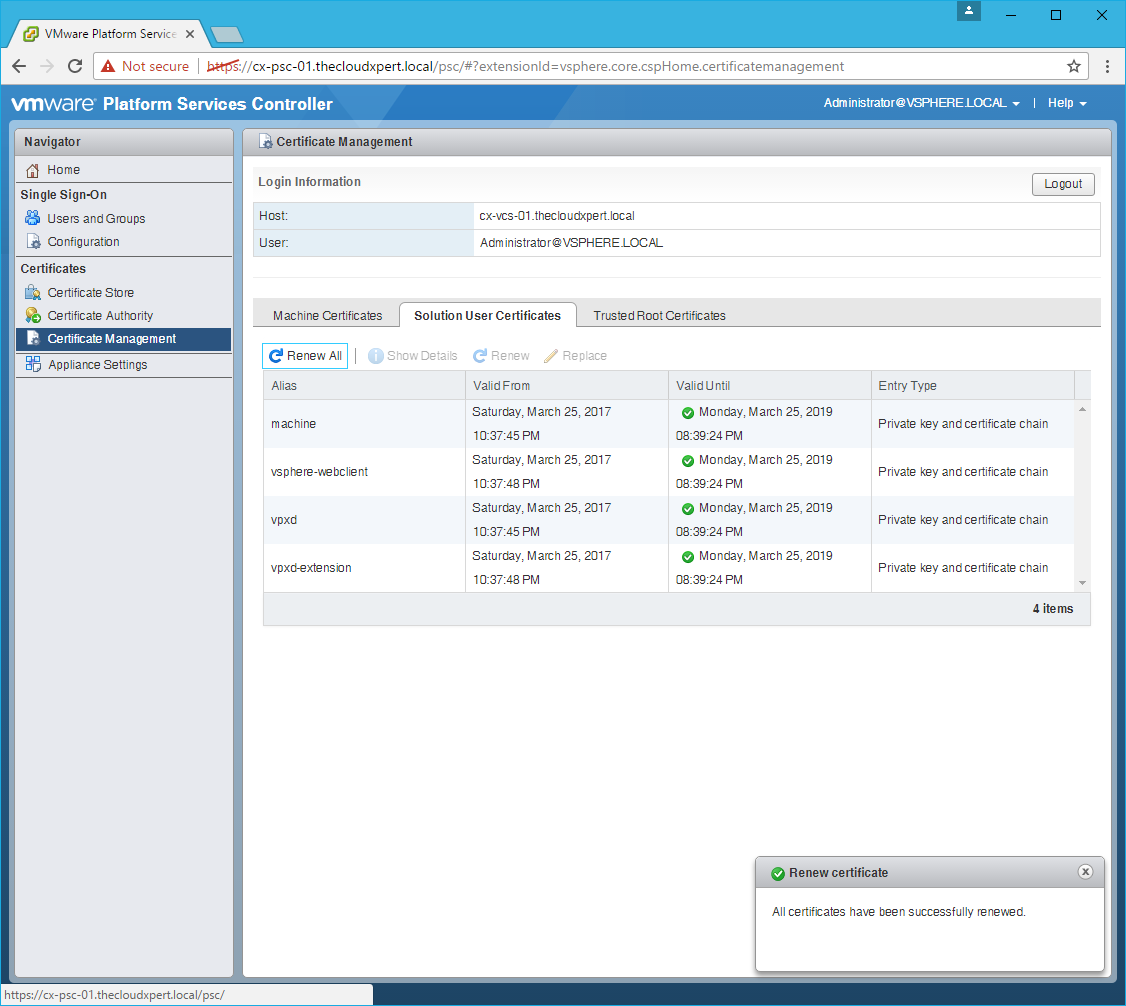
- Click Logout.
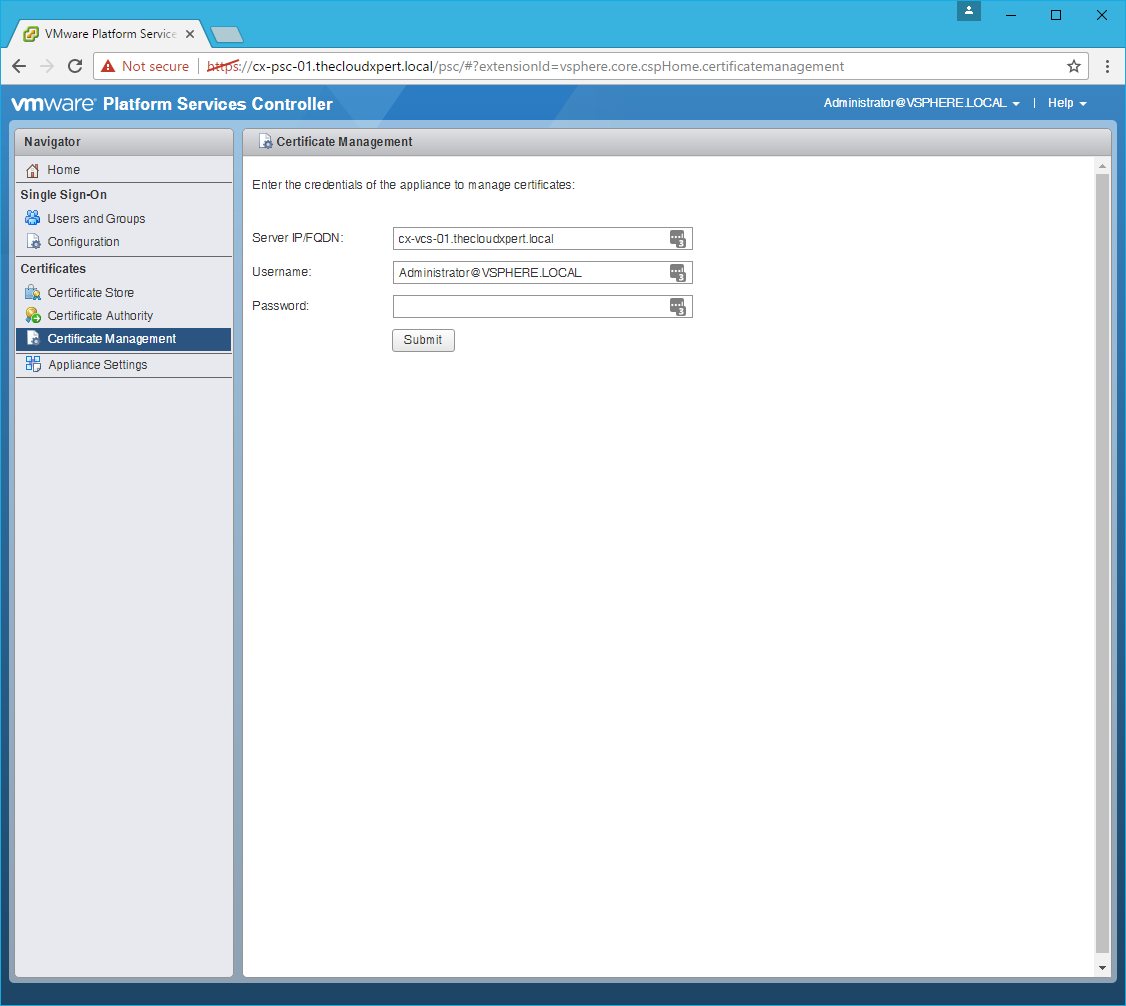
Reboot the Platform Services Controller
Note:
This can be completed in multiple ways but this is the way I did it.
- Click Appliance Settings.
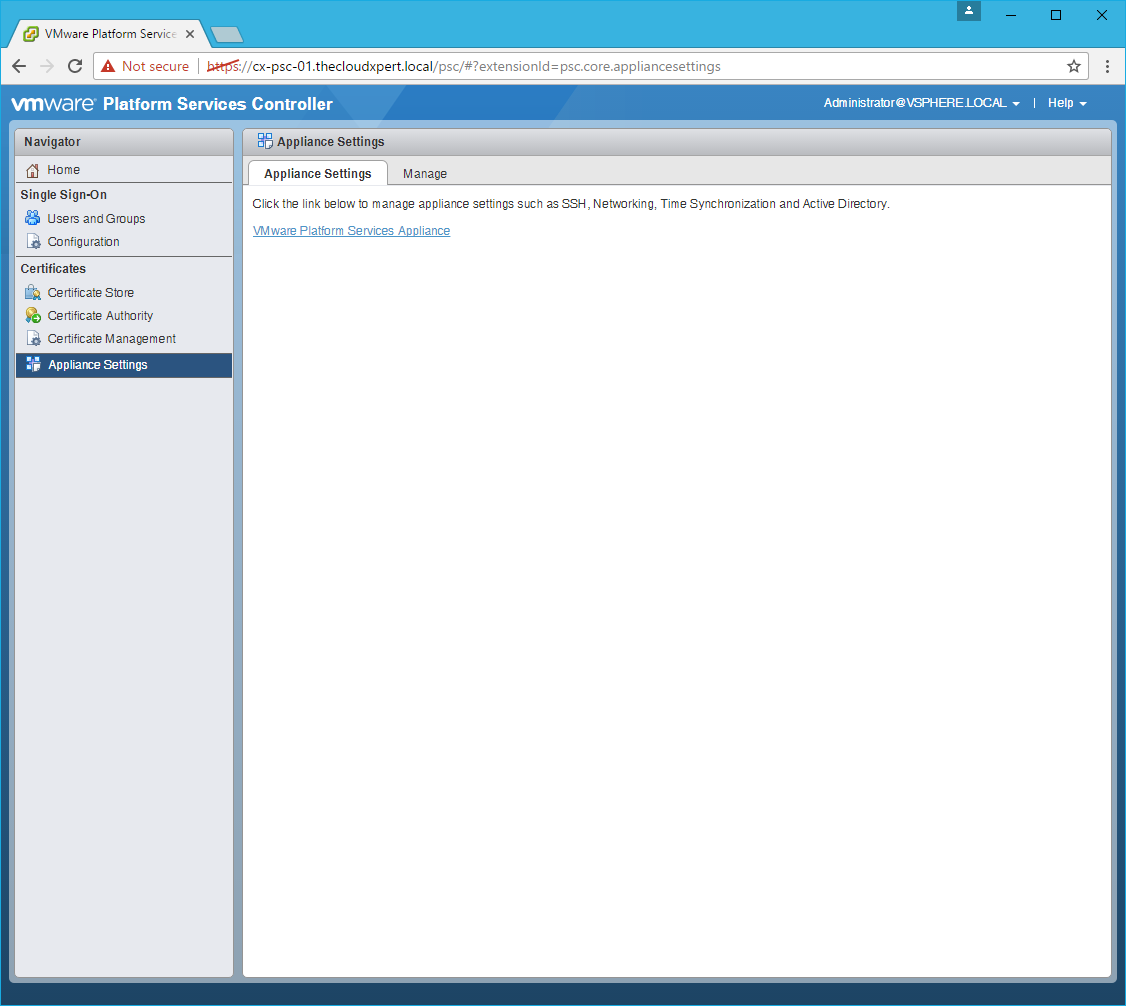
- Click the VMware Platform Services Appliance link.
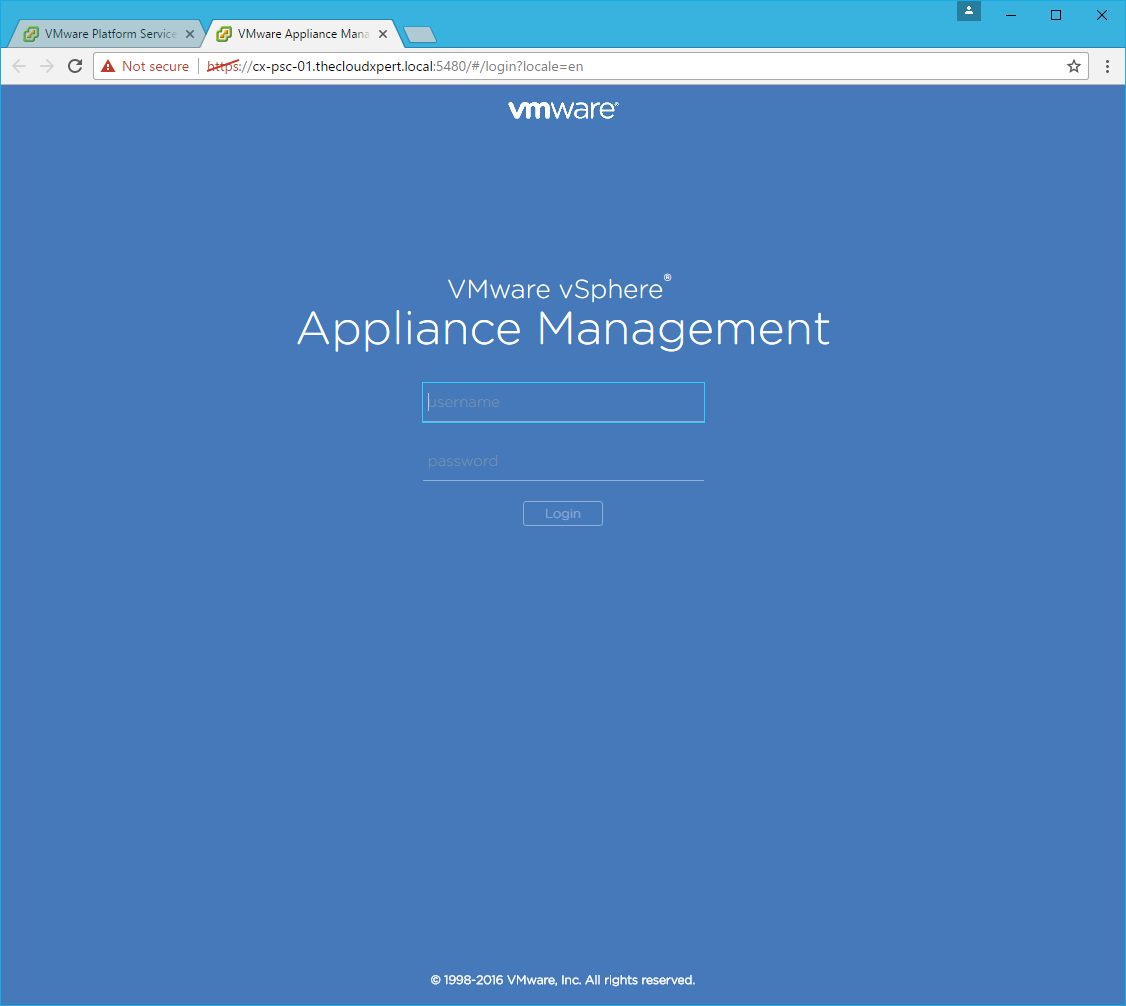
- Enter username as
rootand the root password, then click Logon.
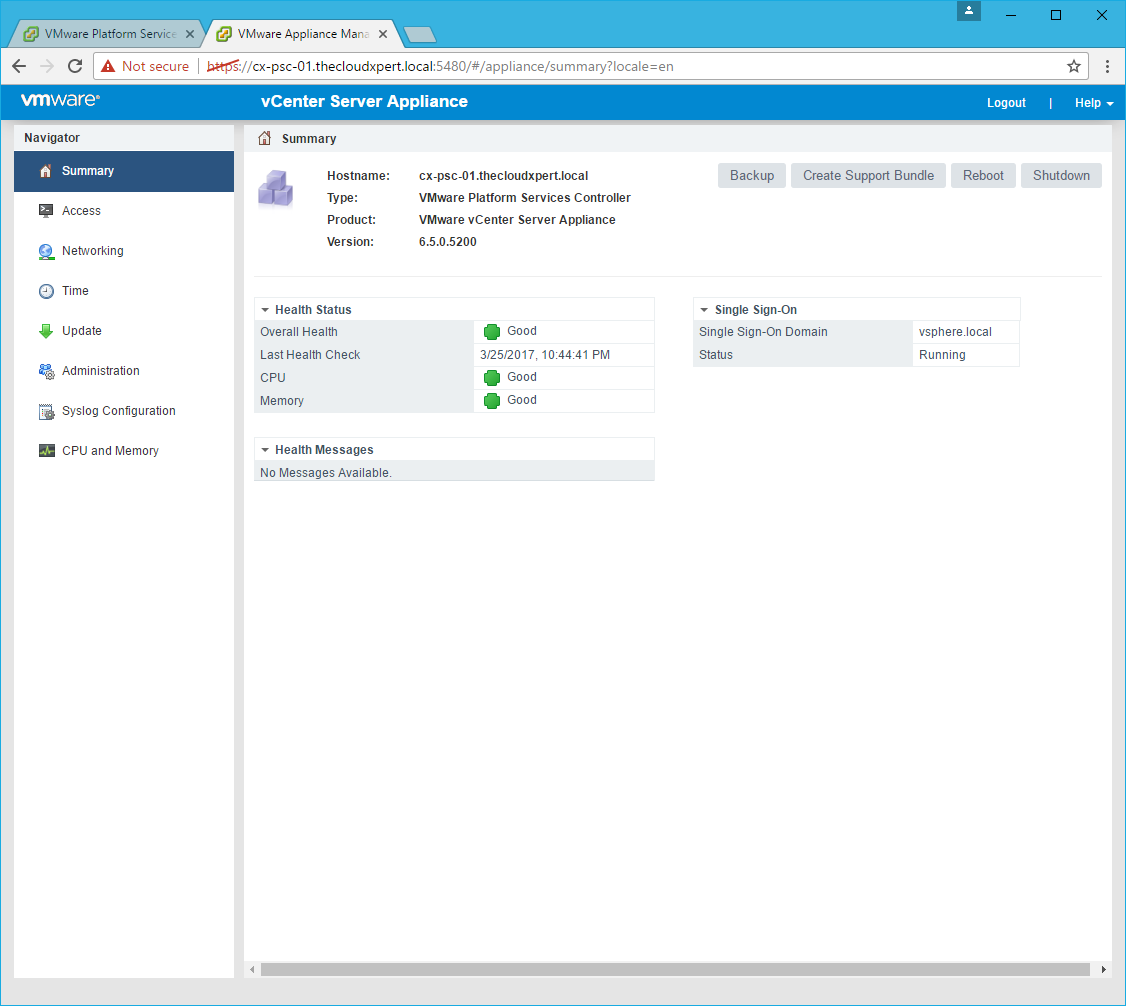
- Click Reboot.
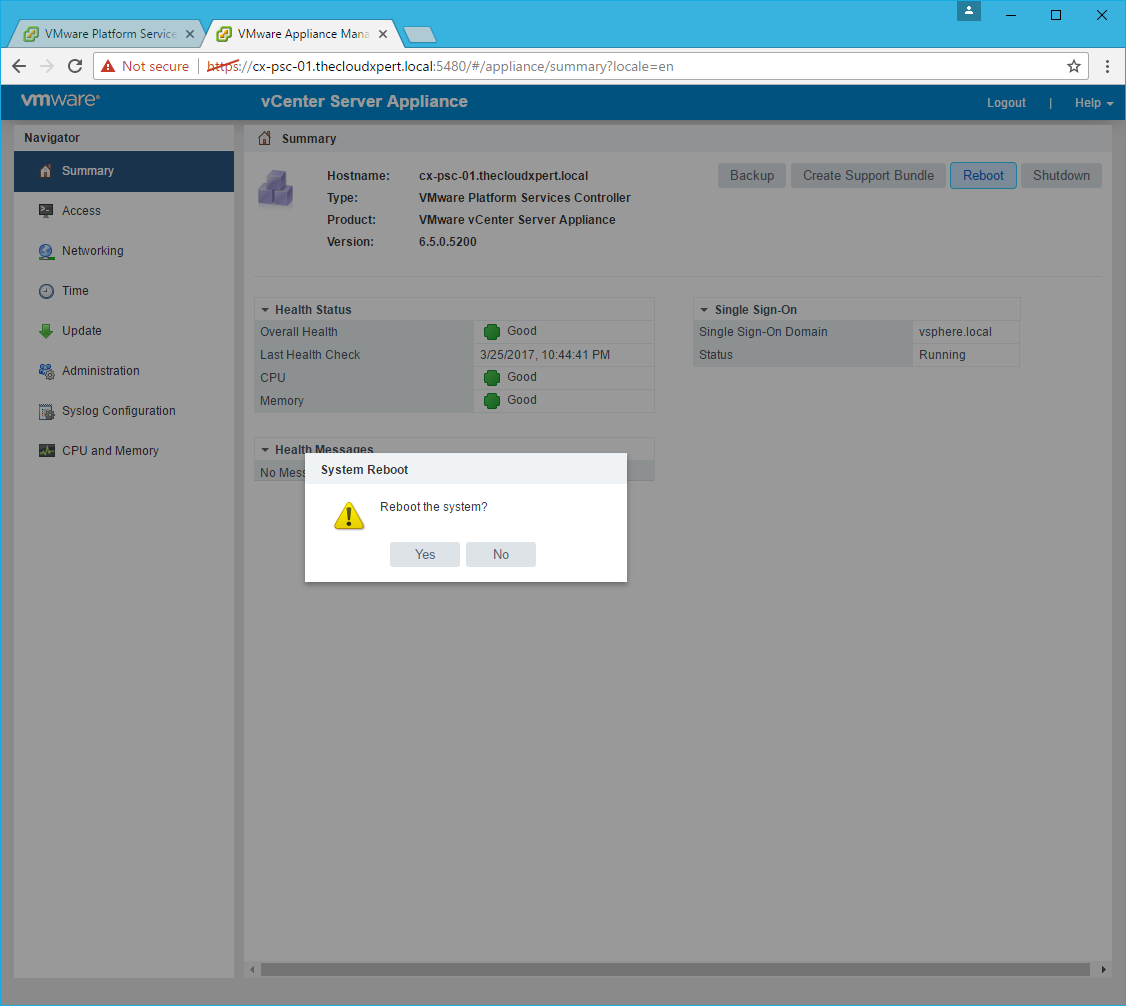
- Click Yes.
There we have it, your VCSA should now be acting as a Subordinate CA using the VMCA solution!
Published on 25 March 2017 by Christopher Lewis. Words: 344. Reading Time: 2 mins.
Share this article on:
Related Post(s):
- HOWTO: Deploy a vSphere 6.5 vCenter Server Appliance (VCSA) ()
- HOWTO: Deploy a vSphere 6.5 External Platform Services Controller (VCSA) ()
- HOWTO: Automate the installation of the External Platform Services Controller using PowerCLI & JSON - Part 2 ()
- HOWTO: Automate the installation of the External Platform Services Controller using PowerCLI & JSON - Part 1 ()
- HOWTO: Deploy the VMware vSphere 6.0 Platform Service Controller ()
About the Author:

Name: Christopher Lewis
Twitter/X: thecloudxpert
Role: Domain Expert - VCF Automation & VCF Operations
Company: Broadcom
Recent Posts by Christopher Lewis:
Blog Categories:
vmware260
certification91
vrealize automation80
vcap48
nsx45
nsx v41
vmworld36
vrealize suite lifecycle manager20
vrealize suite14
vrealize orchestrator13
aria automation9
general9
vexpert9
vmware aria automation9
vsphere9
powercli8
microsoft7
active directory6
powershell6
windows6
certificate authority5
certificates5
vcf5
vmug5
vmware aria operations5
vrealize operations manager5
vsan5
vcenter4
vmware cloud3
aria operations2
aws2
home lab2
vcap62
vcix2
vmware explore2
vmware identity manager2
vrealize business2
Top Tags:
vmware 99+
vrealize automation 74
vcap6 cma 48
vcap6 45
nsx v 43
vcap6 nv 37
vcix6 nv 36
vmworld 35
howto 33
barcelona 24
vrealize orchestrator 21
vrslcm 20
vexpert 19
api 18
vmworld 2016 13
vra 13
certificates 12
vmware aria 12
vsphere 12
vrealize suite lifecycle manager 11
multi tenancy 9
vcap 9
vmware aria automation 9
vmworld 2017 9
platform services controller 8
powercli 8
vmug 8
vrealize operations 8
certification 7
microsoft 7
powershell 7
vsan 7
active directory 6
psc 6