




Warning! The content within this article is over 36 months old and, therefore, may be out of date.
HOWTO: Deploy and Configure VMware vRealize Log Insight 4.5
Share this article on:



VMware vRealize Suite vRealize Log Insight HOWTO
Published on 15 July 2017 by Christopher Lewis. Words: 462. Reading Time: 3 mins.
Introduction
The deployment of vRealize Log Insight can be completed in a few easy steps:
- Deploying the vRealize Log Insight Appliance
- Configuring the first vRealize Log Insight Appliance
- (optional) Configuring additional vRealize Log Insight Appliance(s)
- Configuring vSphere Integration
Deploying the vRealize Log Insight Appliance
- Navigate to the VMware vCenter Server Web Client (
https://vcenter.fqdn/vsphere-client/) and log in using appropriate credentials. - Right click on the vCenter Server in the navigation window and select Deploy OVF Template…
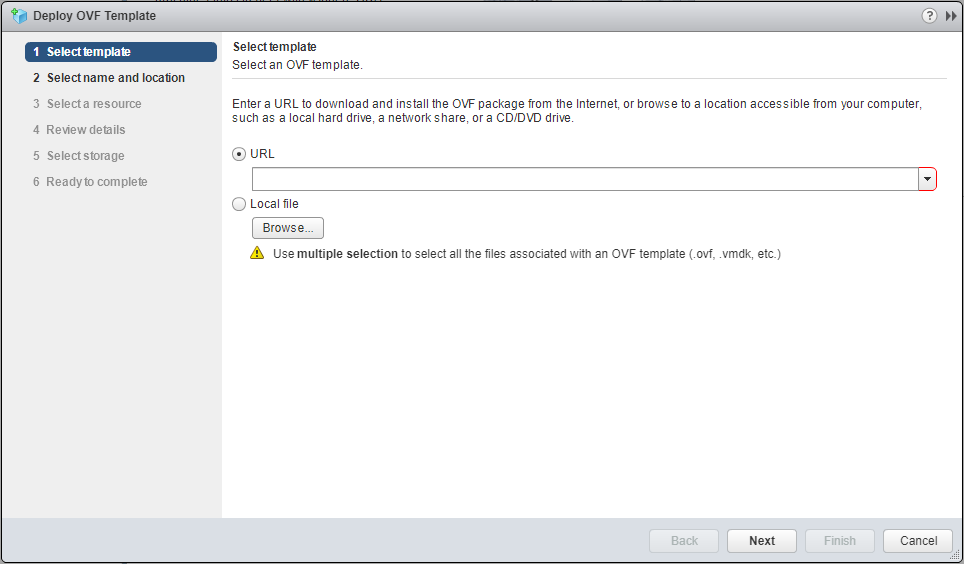
- Click Browse and navigate to the vLI OVA file and click Open.
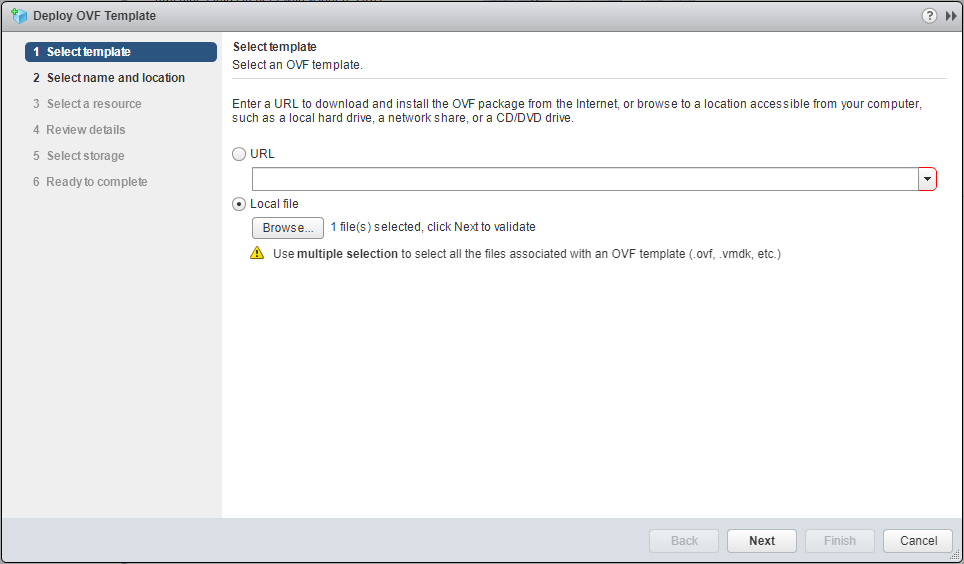
- Click Next.
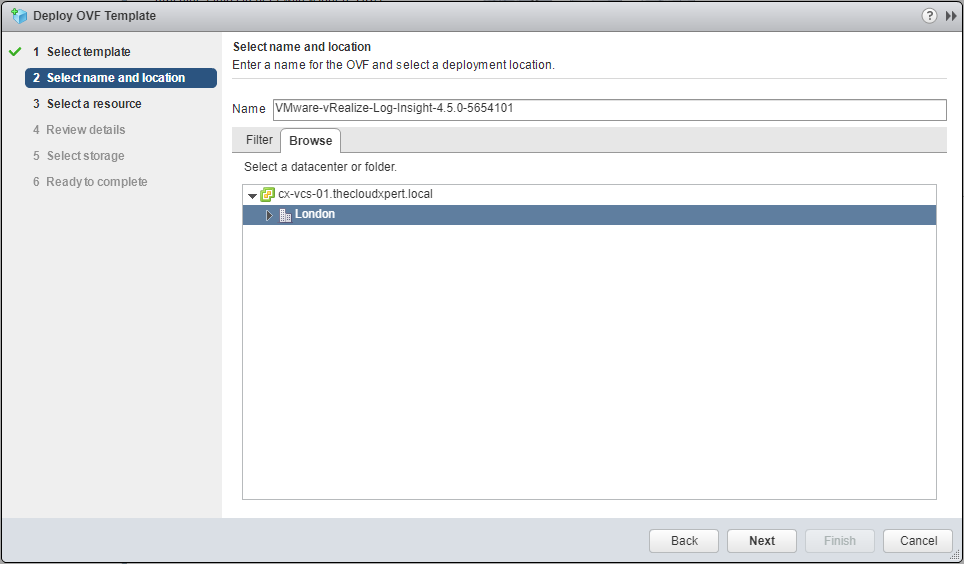
- Type the Name of the virtual machine (within vCenter - this doesn’t set the hostname) and select the VM folder to deploy the OVA.
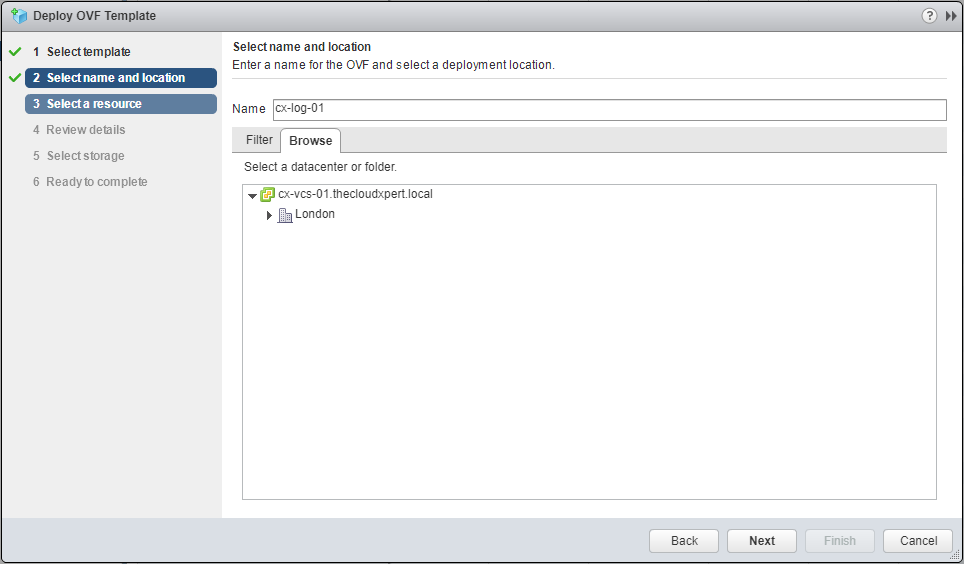
- Click Next.
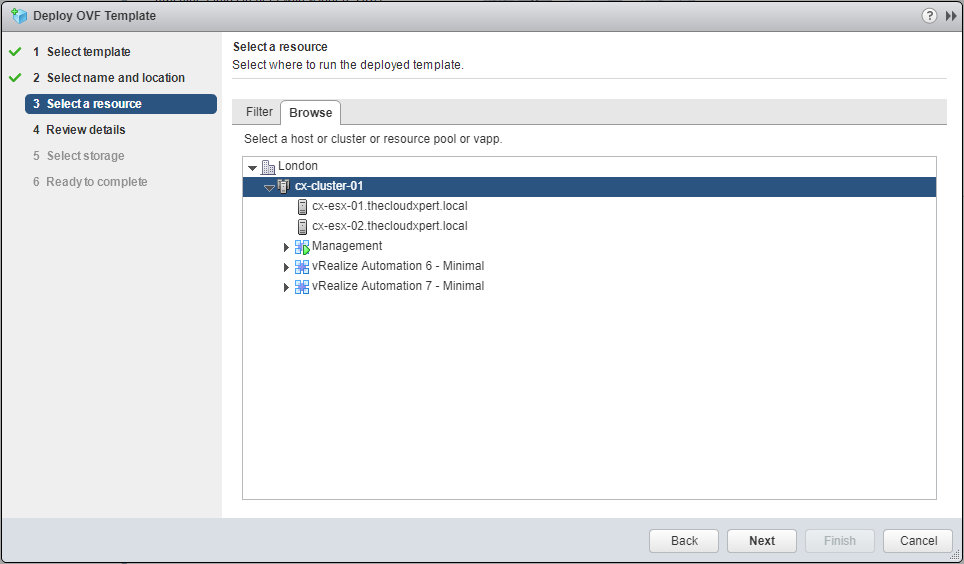
- Select the Resource (cluster, host or vApp) where you want to deploy vLI and click Next.
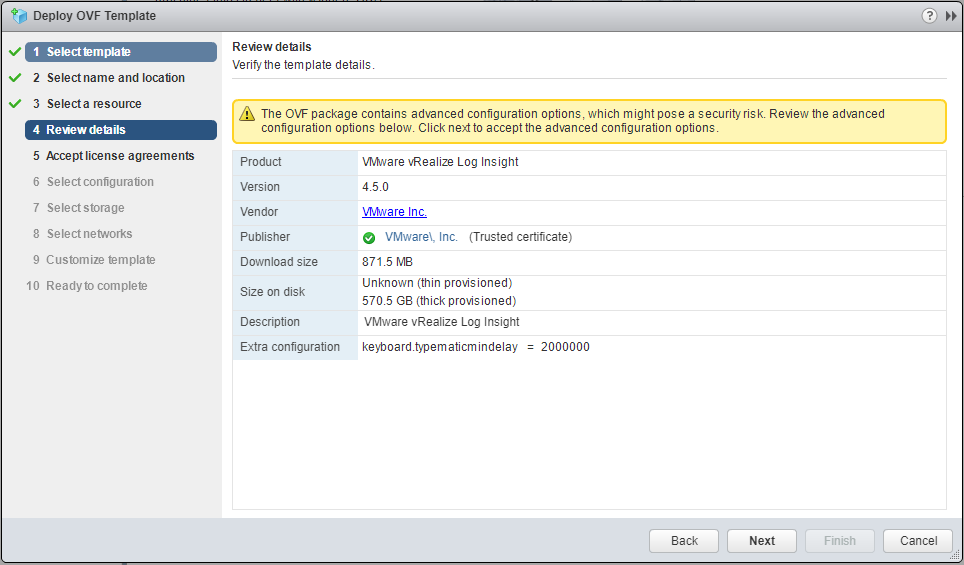
- Click Next.
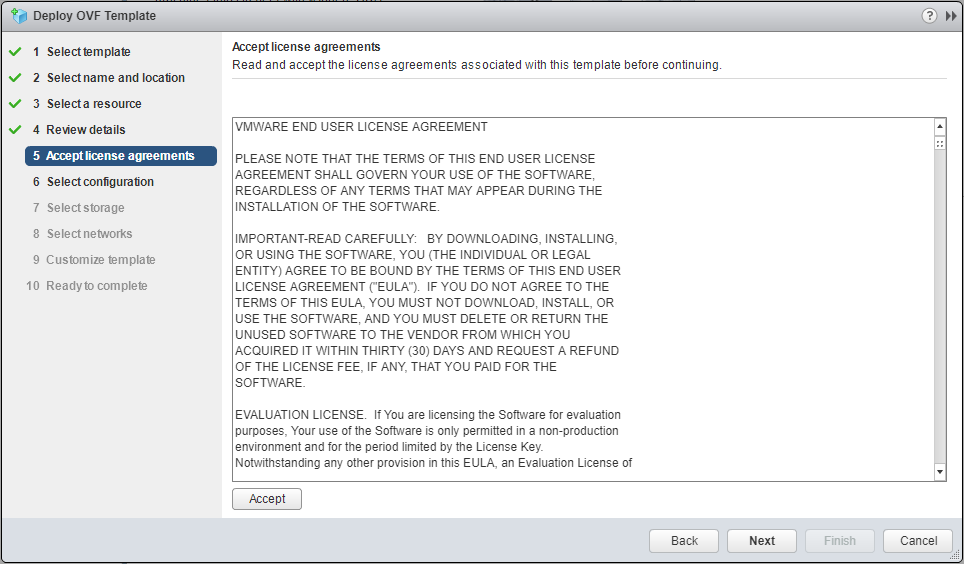
- If you have nothing better to do, read the EULA, then click Accept.
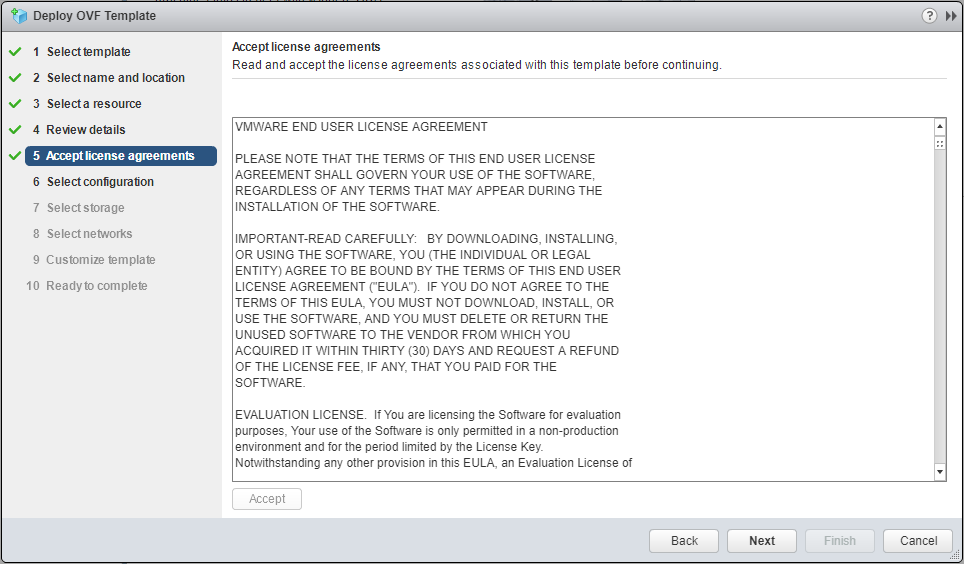
- Click Next.
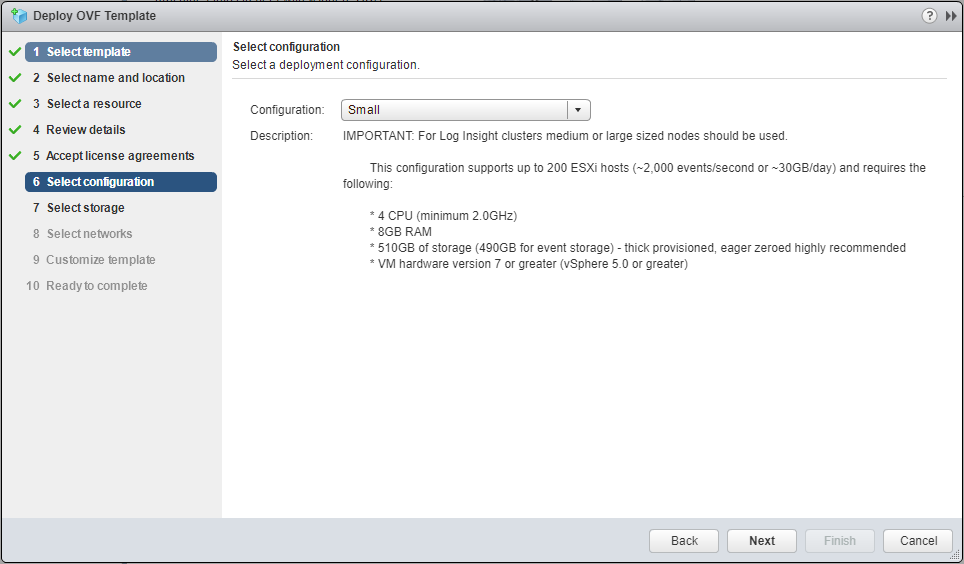
- Select the desired the appropriate appliance size from the Configuration dropdown.
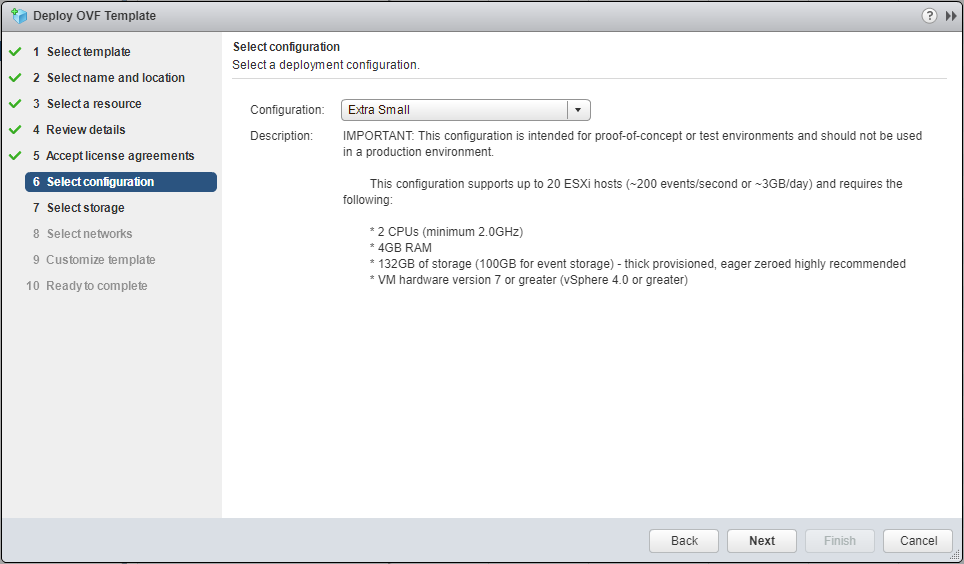
- Click Next.
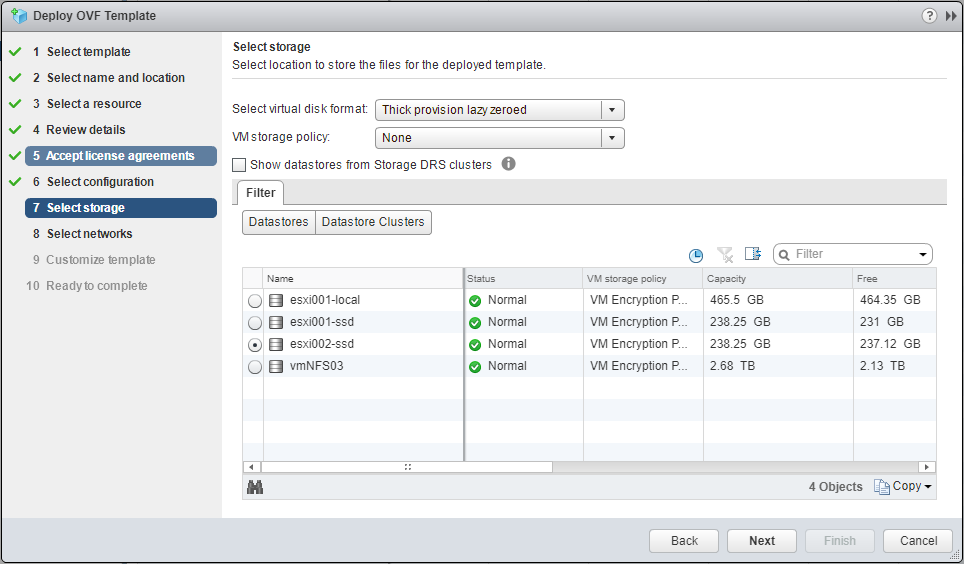
- Select the Storage location and click Next.
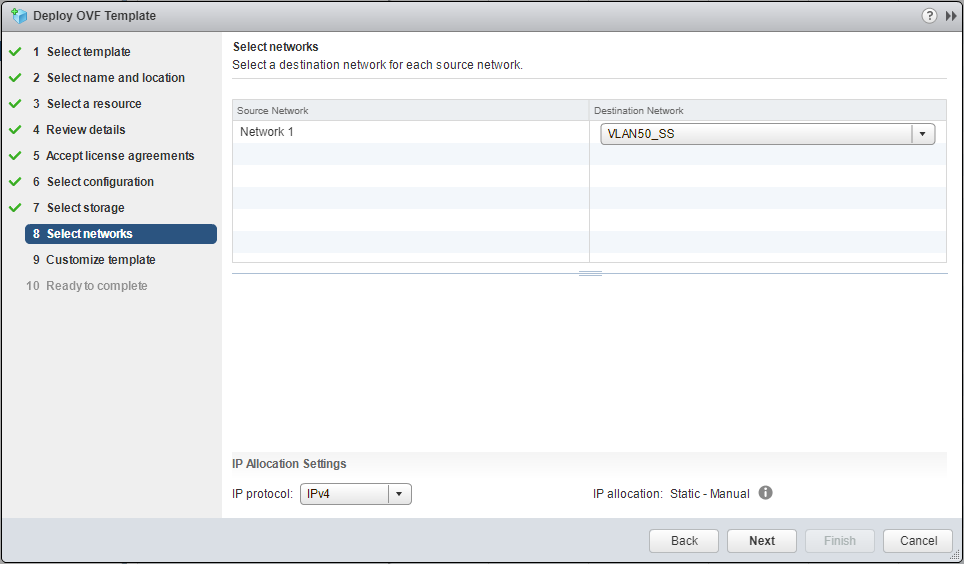
- Select the Destination Network from the dropdown and click Next.
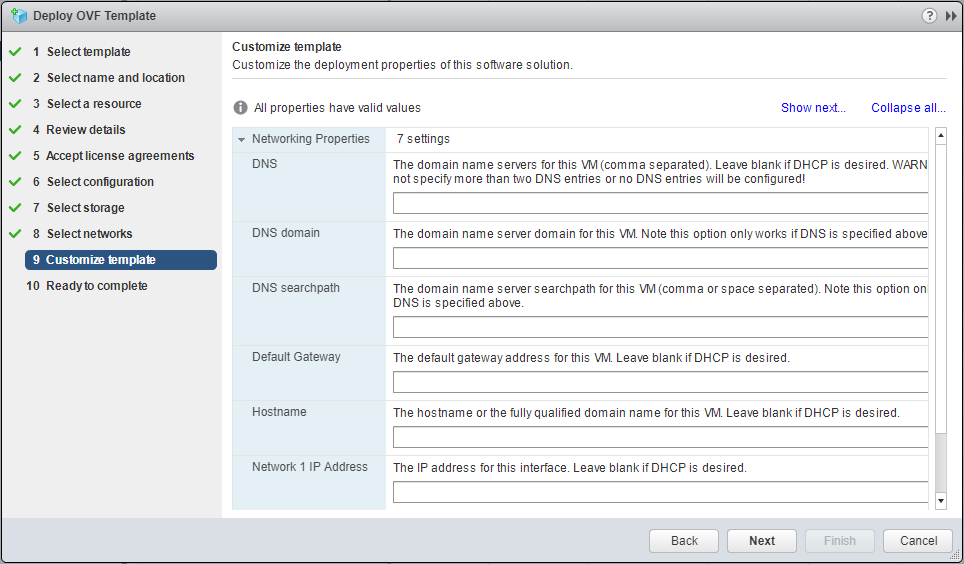
- Type the following Networking information:
- DNS Server IPs (maximum 2)
- DNS domain
- Default Gateway
- Hostname
- IP Address
- Subnet Mask
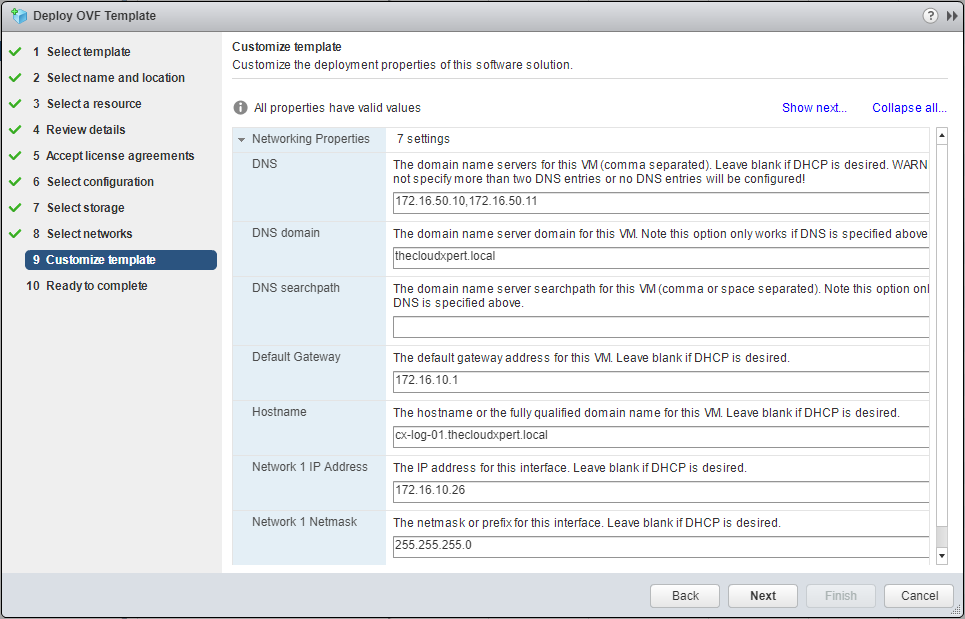
- Click Networking Properties to minimize.
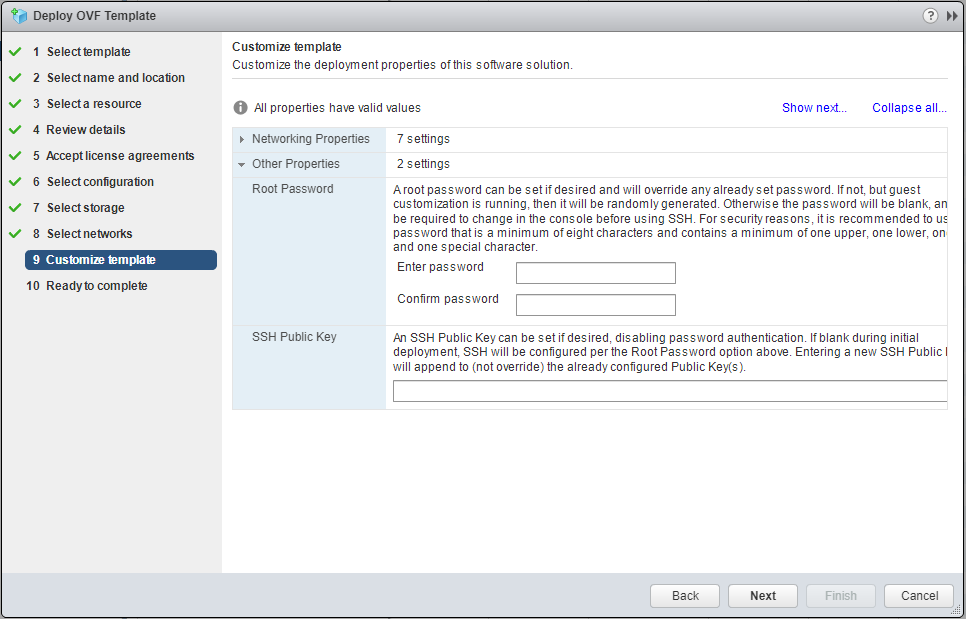
- Type the password for the appliance Root account and click Next.
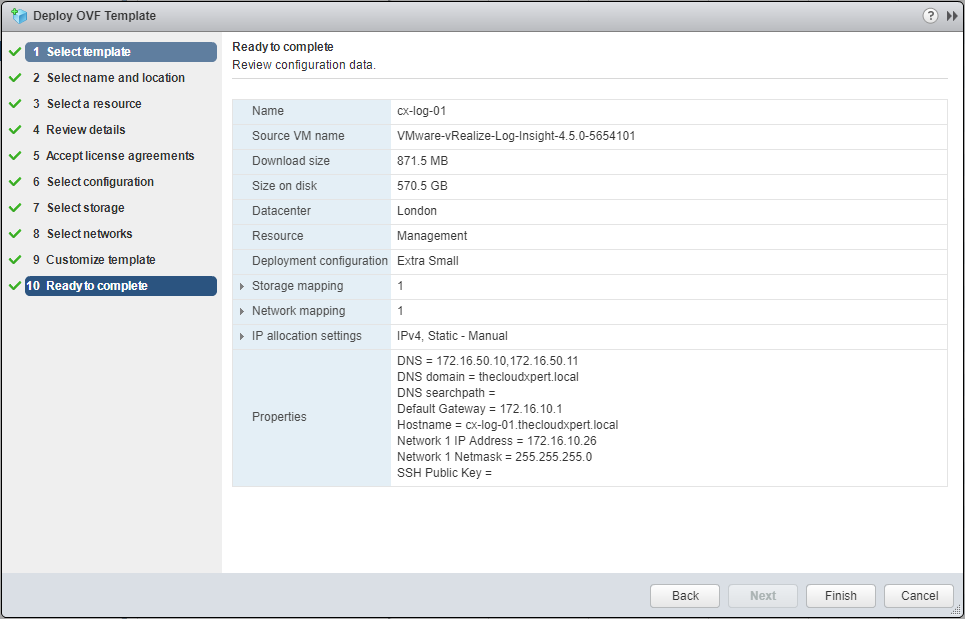
- The VMware vRealize Log Insight Appliance will now be deployed.
Note:
Once deployed the Appliance will need to be powered on before continuing.
Configuring the first vRealize Log Insight Appliance
- Using a web browser, navigate to the VMware vRealize Log Insight page,
https://vli-appliance.fqdn.
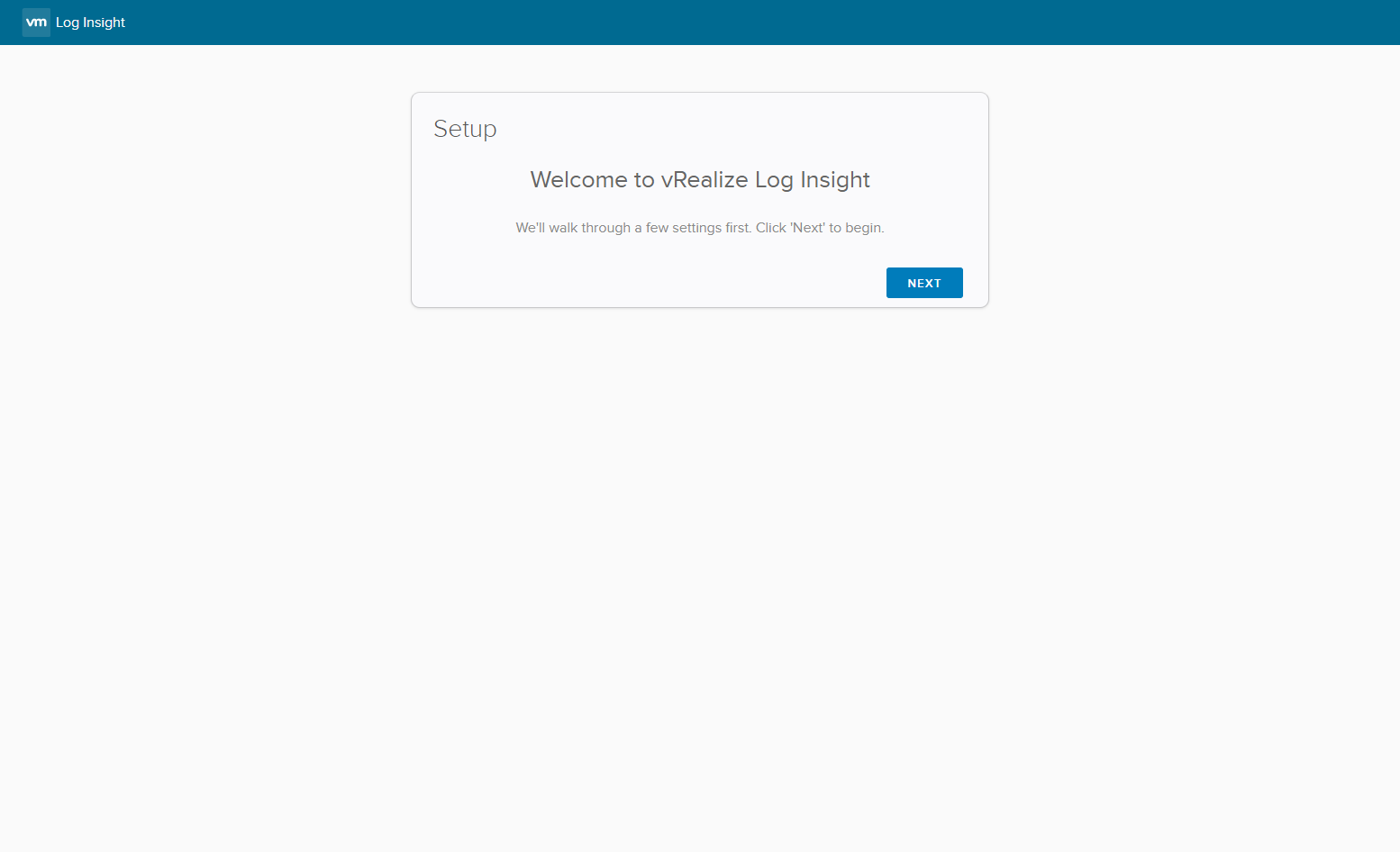
- Click Next.
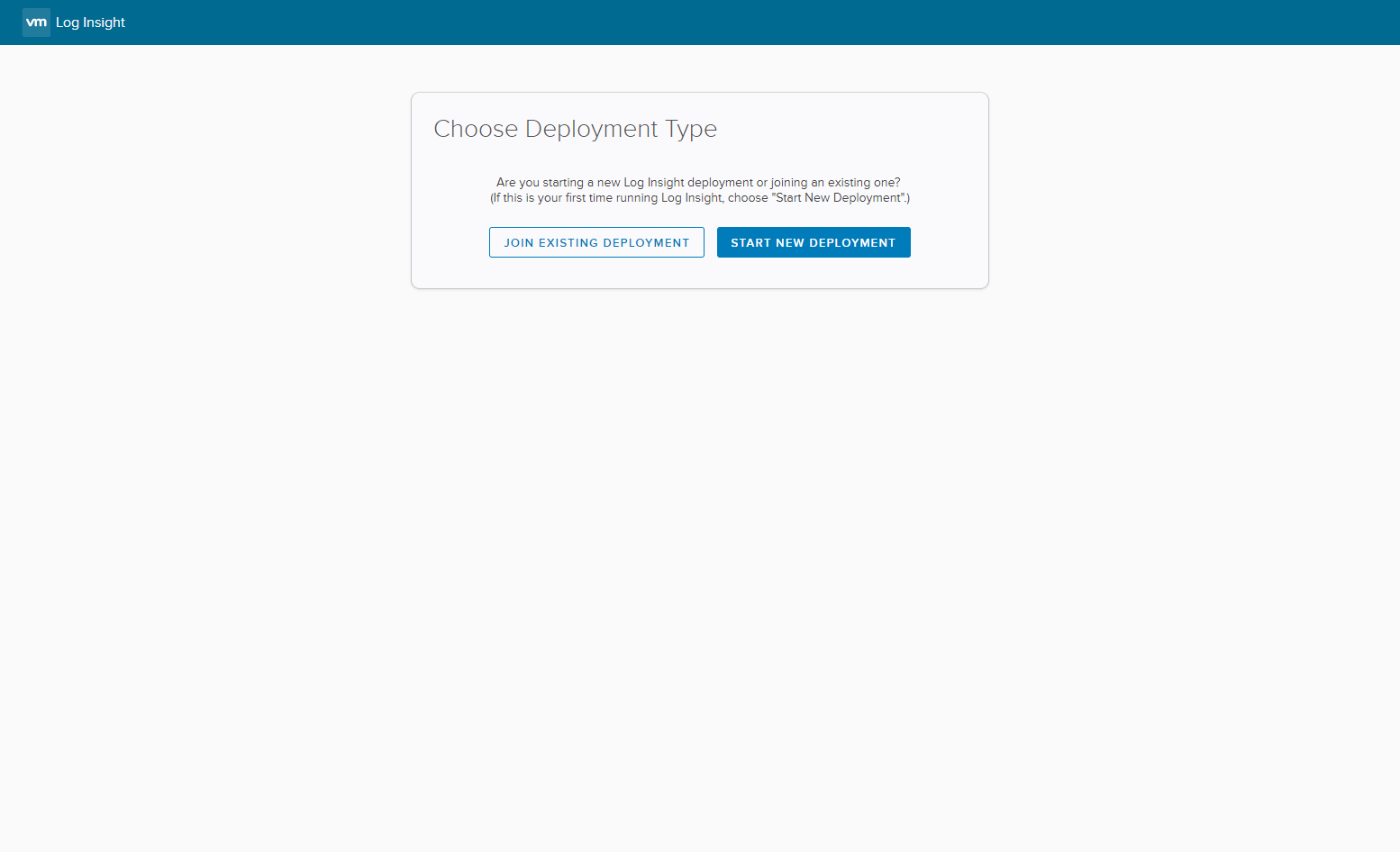
- Click Start New Deployment.
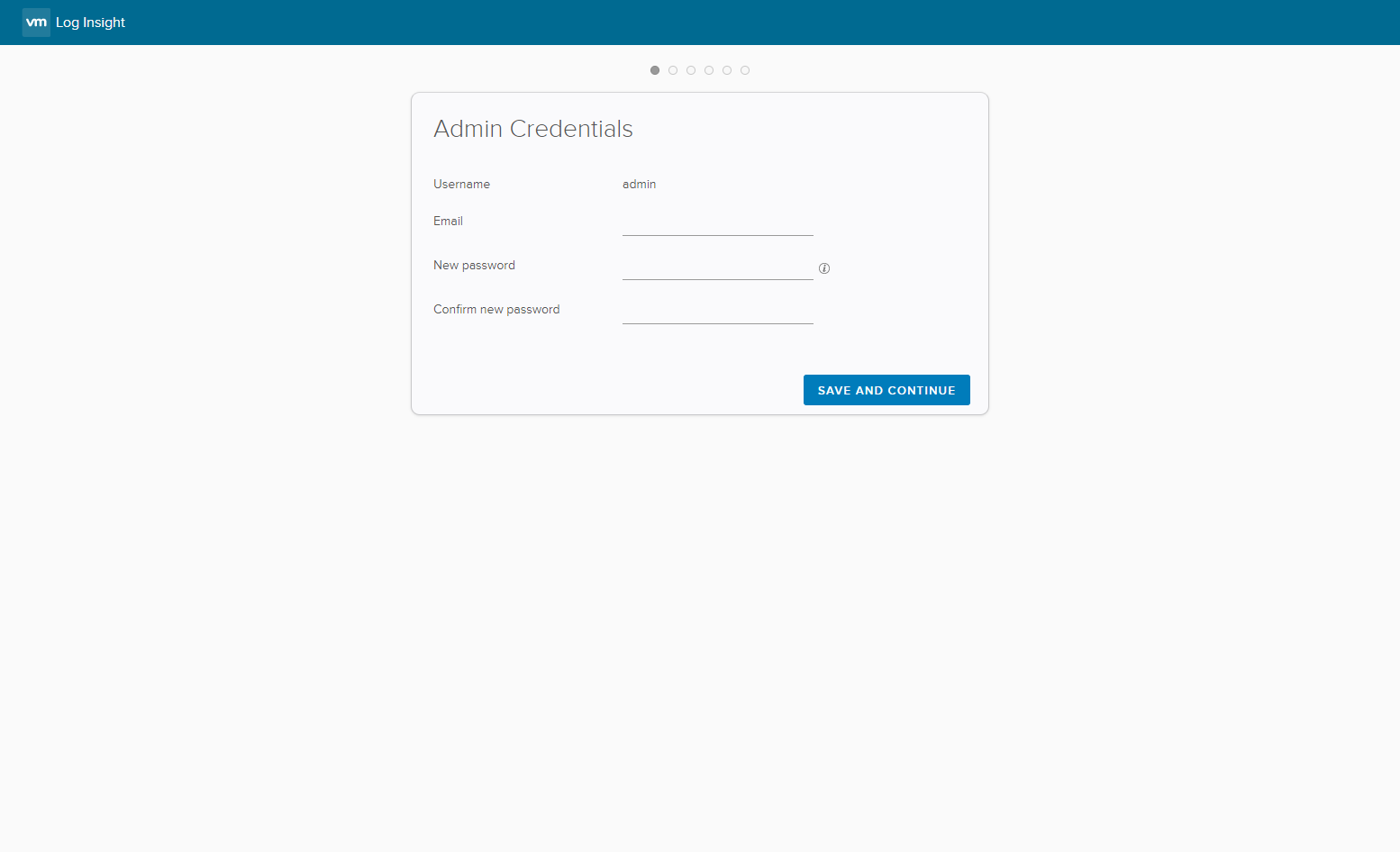
- Type the Email address and the password for the admin user
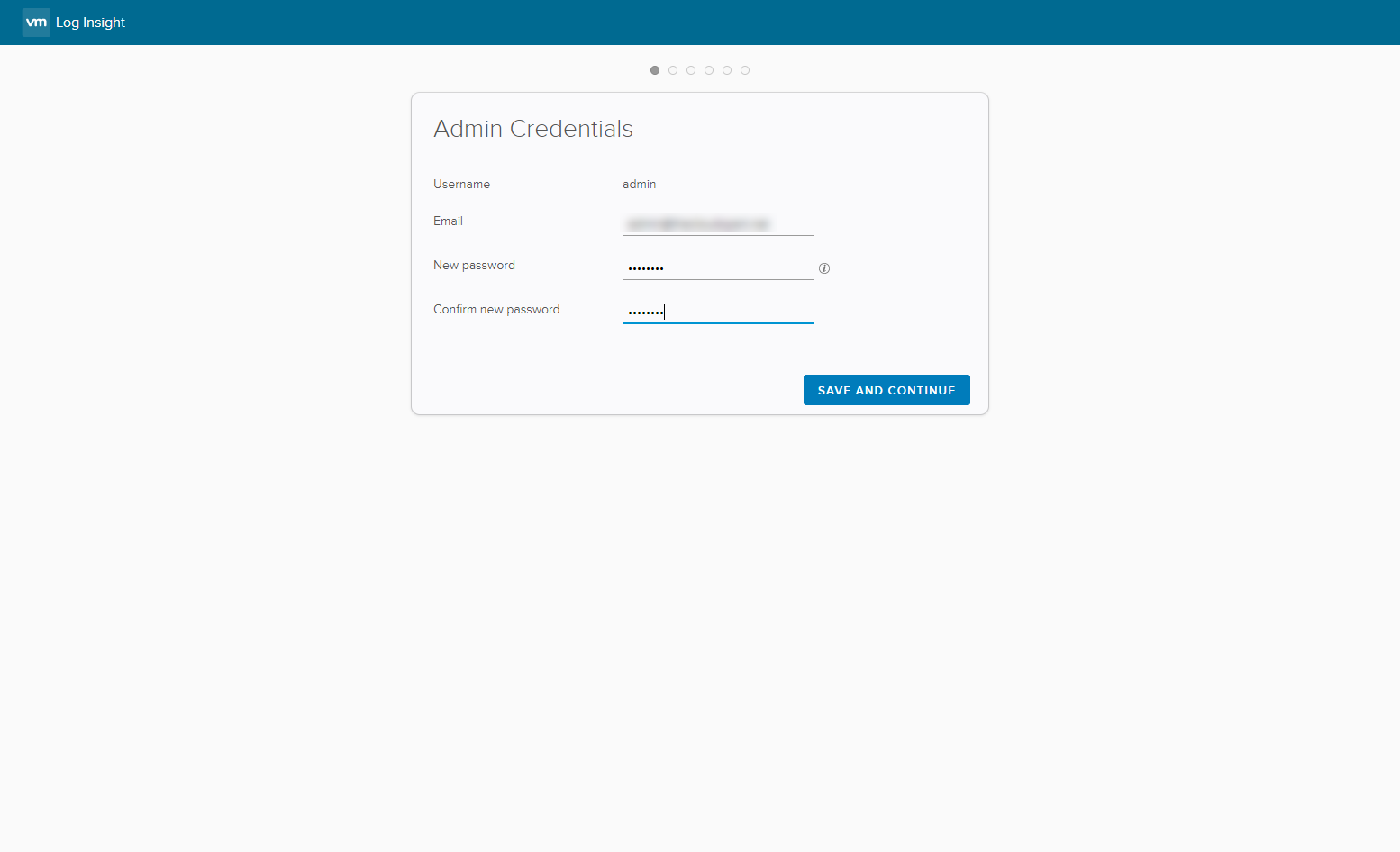
- Click Save and Continue.
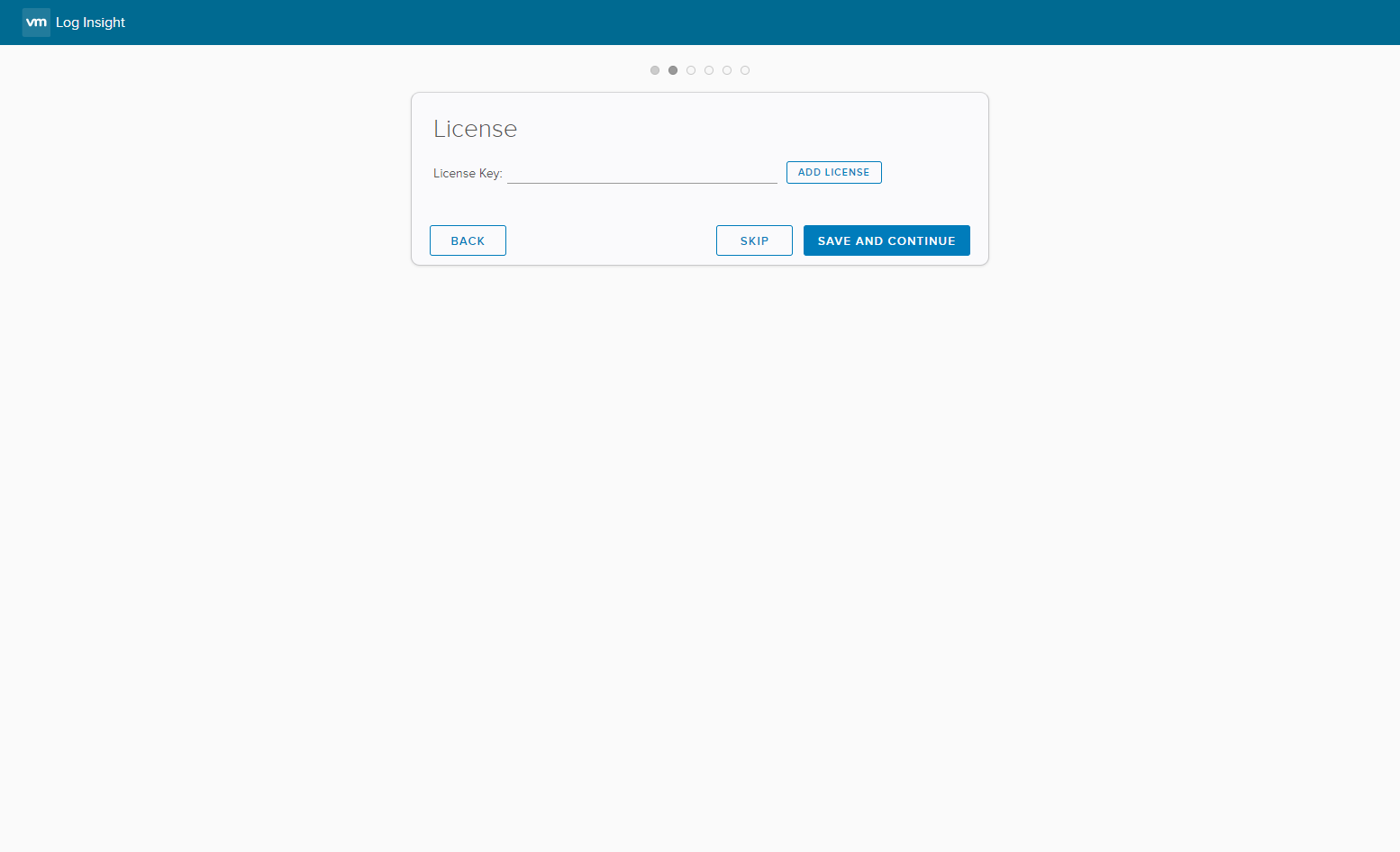
- Type the License Key (or click Skip).
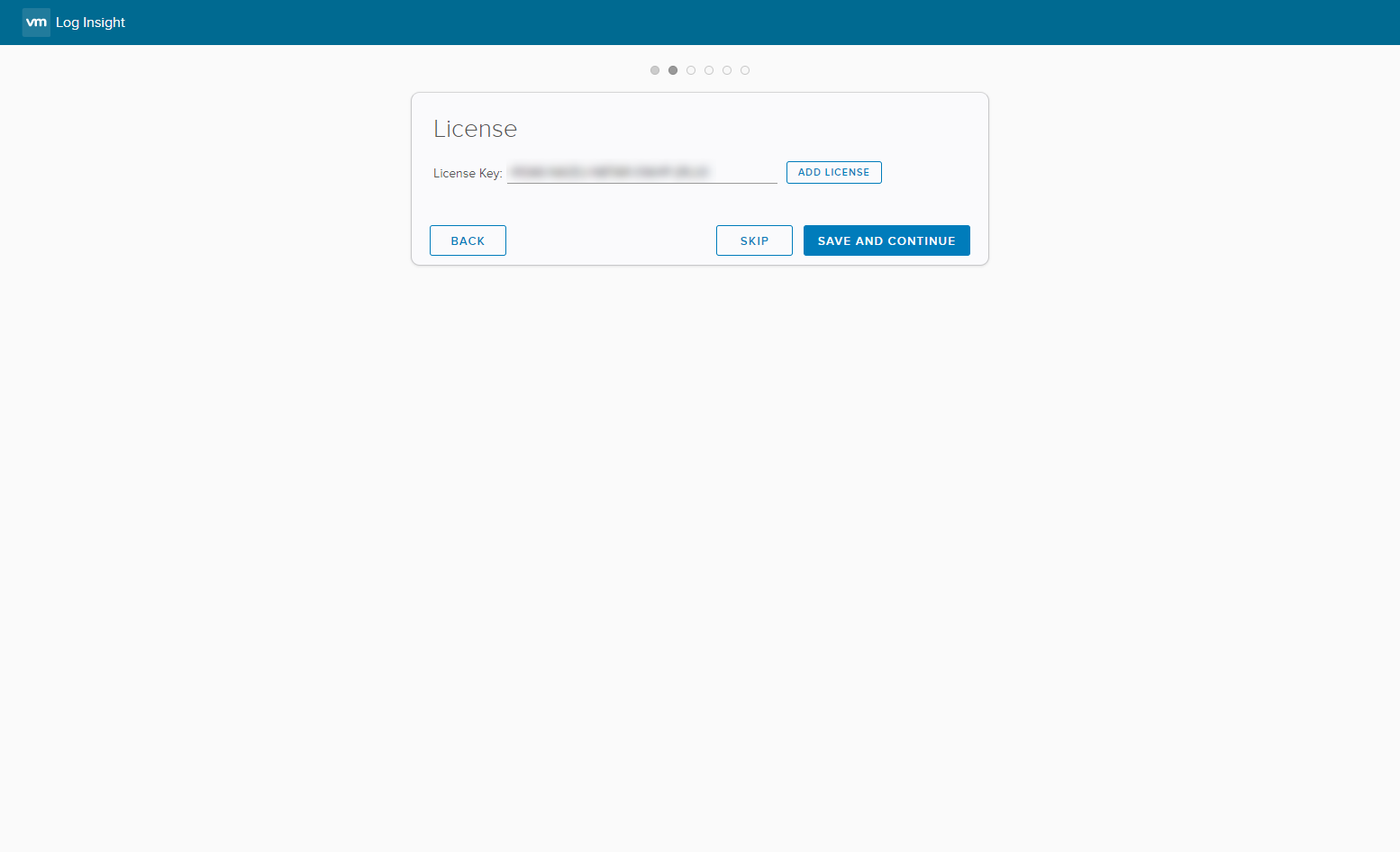
- Click Save and Continue.
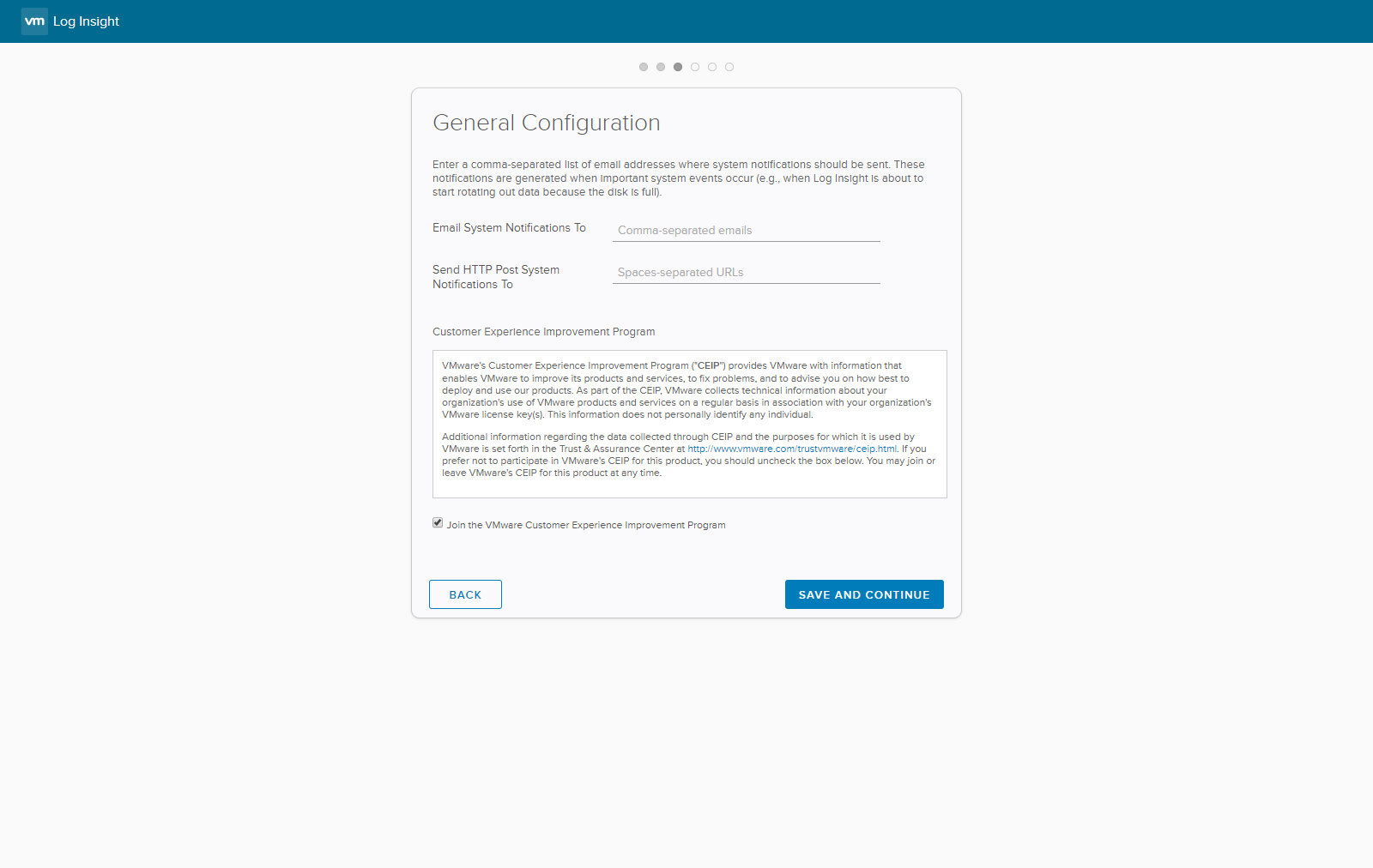
- Type an Email Address into the Email System Notification To textfield and (optional) add the Send HTTPS Post Notification To URL. Then Uncheck the Join the VMware Customer Experience Program checkbox.
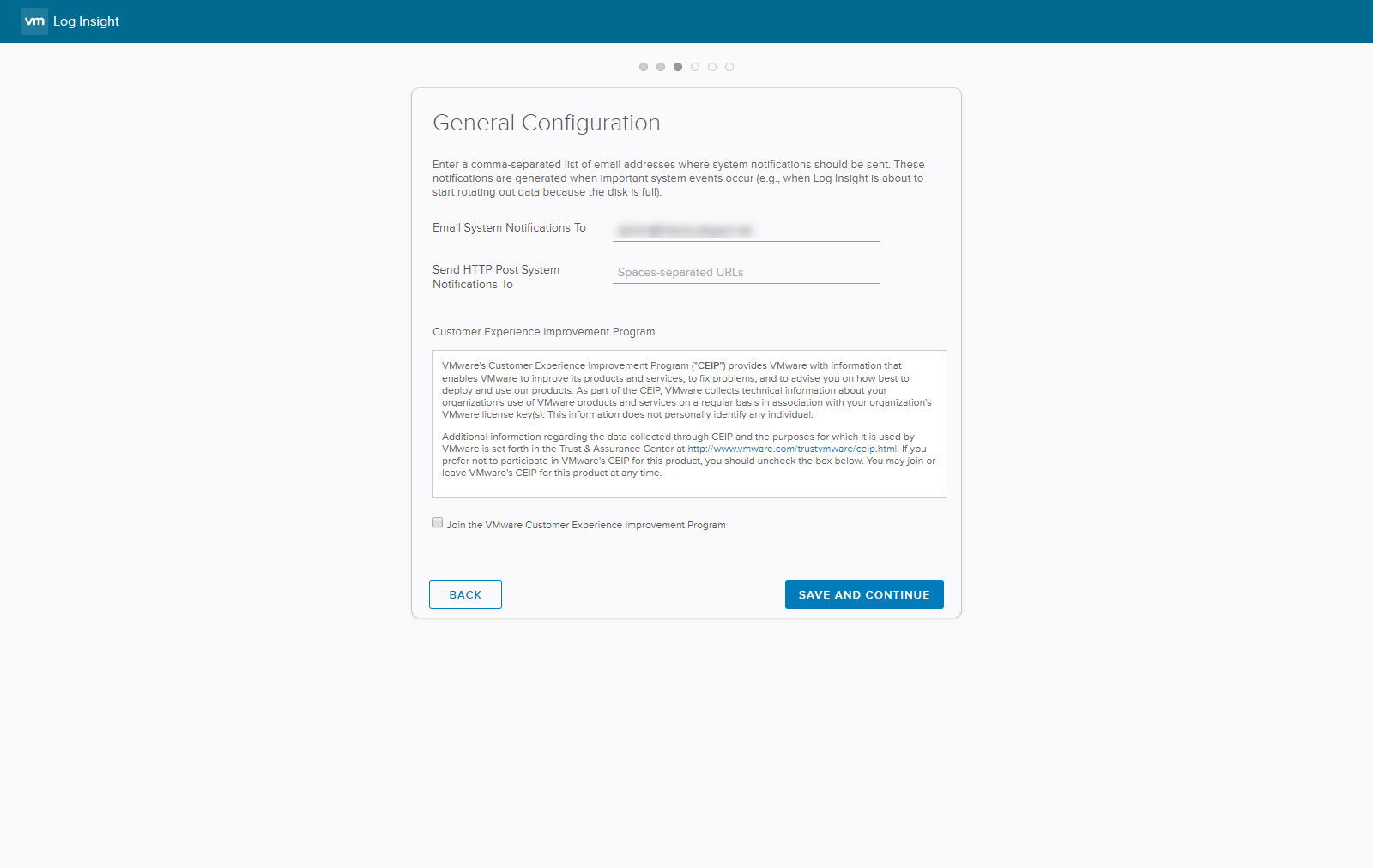
- Click Save and Continue.
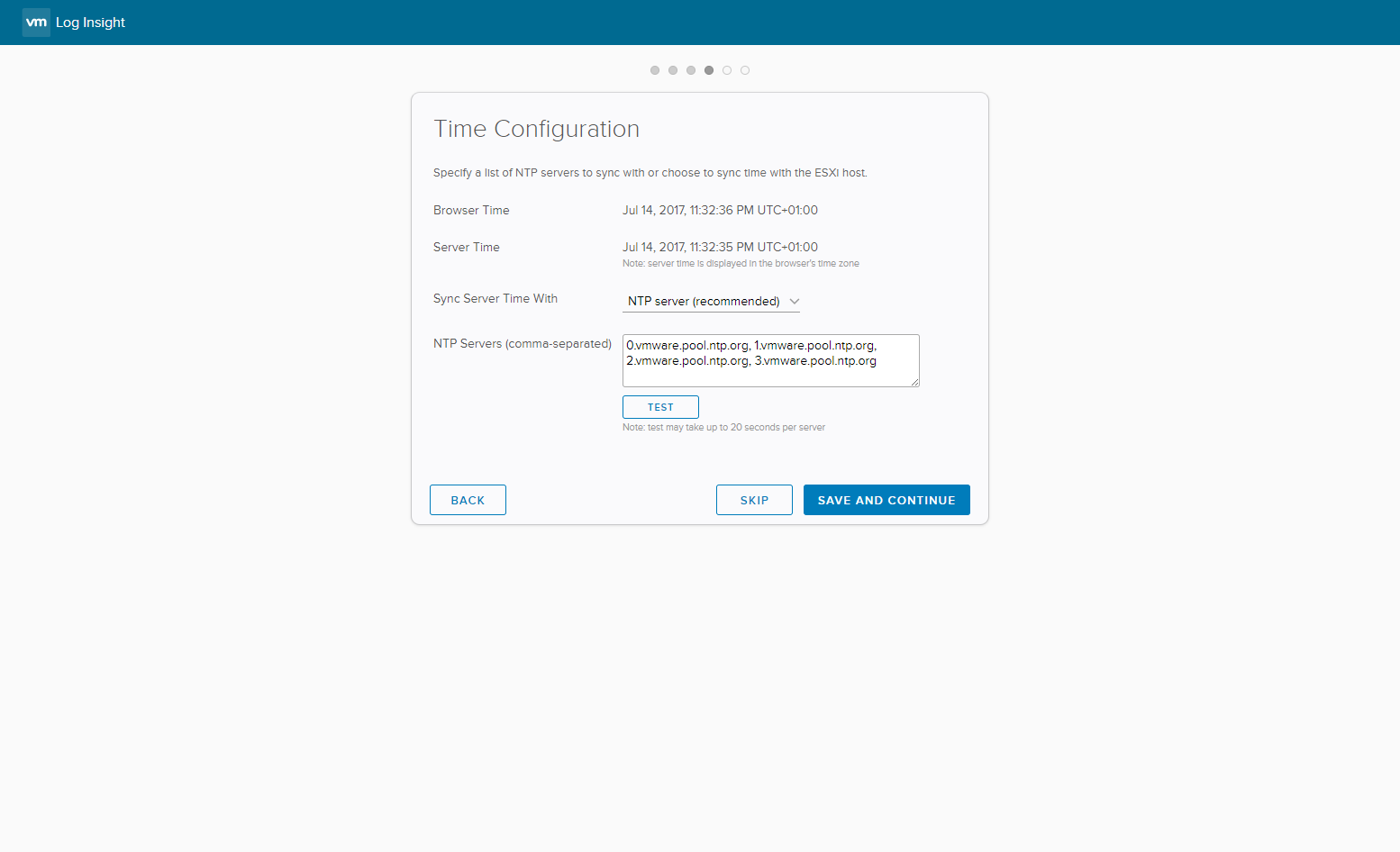
- If required, update the NTP Servers and click Test.
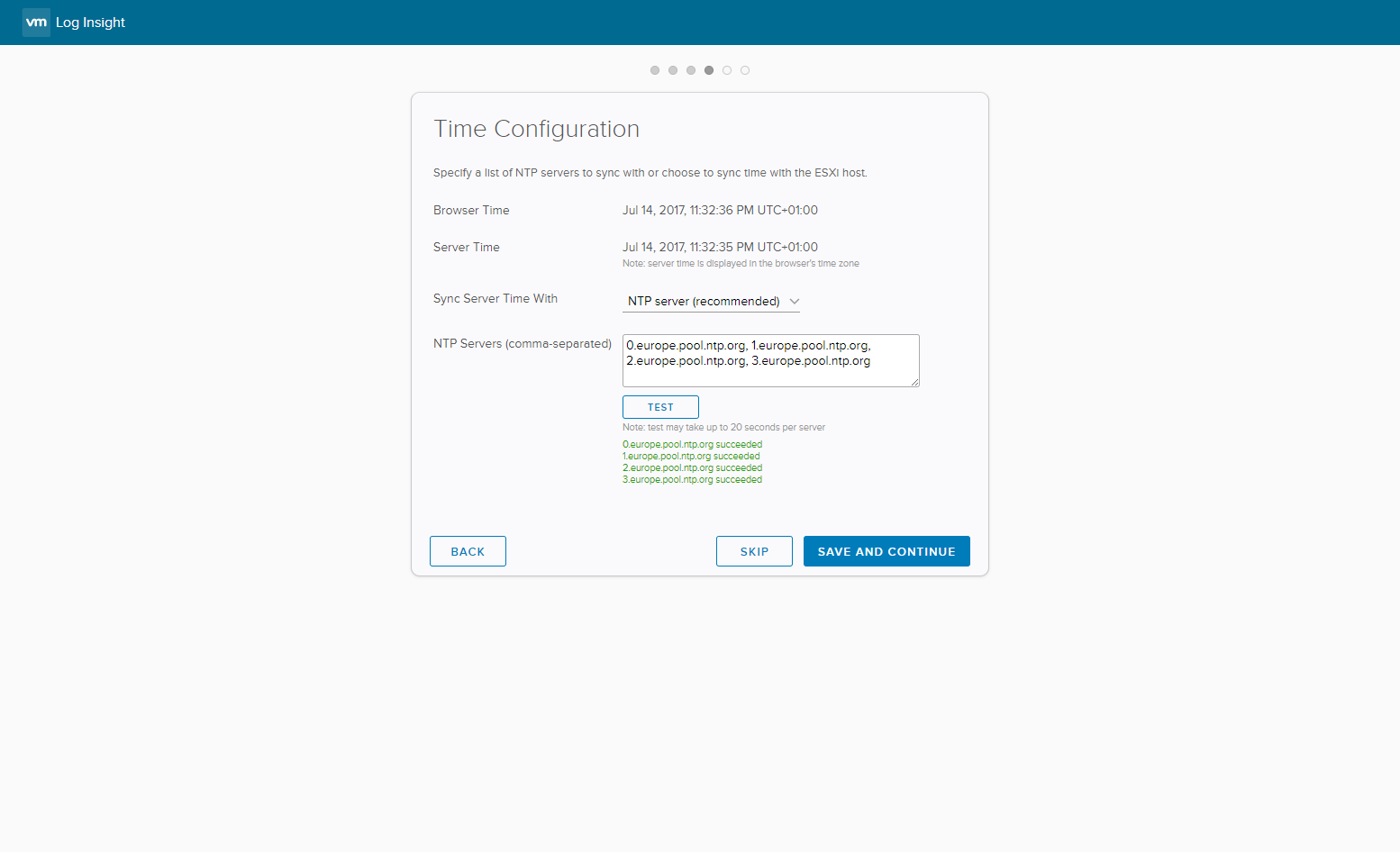
Note:
I’m using the ntp servers from europe.pool.ntp.org but this could also be internal ntp servers.
- Click Save and Continue.
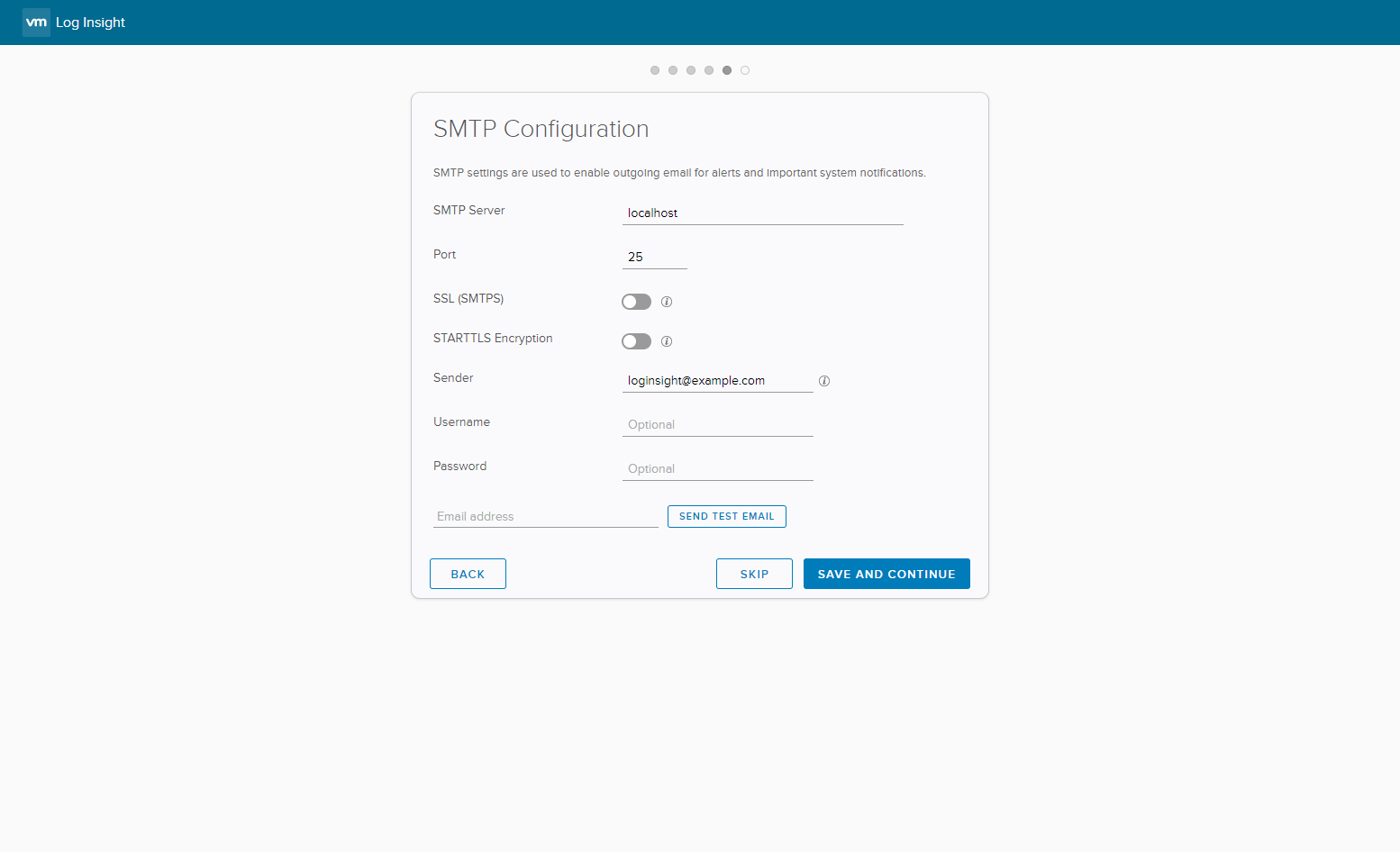
- (if required) Update the SMTP Configuration so that notifications can be sent from vLI (or click Skip).
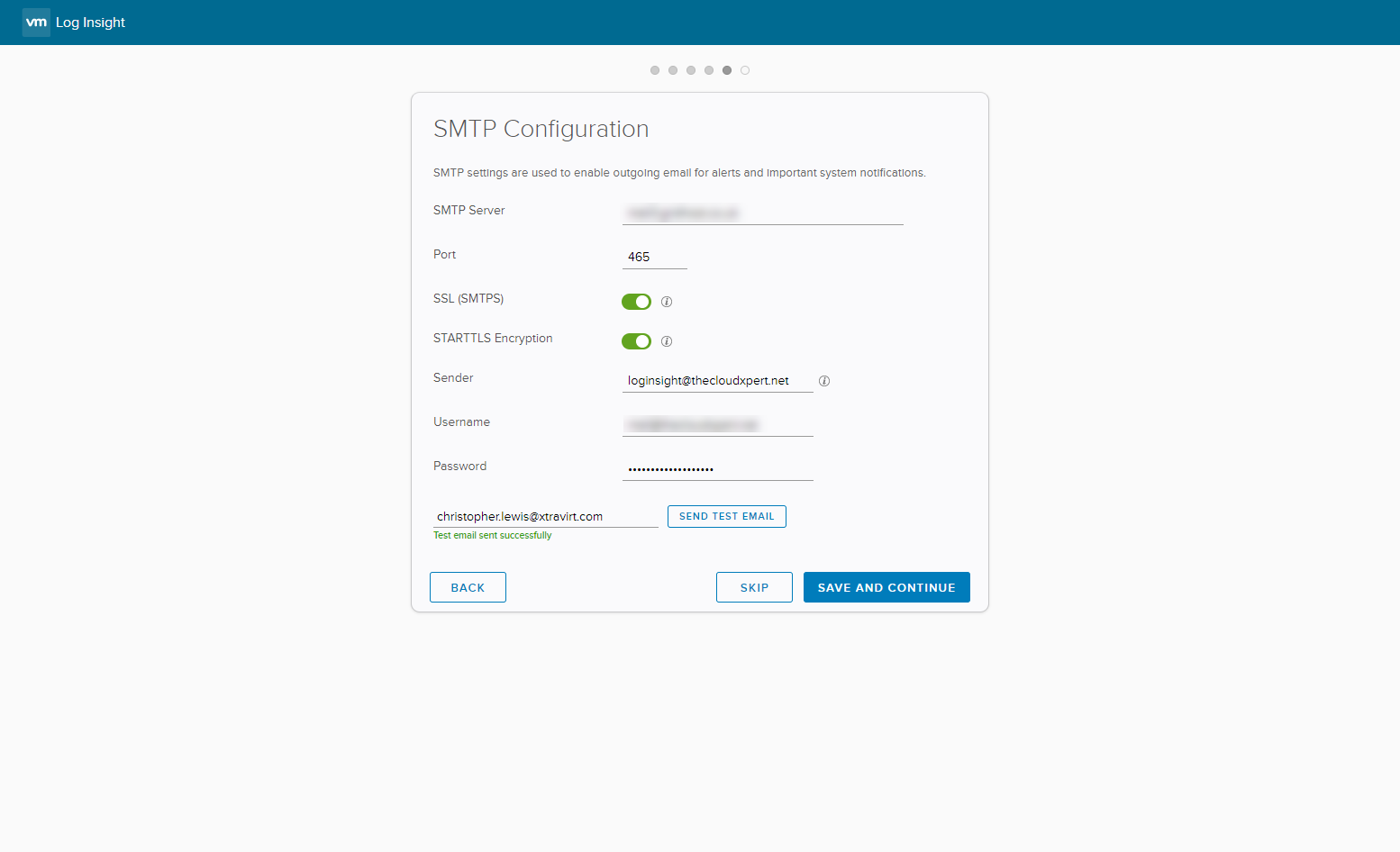
- Click Save and Continue.
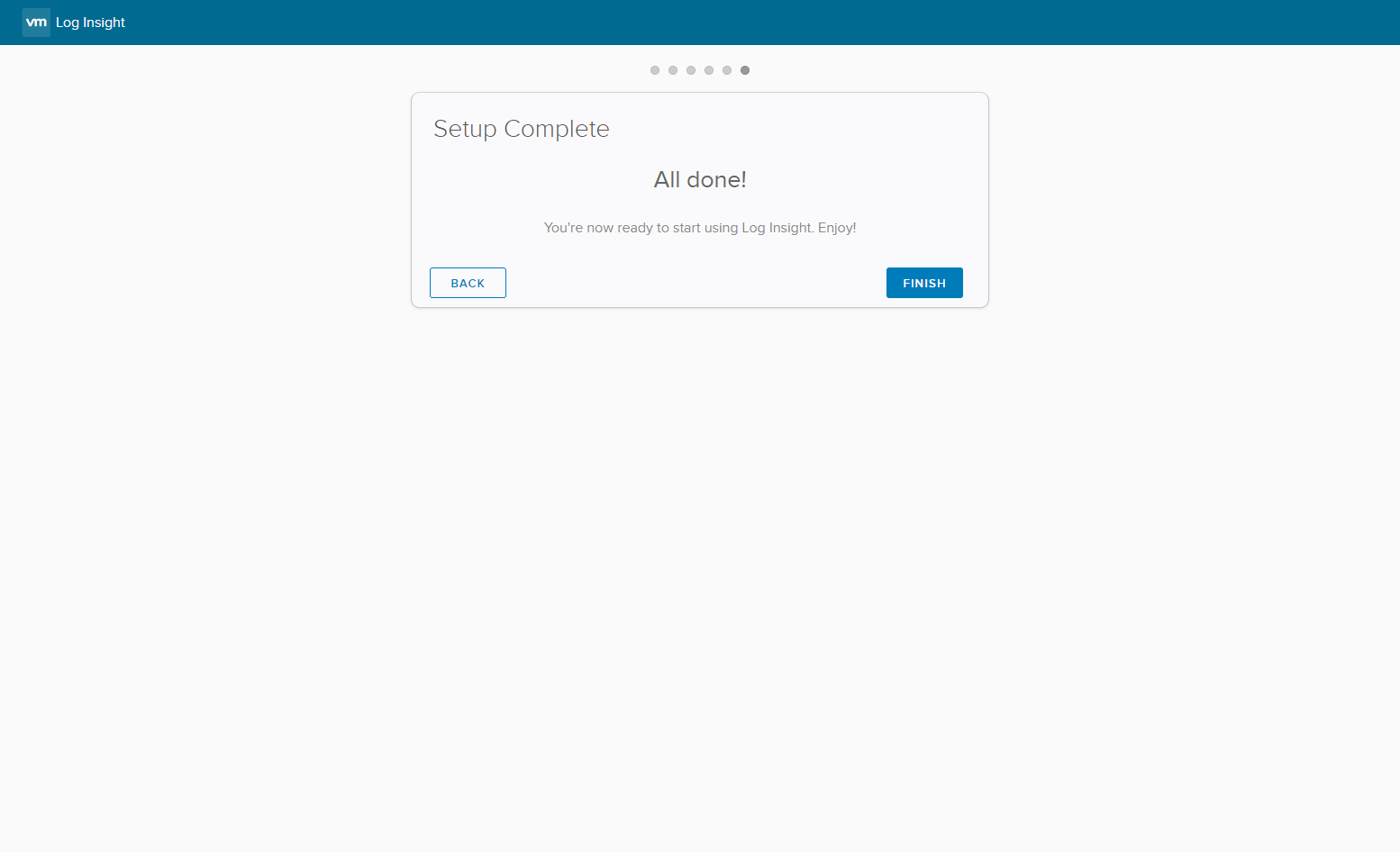
- Click Finished.
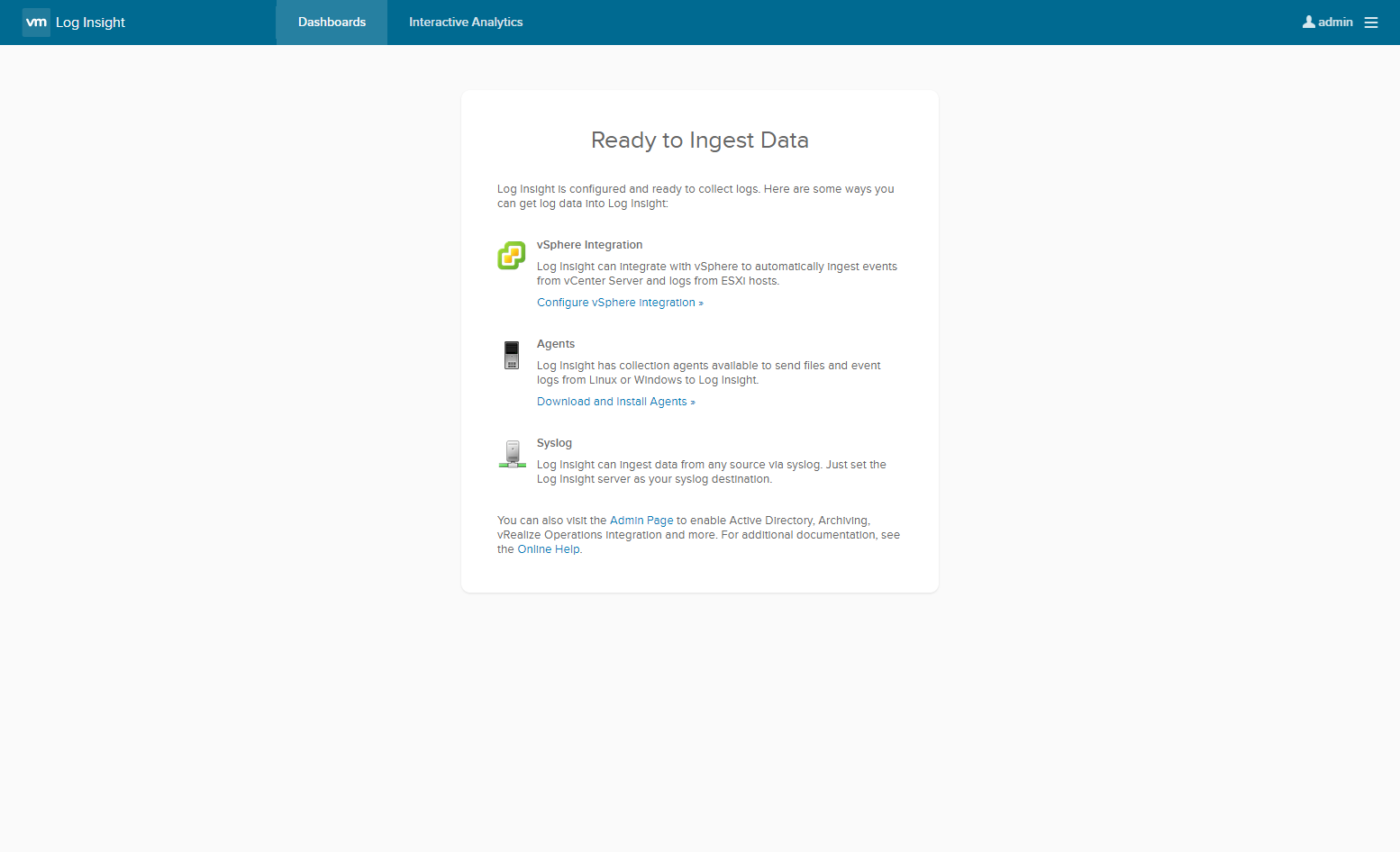
- Click Configure vSphere Integration.
Configure vSphere Integration
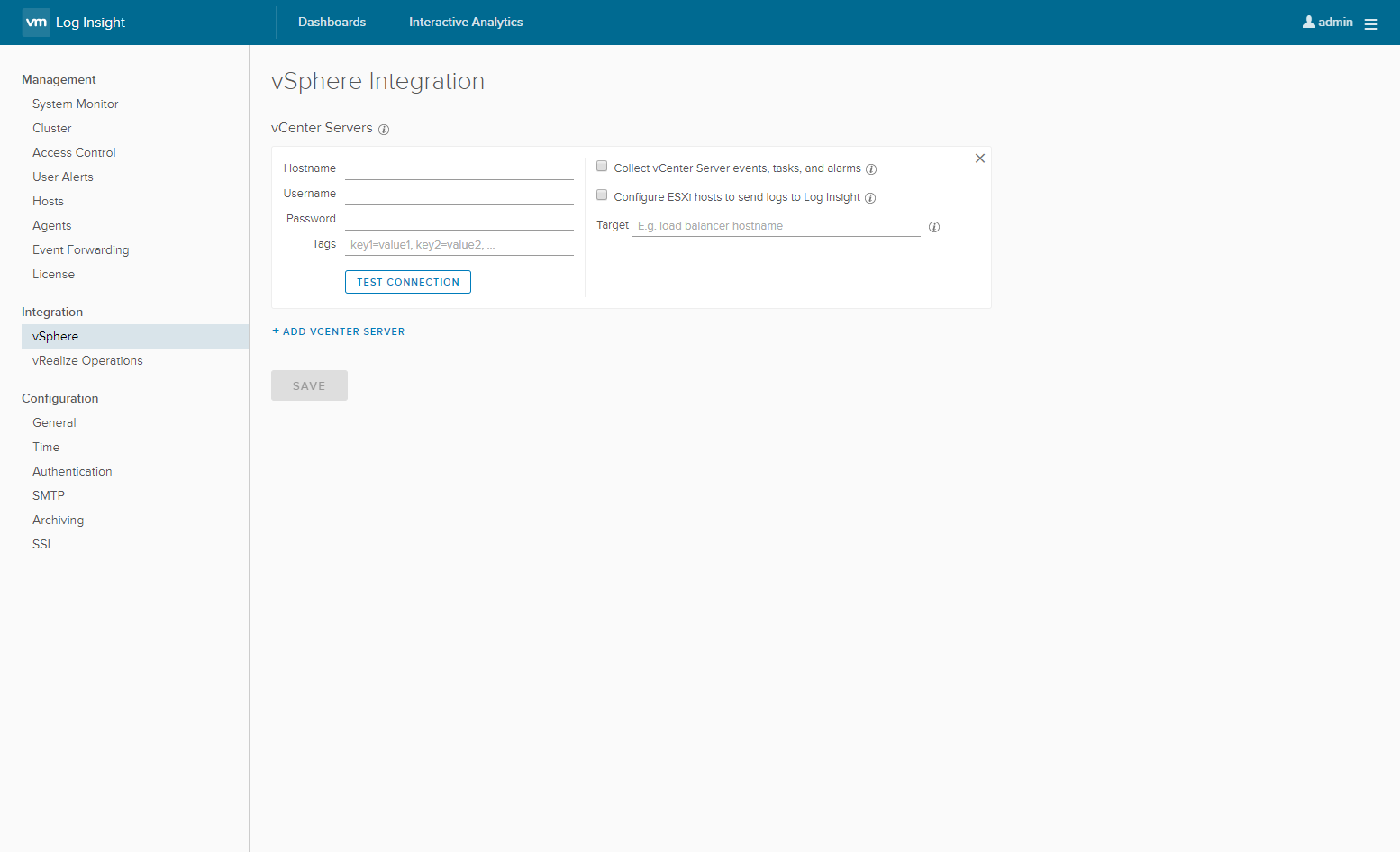
- Type the Hostname (vcenter.fqdn), the Username, the Password. (optionally) Check the Connect vCenter Server events, tasks and alarms checkbox. (optionally) Check the Configure ESXi hosts to send logs to Log Insight checkbox. Click Test Connection.
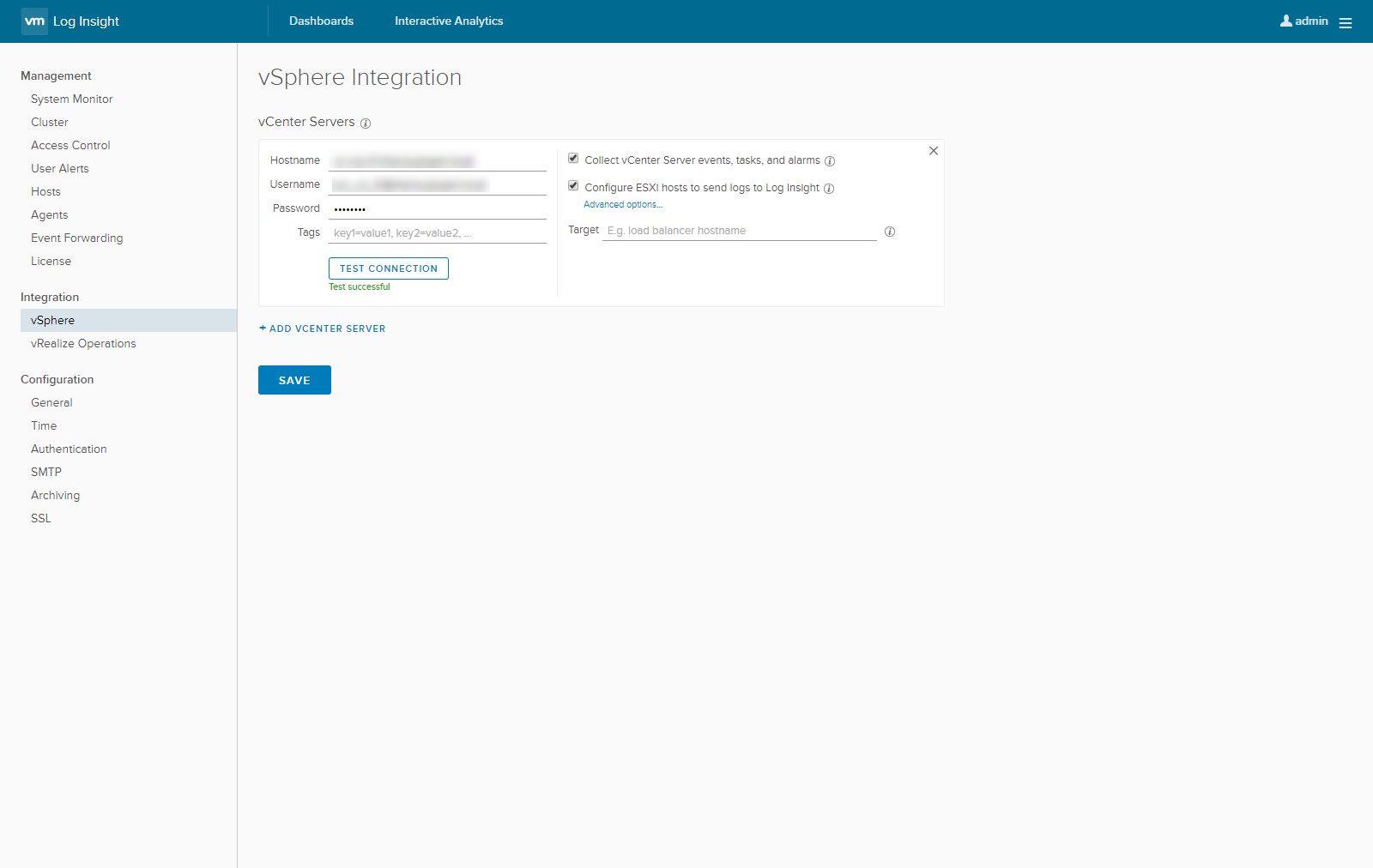
Note:
The user account used for integration with vCenter and ESXi needs to have sufficient permissions allocated at the root (vCenter object):
Host.Configuration.Change settingsHost.Configuration.Network configurationHost.Configuration.Advanced settingsHost.Configuration.Security profile and firewall
- Click Save.
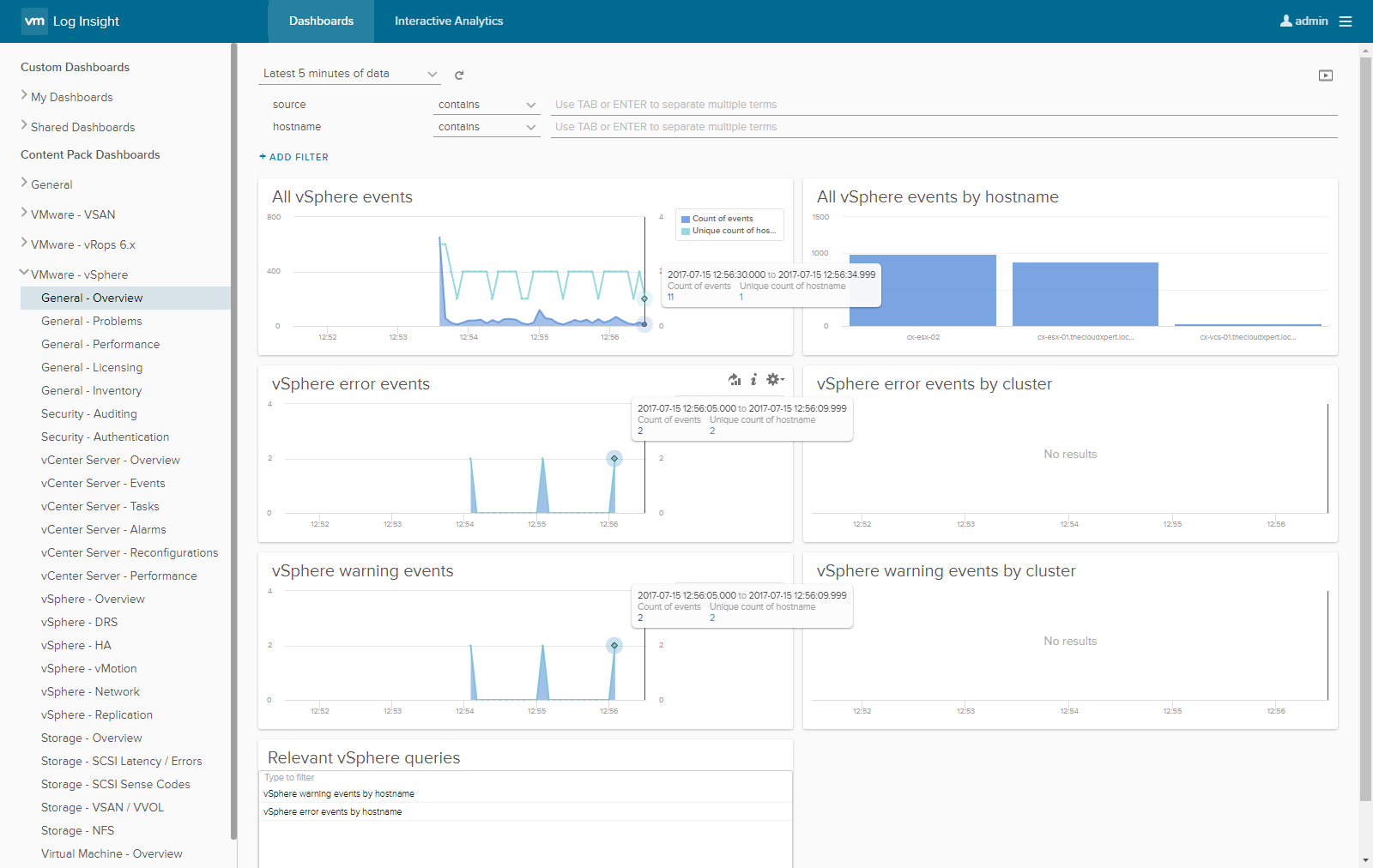
- Click Dashboards and then expand VMware-vSphere to show what is being captured!
Published on 15 July 2017 by Christopher Lewis. Words: 462. Reading Time: 3 mins.
Share this article on:
Related Post(s):
- HOWTO: Configure Role Based Access Management in vRealize Orchestrator 7.3 Control Center ()
- HOWTO: Configure a Standalone vRealize Orchestrator 7.3 Appliance ()
- Introducing the vRealize Automation 7.3 - Health Service ()
- PRO TIP: Knowing when to install vRealize Automation 7.x IaaS Prerequisites manually ()
- Troubleshooting a hanging Blueprint Issue in vRealize Automation 7.x ()
About the Author:

Name: Christopher Lewis
Twitter/X: thecloudxpert
Role: Domain Expert - VCF Automation & VCF Operations
Company: Broadcom
Recent Posts by Christopher Lewis:
Blog Categories:
vmware260
certification91
vrealize automation80
vcap48
nsx45
nsx v41
vmworld36
vrealize suite lifecycle manager20
vrealize suite14
vrealize orchestrator13
aria automation9
general9
vexpert9
vmware aria automation9
vsphere9
powercli8
microsoft7
active directory6
powershell6
windows6
certificate authority5
certificates5
vcf5
vmug5
vmware aria operations5
vrealize operations manager5
vsan5
vcenter4
vmware cloud3
aria operations2
aws2
home lab2
vcap62
vcix2
vmware explore2
vmware identity manager2
vrealize business2
Top Tags:
vmware 99+
vrealize automation 74
vcap6 cma 48
vcap6 45
nsx v 43
vcap6 nv 37
vcix6 nv 36
vmworld 35
howto 33
barcelona 24
vrealize orchestrator 21
vrslcm 20
vexpert 19
api 18
vmworld 2016 13
vra 13
certificates 12
vmware aria 12
vsphere 12
vrealize suite lifecycle manager 11
multi tenancy 9
vcap 9
vmware aria automation 9
vmworld 2017 9
platform services controller 8
powercli 8
vmug 8
vrealize operations 8
certification 7
microsoft 7
powershell 7
vsan 7
active directory 6
psc 6