




Warning! The content within this article is over 36 months old and, therefore, may be out of date.
Upgrading to VMware vRealize Suite Lifecycle Manager v2.1
Share this article on:



VMware vRSLCM
Published on 3 May 2019 by Christopher Lewis. Words: 297. Reading Time: 2 mins.
Introduction
In this really short blog post we’re going to be showing the step by step process of upgrading your existing deploy of VMware vRealize Suite Lifecycle Manager (vRSLCM) to the latest version (which at the time of writing is v2.1).
Why upgrade to vRSLCM 2.1?
- You can now manage the lifecycle of a VMware Identity Manager provider (i.e. change the vIDM configuration settings!).
- You can now remove single components/applications from a deployment without having to delete the whole deployment.
- You can now define product level certificates for vRealize Automation (i.e. separate IaaS Web and IaaS Manager certificates).
Full release notes for VMware vRealize Suite Lifecycle Manager 2.1 can be found here .
Step by Step Guide
Prerequisites
- A deployed and working version of vRSLCM prior v2.1
- An internet connection to enable the download of the upgrade.
Note:
Make sure you have a VM-level snapshot before you start the upgrade process so you can roll back if it fails.
Walkthrough
- Open a browser and navigate to
https://<vrslcm.fqdn>.
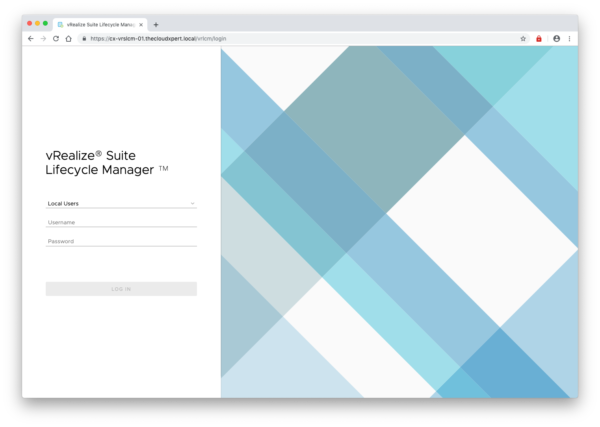
- Log into vRSLCM using either using the default administration account (admin@localhost) or select VMware Identity Manager from the drop down.
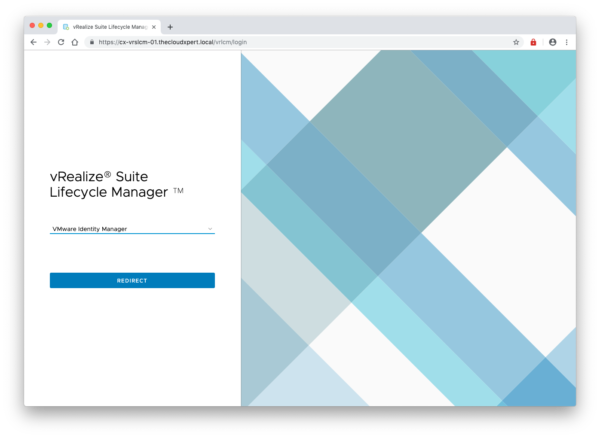
- Click Redirect.
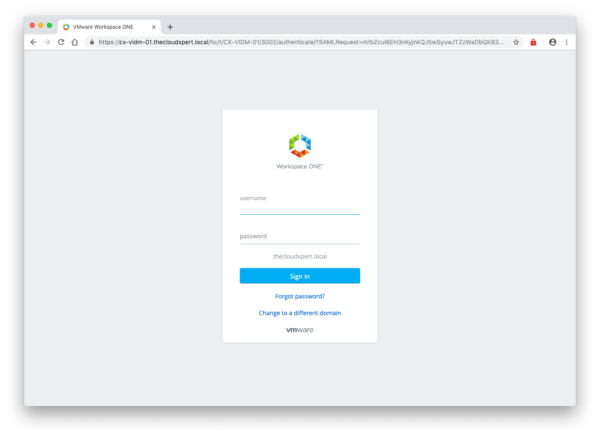
- Type the username and password of a user with the LCM Admin role assigned and click Sign-In.
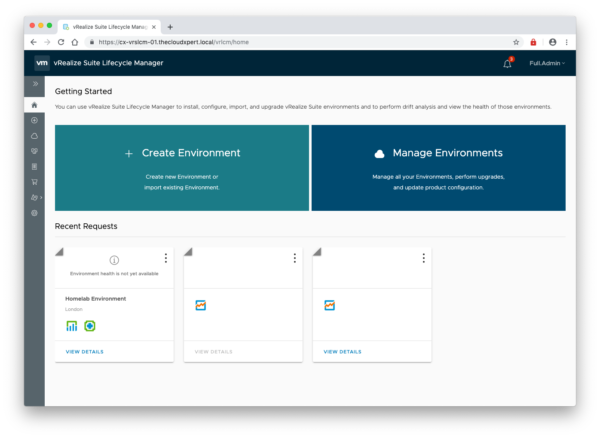
- Click Settings.
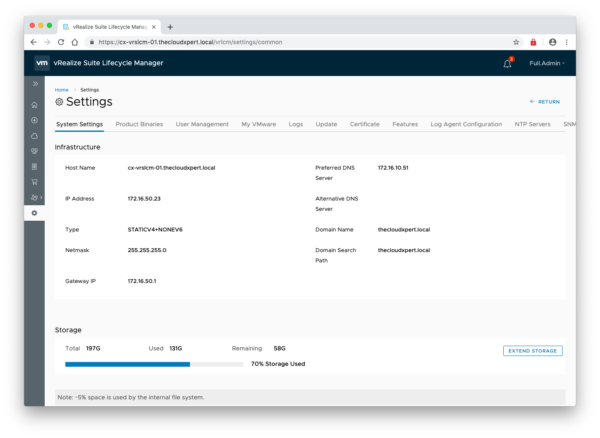
- Click Update.
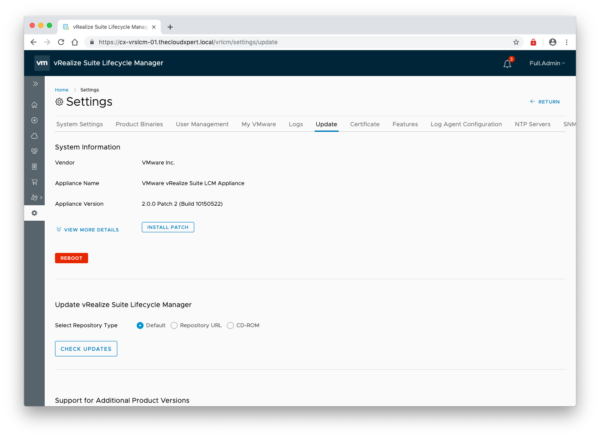
- Click Check Upgrades.
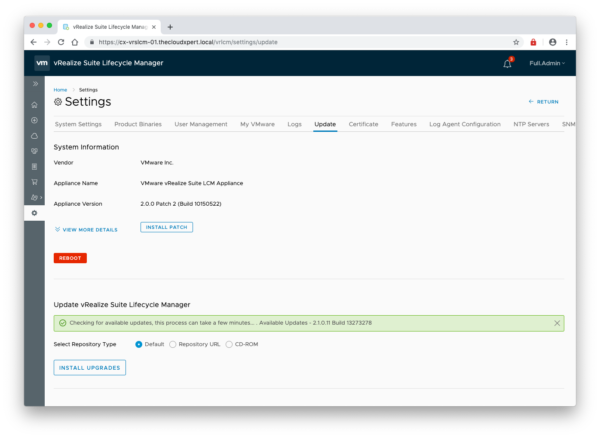
- Click Install Upgrade.
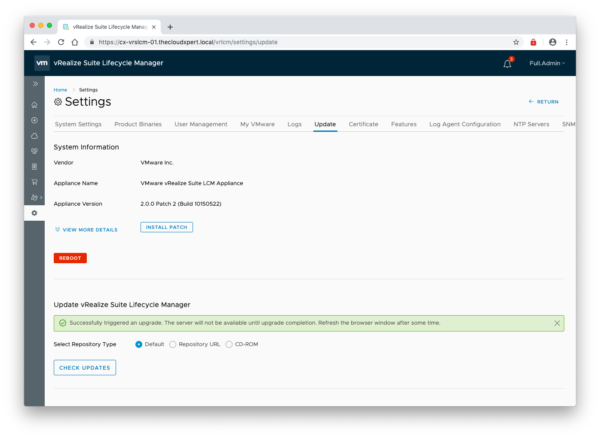
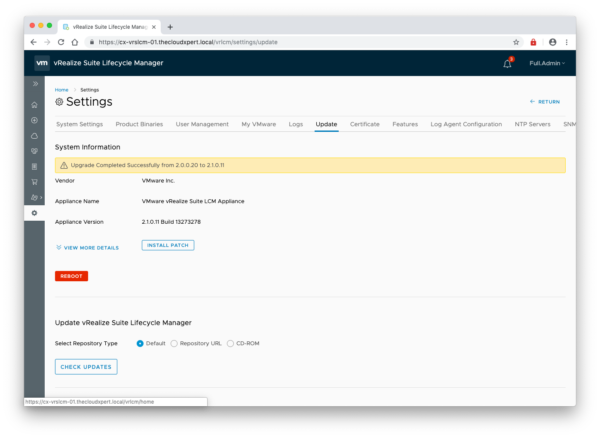
- Once the upgrade has completed, click Reboot.
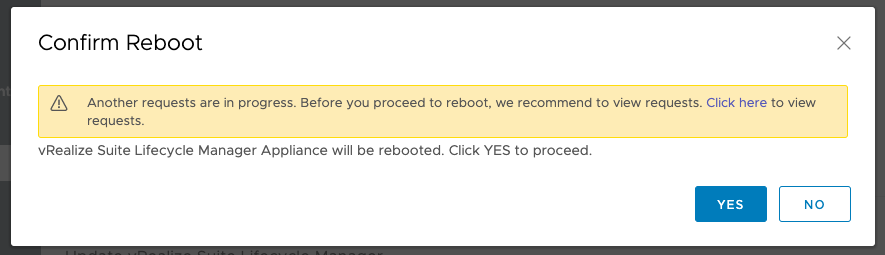
- If prompted with the warning, check to confirm it is OK to reboot and then click Yes.
Note:
You may notice no changes in the UI straight away, so refresh the browser window and log in again if necessary.
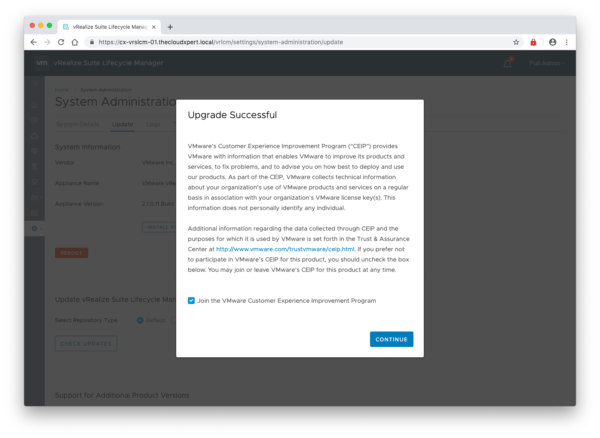
- Click Continue.
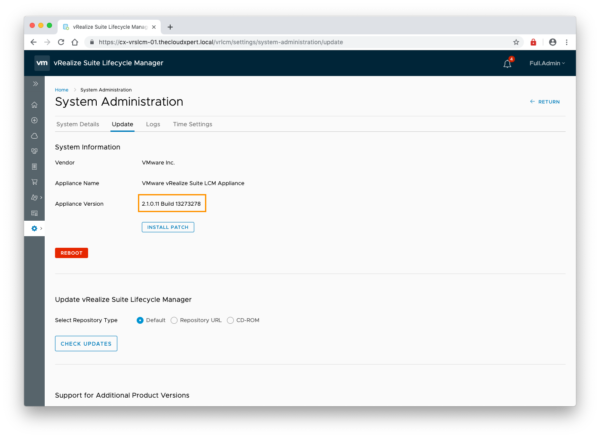
- Navigate to Settings > System Administration > Update and confirm the upgrade has taken place.
Note:
The changes in Settings UI from v2.0 to v2.1
And that is all there is to it!
Published on 3 May 2019 by Christopher Lewis. Words: 297. Reading Time: 2 mins.
Share this article on:
Related Post(s):
- vRealize Suite Lifecycle Manager (vRSLCM) SSLHandshakeException error after updating VIDM SSL certificate ()
- VMware vRealize Suite Lifecycle Manager (vRSLCM) - The tale of SSO and RBAC ()
- NorthEast VMUG - February 2019 - vRSLCM Notes, Tips and Tricks from the Field ()
- Southwest VMUG - March 2019 - vRSLCM Notes, Tips and Tricks from the Field v2 ()
- Achievement Unlocked: VMware Certified Implementation Expert 6 - Cloud Management & Automation ()
About the Author:

Name: Christopher Lewis
Twitter/X: thecloudxpert
Role: Domain Expert - VCF Automation & VCF Operations
Company: Broadcom
Recent Posts by Christopher Lewis:
Blog Categories:
vmware260
certification91
vrealize automation80
vcap48
nsx45
nsx v41
vmworld36
vrealize suite lifecycle manager20
vrealize suite14
vrealize orchestrator13
aria automation9
general9
vexpert9
vmware aria automation9
vsphere9
powercli8
microsoft7
active directory6
powershell6
windows6
certificate authority5
certificates5
vcf5
vmug5
vmware aria operations5
vrealize operations manager5
vsan5
vcenter4
vmware cloud3
aria operations2
aws2
home lab2
vcap62
vcix2
vmware explore2
vmware identity manager2
vrealize business2
Top Tags:
vmware 99+
vrealize automation 74
vcap6 cma 48
vcap6 45
nsx v 43
vcap6 nv 37
vcix6 nv 36
vmworld 35
howto 33
barcelona 24
vrealize orchestrator 21
vrslcm 20
vexpert 19
api 18
vmworld 2016 13
vra 13
certificates 12
vmware aria 12
vsphere 12
vrealize suite lifecycle manager 11
multi tenancy 9
vcap 9
vmware aria automation 9
vmworld 2017 9
platform services controller 8
powercli 8
vmug 8
vrealize operations 8
certification 7
microsoft 7
powershell 7
vsan 7
active directory 6
psc 6