



VCF 9 Day 2 - Commissioning new ESX Hosts



VMware VCF
Published on 13 February 2026 by Christopher Lewis. Words: 639. Reading Time: 3 mins.
For some (hopefully good) reasons you need to add new ESX hosts to your VCF 9 environment? First you will need to commission the ESX hosts into service before you can do anything. Let us take a look how easy that is to do!
But first, let us think about what could have led to the decision to add additional ESX hosts to VCF 9.
The two main reasons are:
- Expand an existing Workload Domain (such as the Management Workload Domain)
- Create a new Workload Domain
Now, obviously, with technology refresh there maybe a reason to replace existing hardware with new hardware as well, but I think that is a combination of Expand and then Decommission. I expected to be able to do this task within VCF Operations because that is where we can add a new workload domain. It was only when was researching that I realised the task is completed in vCenter!
With that in mind, let us walk through how to commission a ESX host so that it can be used to scale or create new Workload Domains.
Step By Step Guide
Official Tech Docs
The official Broadcom Tech Document is located under Commission ESX Hosts .
Prerequisites
Only a few of the prerequisites in the list are included below because they are relevant to our environment. The full list can be found in the Broadcom Tech Docs - Commission ESX Hosts .
To complete the step by step guide, you will need have completed the following:
- Successfully deployed ESX host to the correct version (we’re using VCF 9.0.2 in this post).
- DNS records (forward and reverse) for each ESX hosts being deployed.
- All physical NICs in each ESX host must be a minimum of 10GbE.
- All ESX Hosts for vSAN-based workload domains are vSAN-compliant and certified on the VMware Hardware Compatibility Guide.
In addition, if we are completing this in a homelab where not all NICs are 10GbE and the NVMe drives are not on the HCL, we will need to make some tweaks to the SDDC manager appliance to make the commissioning process work. We need to add the enable.speed.of.physical.nics.validation=false and vsan.esa.sddc.managed.disk.claim=true to the /etc/vmware/vcf/operationsmanager/application.properties file and restart then operationsmanager service (using systemctl restart operationsmanager).
For more information, see this post by William Lam : Enhancement in VCF 9.0.1 to bypass vSAN ESA HCL & Host Commission 10GbE NIC Check
Walkthrough
Commissioning ESX Hosts
- Navigate to the Management vCenter url (i.e.
https://<vc01m.fqdn>) in the web browser and log in with appropriate administrative credentials, such asadministrator@vsphere.local.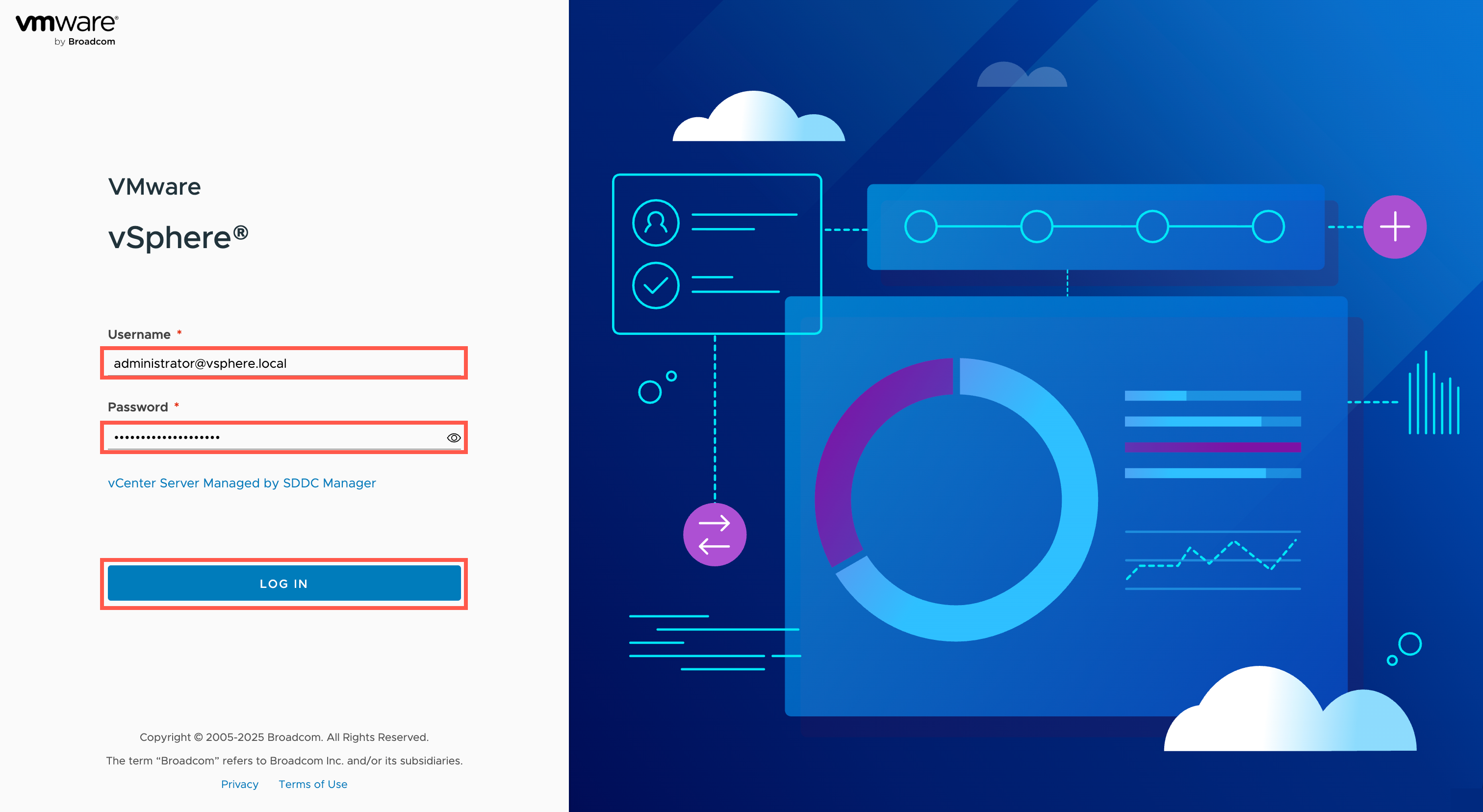
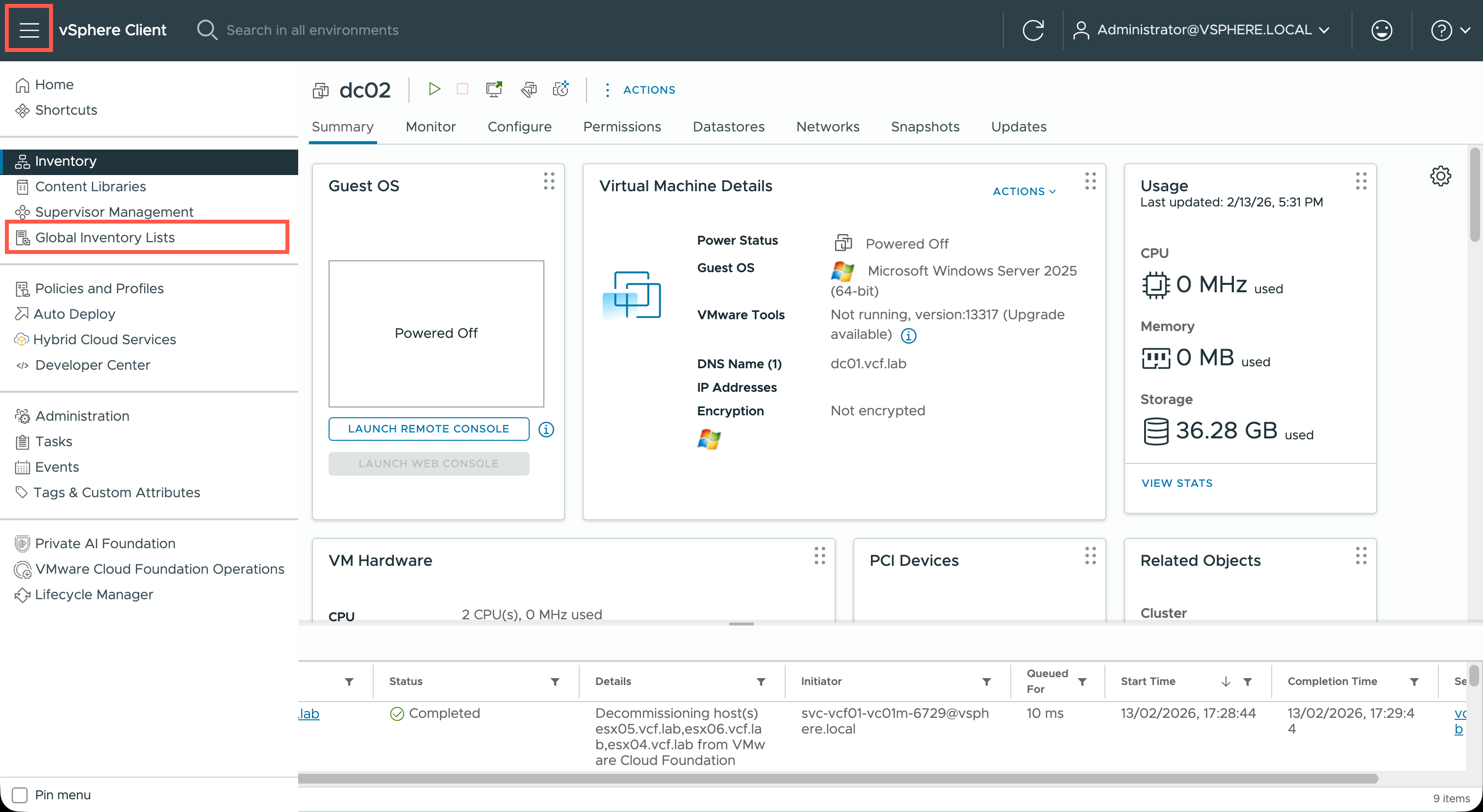
- Within the vCenter, click the menu icon and then click Global Inventory Lists.
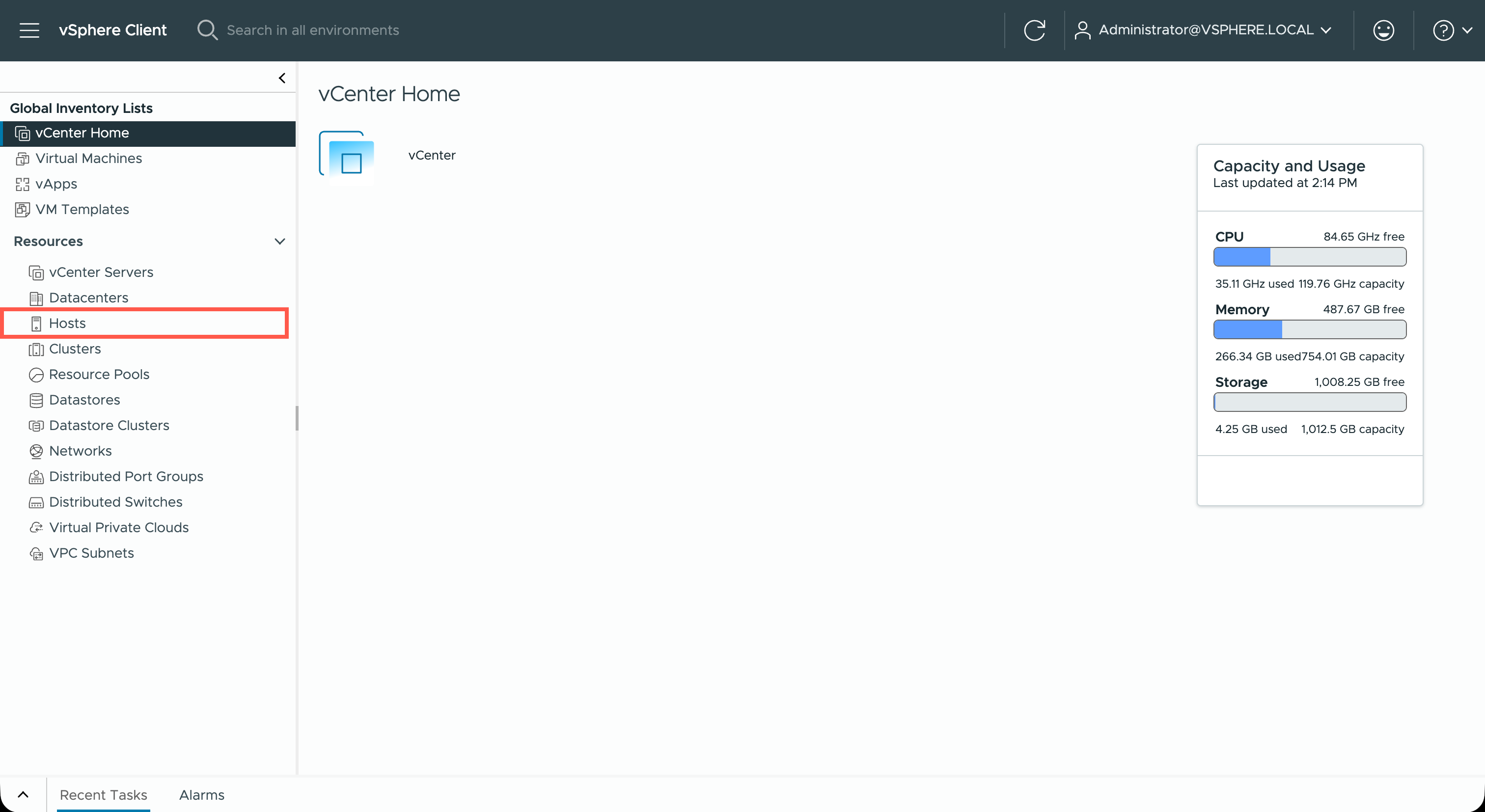
- At the Global Inventory Lists, click Hosts.
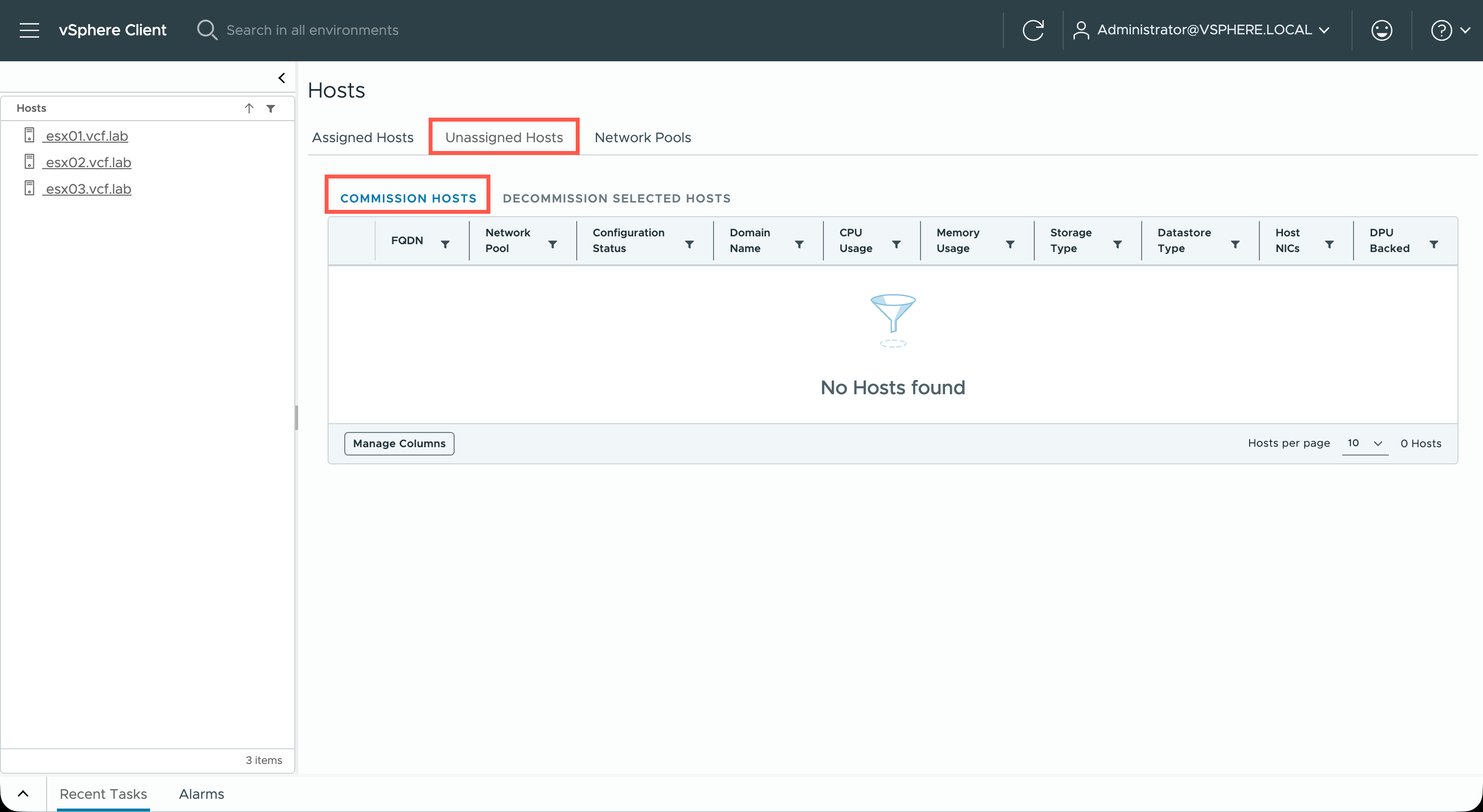
- At the Hosts page, click Unassigned Hosts and then click COMMISSION HOSTS.
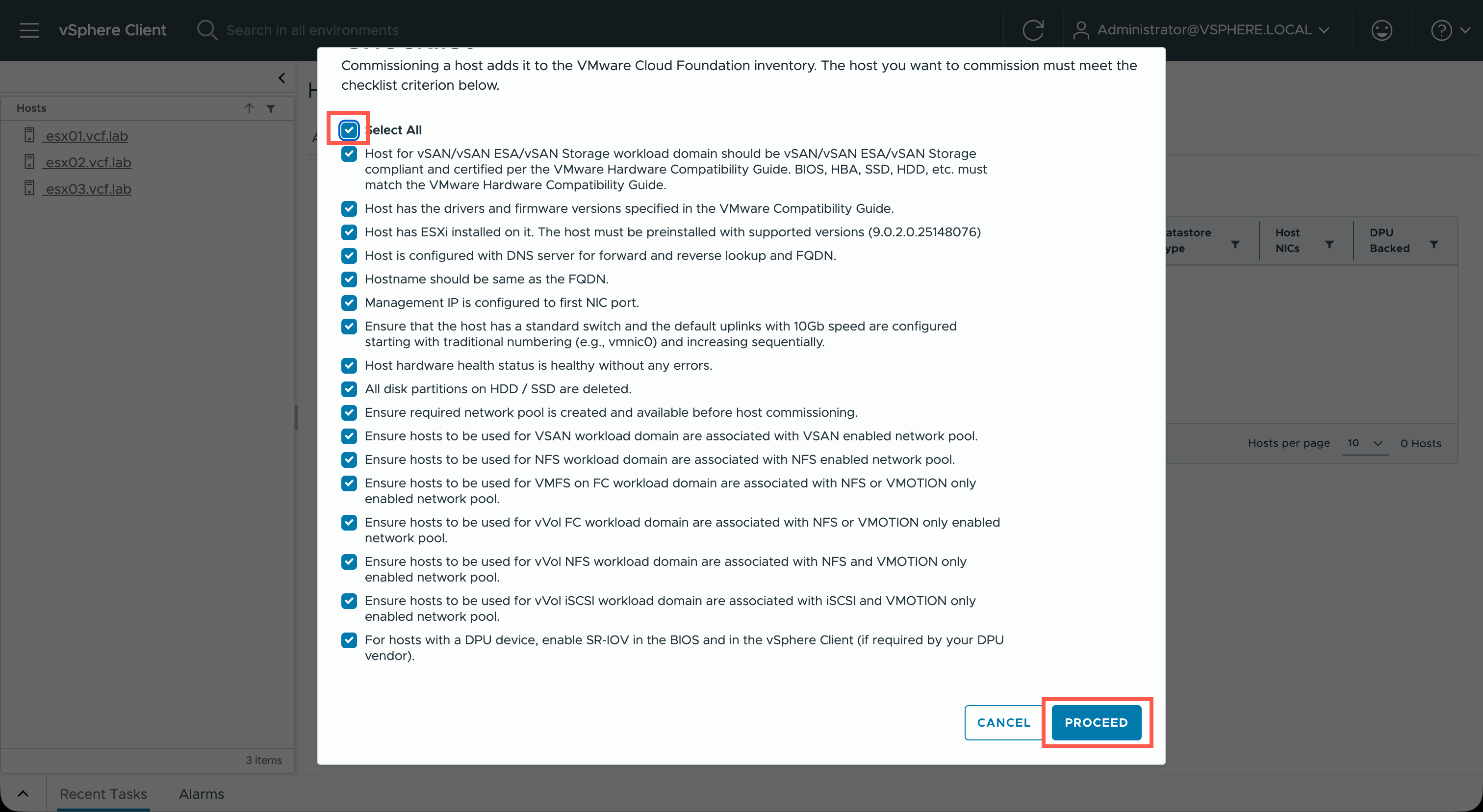
- At the Checklist dialog, check the Select All check box and then click PROCEED.
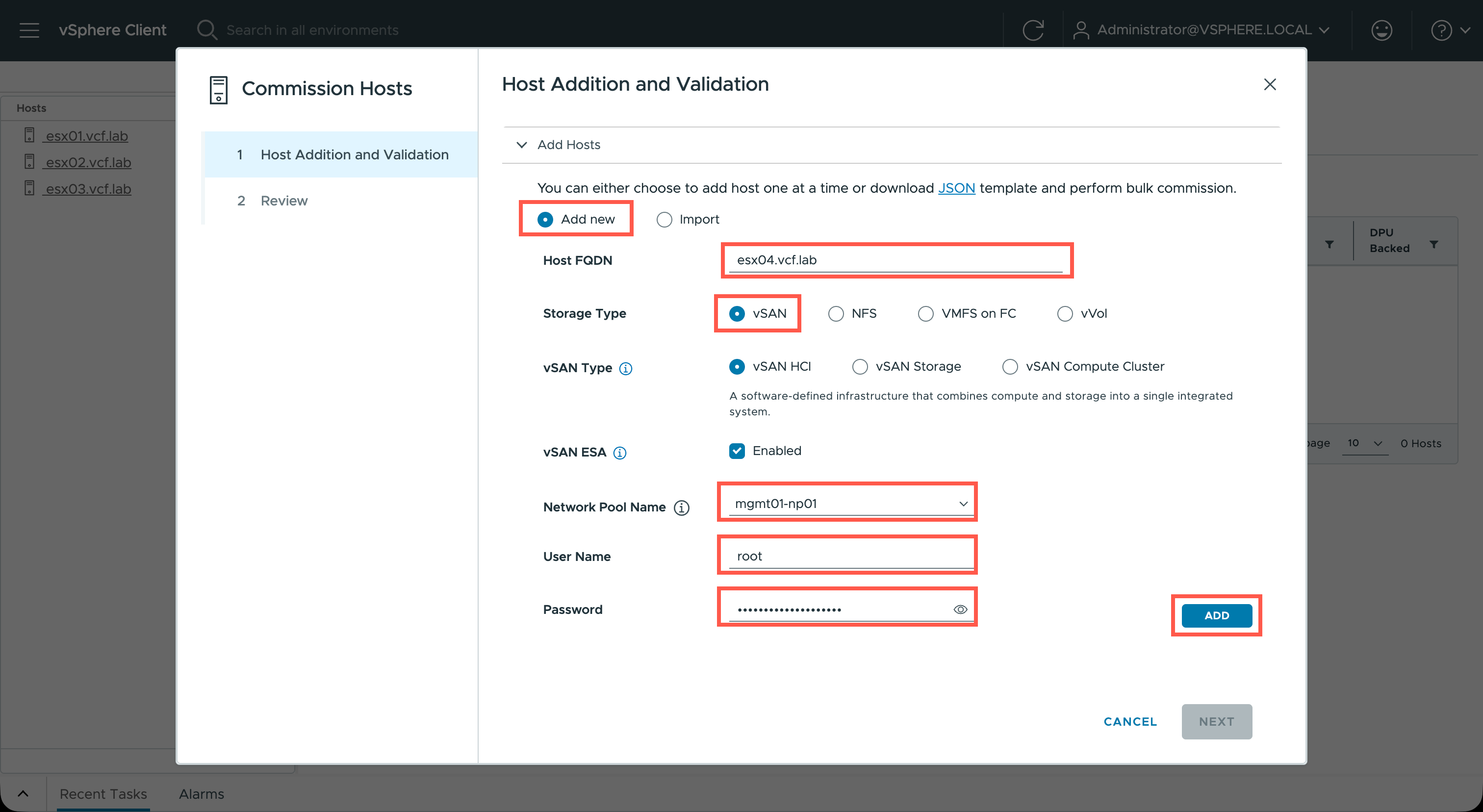
- At the Commission Hosts wizard, for each of the hosts to be commissioned complete the following:
- Select the Add new option.
- At the Host FQDN field, type the
<esx.fqdn>.- At the Storage Type field, select the appropriate storage for the host. (we’re using vSAN)
- At the Network Pool Name dropdown, select the appropriate network pool. (We are using the mgmt01-np01 pool.)
- At the User Name field, type
root.- At the Password field, type the
<root.password>.- Click ADD.
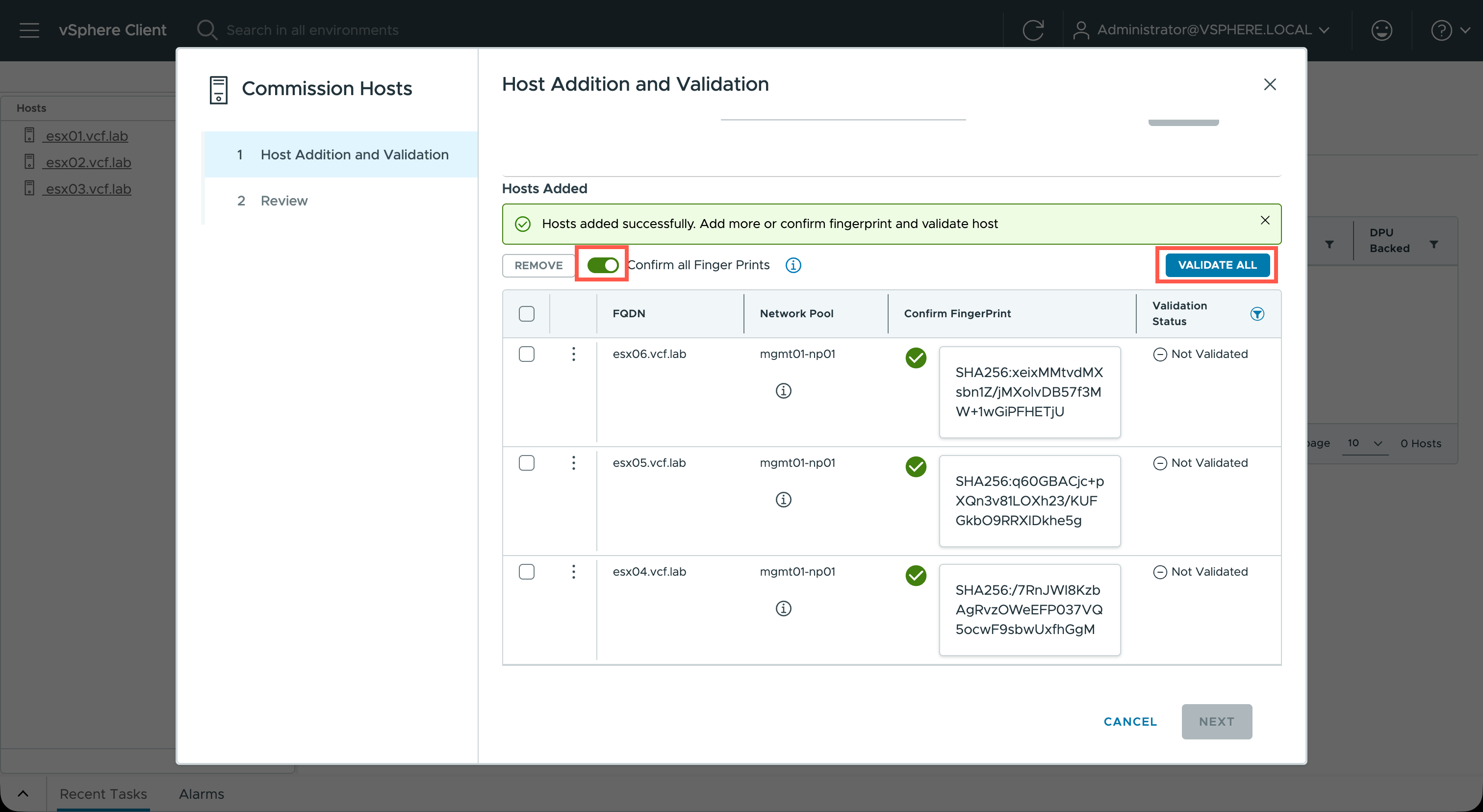
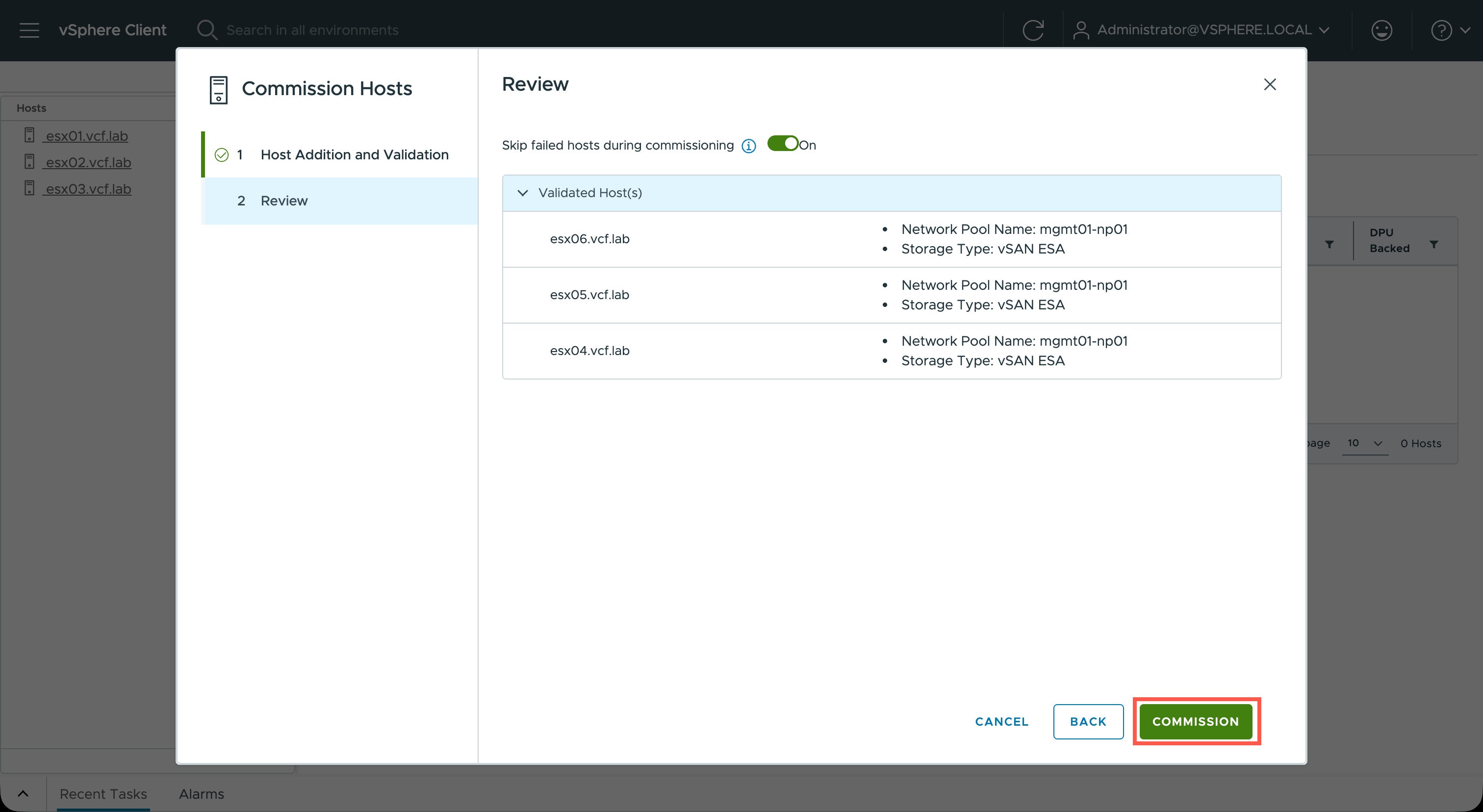
- At the Commission Hosts wizard, scroll down and click Confirm all Finger Prints toggle and click VALIDATE ALL.
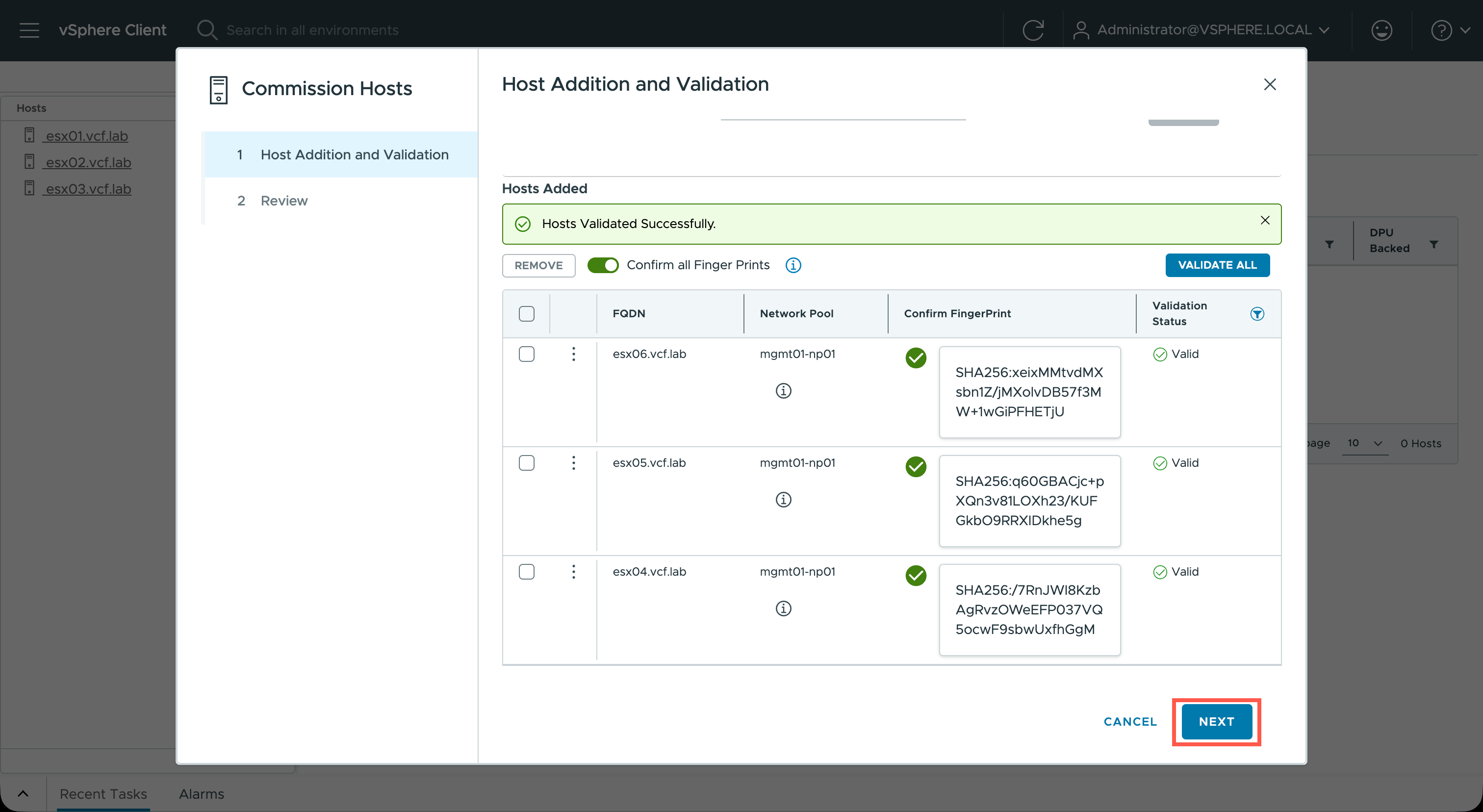
- At the Commission Hosts wizard, click NEXT.
- At the Commission Hosts wizard, click COMMISSION.
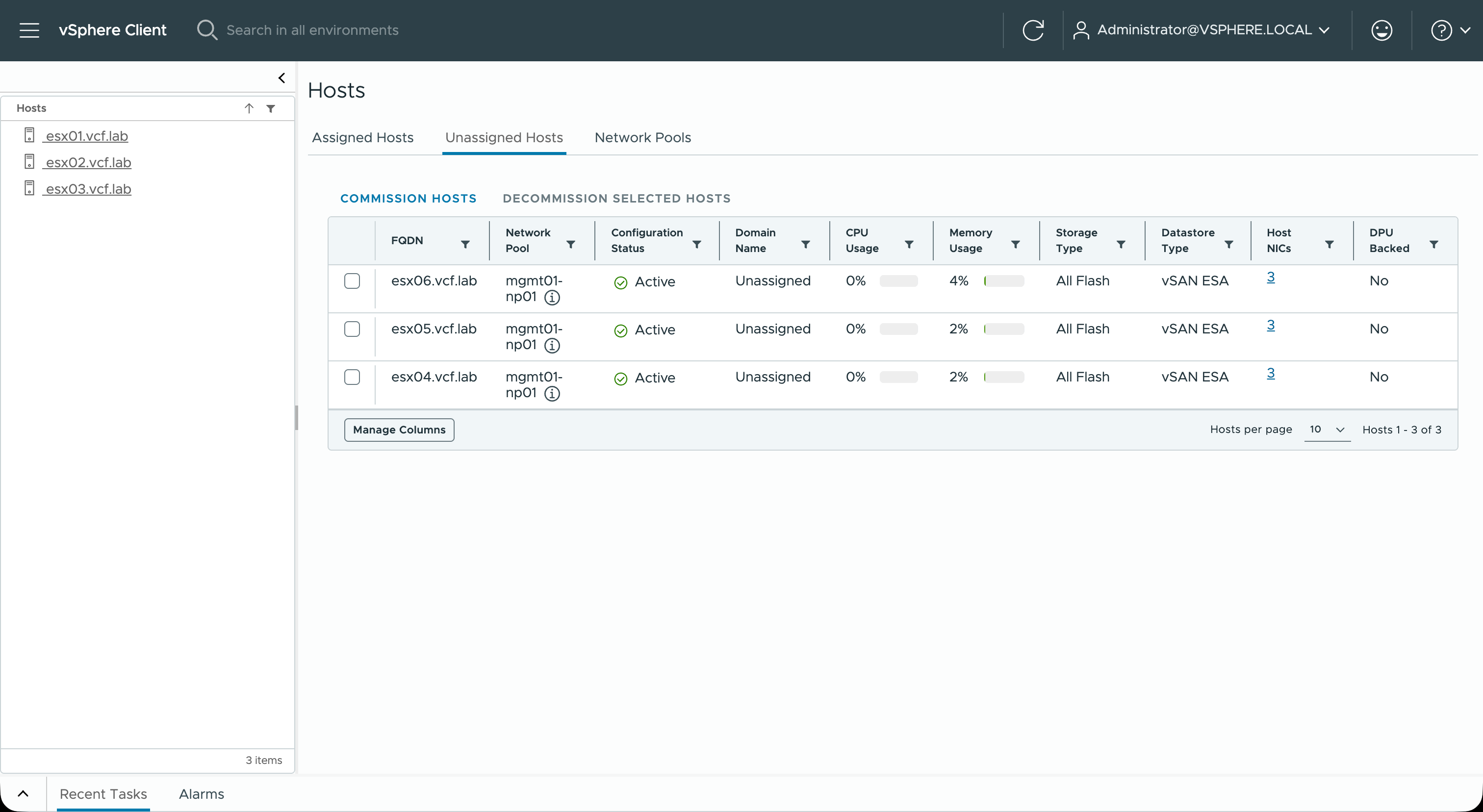
- At the Hosts page, click Unassigned Hosts, we should now see a number of hosts that are commissioned but unassigned.
Recap
In this article we reviewed the process that an administrator would take to make new ESX hosts available to either create or scale a VCF Workload Domain cluster.
Published on 13 February 2026 by Christopher Lewis. Words: 639. Reading Time: 3 mins.
- VCF 9 Day 2 - Installing VCF Operations for logs ()
- New Homelab - Who dis? ()
- The Top 6 Reasons to Visit the Hands-on Labs @ VMware Explore Barcelona 2023 ()
- Top 10 Things to Know Before You Go @ VMware Explore Barcelona 2023 ()
- VMware Aria Automation Advanced Workload Placement using Allocation-based Capacity Metrics ()